
The TV sticks that work, and how to set each one up.
Dislab plays on Amazon Fire TV sticks, the Amazon Signage Stick and Android TV or Google TV sticks, plugged into any TV with HDMI. Here is exactly which models, which to avoid, and the steps for each.
Amazon Fire TV sticks
Dislab runs on Fire TV sticks with Amazon’s Fire OS (built on Android). The model code is on the box and in the stick’s Settings › My Fire TV › About.
| Stick | Year | Model | System | Memory |
|---|---|---|---|---|
| Fire TV Stick 4K Max (2nd gen)Our pick: fastest, 16 GB | 2023 | AFTKRT | Fire OS 8 | 2 GB |
| Fire TV Stick 4K (2nd gen)Our pick | 2023 | AFTKM | Fire OS 8 | 2 GB |
| Fire TV Stick 4K Plus | 2025 | AFTMA08C15 | Fire OS 8 | 2 GB |
| Fire TV Stick HDFine for photos and signs | 2024 | AFTSS | Fire OS 7 | 1 GB |
| Fire TV Stick 4K Max (1st gen) | 2021 | AFTKA | Fire OS 7 | 2 GB |
| Fire TV Stick (3rd gen) and Lite | 2020 | AFTSSS / AFTSS | Fire OS 7 | 1 GB |
| Fire TV Stick 4K (1st gen) | 2018 | AFTMM | Fire OS 6 | 1.5 GB |
| Fire TV Cube (3rd gen) | 2022 | AFTGAZL | Fire OS 7 | 2 GB |
Fire TV sticks with Vega OS
Amazon’s newest sticks run Vega OS instead of Android, and can’t run Dislab: Fire TV Stick 4K Select (2025, AFTCA002), Fire TV Stick 4K (2026, AFTCR001) and Fire TV Stick HD (2026, AFTCL001).
The names repeat older ones: check the year or the model code before buying.
Fire TV sticks from before 2018
The 1st and 2nd generation Fire TV Stick and the Basic Edition (Fire OS 5) are too old for Dislab.
Roku and Apple TV don’t run Dislab either; any computer or iPad with Chrome, Edge or Safari can, at play.dislab.app.
Setting up a Fire TV stick
About five minutes per TV. You only need the remote once.
Plug it in
Plug the stick into a spare HDMI port and its power adapter into the wall (not the TV’s USB port, which can switch off with the TV). Turn the TV to that input and follow the Fire TV’s own setup: language, Wi-Fi and an Amazon account.
Install Dislab
On the home screen, search for Dislab in the Appstore and press Get. The app is free; the plan is on your Dislab account.
Let it open by itself
Open Dislab. On Fire OS 7 sticks it opens whenever the TV turns on. On Fire OS 8 sticks, press OK on the remote to open Dislab’s menu, choose Open Dislab at power-up and switch on Display over other apps for Dislab.
Pair it
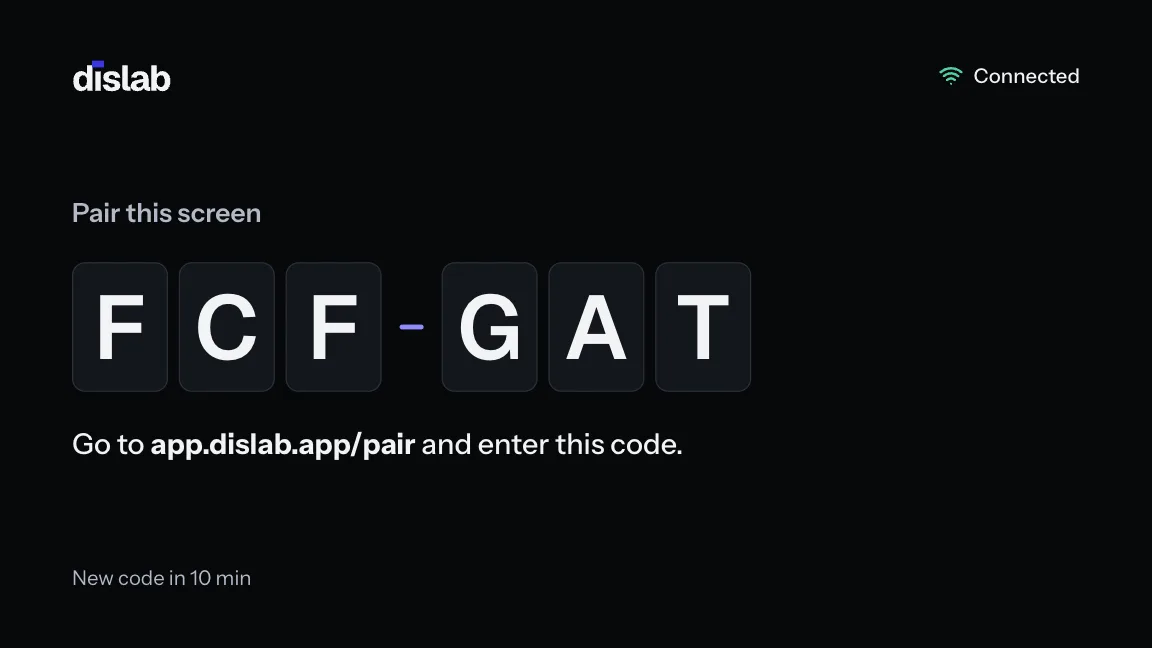
The TV shows a six-character code. On your phone or computer go to app.dislab.app/pair, type the code, name the screen and choose what it plays. It downloads everything, then plays, offline too.
Amazon Signage Stick
Amazon’s stick made for signage (a Fire TV Stick 4K Max inside). It keeps one app in front, and lets Dislab switch the TV on and off, restart the stick and install updates from your console.
- Set it up with its remote (not the phone app) and join the Wi-Fi.
- Choose Dislab as the signage app when the stick asks, or install it from the Appstore.
- Pair it at app.dislab.app/pair with the code on the TV.
- Leave it on overnight the first time, so it can install Amazon’s updates.
TV on and off, restarts and updates from the console start working once Amazon approves Dislab as a signage app (applied for). Until then it plays like any Fire TV stick.
Android TV and Google TV sticks
Any stick with Android TV or Google TV, version 7.1 or later, wherever you are. Some common ones, by where they’re sold:
| Stick | Sold in | Year | System | Memory |
|---|---|---|---|---|
| Google TV StreamerHas a network cable port | Worldwide | 2024 | Google TV 14 | 4 GB |
| Chromecast with Google TV (4K)No longer made, still common | Worldwide | 2020 | Google TV 14 | 2 GB |
| Xiaomi TV Stick 4K | Worldwide | 2022 | Android TV 11 | 2 GB |
| onn 4K Pro | United States (Walmart) | 2024 | Google TV 14 | 3 GB |
| onn 4K Plus | United States (Walmart) | 2025 | Google TV 14 | 2 GB |
| Kogan 4K Google TV Dongle | Australia (Kogan) | 2025 | Google TV 14 | 2 GB |
| Blaupunkt 4K Google TV StickBPTV30 | Australia (JB Hi-Fi, Kmart, Officeworks) | 2025 | Google TV 14 | 2 GB |
Two ways to set one up:
Ready to plug in
We set the stick up for Dislab before it reaches you: it starts straight into Dislab, the remote can’t leave it by accident, it never sleeps by itself, and from your console you can switch the TV off and on, restart it, or hand it back as an ordinary stick. Plug in power and HDMI, pair it, and it plays.
TV on and off works through HDMI-CEC, which most TVs have (Anynet+, Bravia Sync, SimpLink); it may need switching on in the TV’s settings.
On a stick you already have
Install Dislab (on Google Play soon; ask us for the app until then), then in the stick’s Settings:
1. Apps › Special app access › Display over other apps › Dislab › on, so it opens when the TV turns on.
2. Apps › Special app access › Energy optimisation (where listed) › Dislab › off.
3. Device Preferences › Screen saver › Never (where listed).
4. On Google TV: System › Power & Energy › Shut-Off Timer › When inactive › Never.
5. Open Dislab and pair it at app.dislab.app/pair.
Any computer with a browser
Open play.dislab.app in Chrome, Edge or Safari on the computer connected to the screen, and pair it with the code it shows. For screens that run all day, start Chrome in kiosk mode and turn off the computer’s sleep and screensaver.
Coming soon
Dislab Player. Plug it in, and it plays.
Our own player, set up for Dislab before it reaches you: no account, no app to find, no settings. Power, HDMI, the code, and it’s playing.
Questions
Anything else? Ask us, or look in the help centre.
Which stick should I buy?
A Fire TV Stick 4K Max (2nd gen, 2023) or Fire TV Stick 4K (2nd gen, 2023). For screens you want to manage remotely, the Amazon Signage Stick. If you’d rather avoid Amazon, an Android TV or Google TV stick set up for Dislab.
Do I need one stick per TV?
Yes, each TV has its own stick (or computer), and each is one screen on your plan.
What if the internet drops?
Every stick downloads everything first and keeps playing it offline through the period you’ve paid for.
Can I move a stick to another TV or shop?
Yes. Plug it in anywhere with Wi-Fi; to give it to another business, unpair it first in your console.
Plug in a stick, pair it, and it plays.
A$9.99 per screen a month on Pro, everything included, up to 20 screens, or one screen free with photos, videos, playlists and signs.