
From a box to a playing screen in five minutes.
Plug a small streaming stick into any TV, open Dislab, and type the code it shows into your console. That’s the whole setup. Here’s what works and how, step by step.
What works
Any TV or monitor with an HDMI port, plus one of these.
Amazon Fire TV Stick
The Fire TV sticks that run Amazon’s Fire OS (Android-based): Fire TV Stick 4K Max, 4K Plus, Fire TV Cube, and any stick bought before October 2025. Opens Dislab by itself when the TV turns on.
Not the newer Vega OS sticks: Fire TV Stick 4K Select, HD (2026) and 4K (2026).
Amazon Signage Stick
Amazon’s stick made for signage. Dislab runs on it like any Fire TV stick, and once Amazon approves Dislab, adds TV on and off, restarts and updates from your console.
Any computer or smart display with a browser
Open play.dislab.app in Chrome, Edge or Safari on a computer, mini PC or a display with a built-in browser, and pair it the same way. Handy, though a stick is better for screens that run all day.
Android TV and Google TV sticks
The Xiaomi TV Stick 4K, Chromecast with Google TV, onn 4K and similar, set up for Dislab before they reach you (or by you). Google TV sets through Google Play: coming soon.
Every stick that works, by model, and how to set each one up
Setting up a Fire TV stick
About five minutes per TV. You only need the remote once.
Plug it in
Plug the stick into a spare HDMI port on the TV and its power adapter into the wall. Turn the TV to that input, then follow the Fire TV’s own setup: language, Wi-Fi and your Amazon account.
Install Dislab
On the Fire TV home screen, search for Dislab in the Appstore and press Get. It’s free; the plan is on your Dislab account, not the stick.
Let it open by itself
Open Dislab. On Fire OS 7 sticks it opens on its own whenever the TV turns on. On newer Fire OS 8 sticks, press OK on the remote to open Dislab’s menu, choose “Open Dislab at power-up” and switch on “Display over other apps”, and it will too.
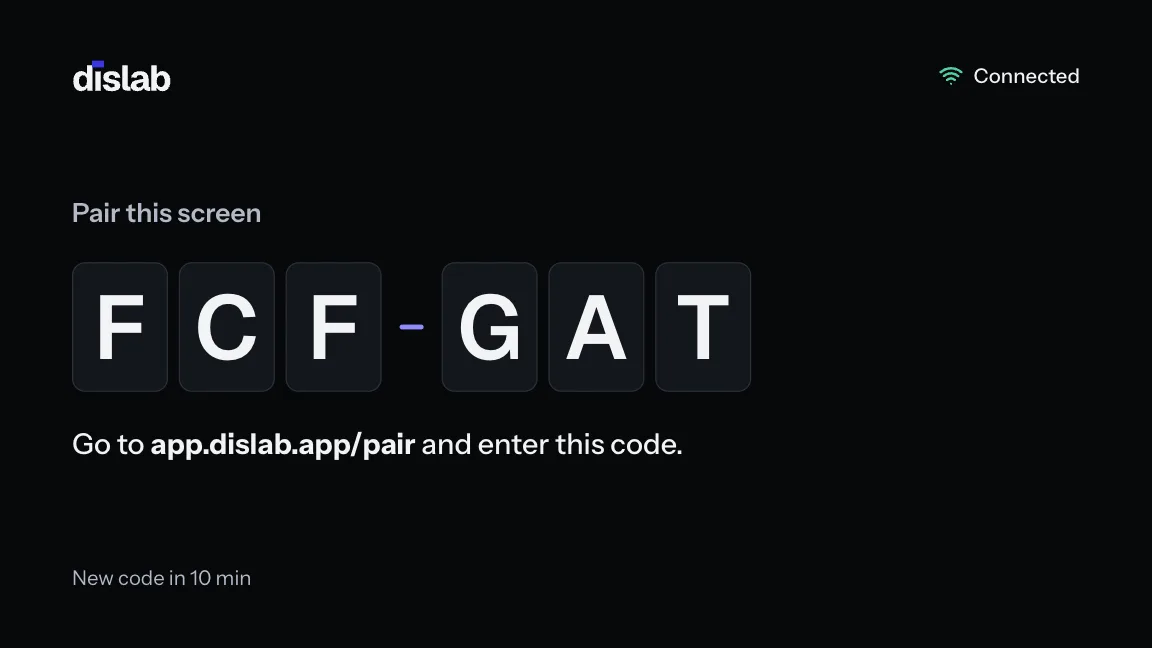
Read the code
The TV shows a six-character code. It changes every 10 minutes and never uses 0, O, 1 or I, so there’s nothing to mix up.
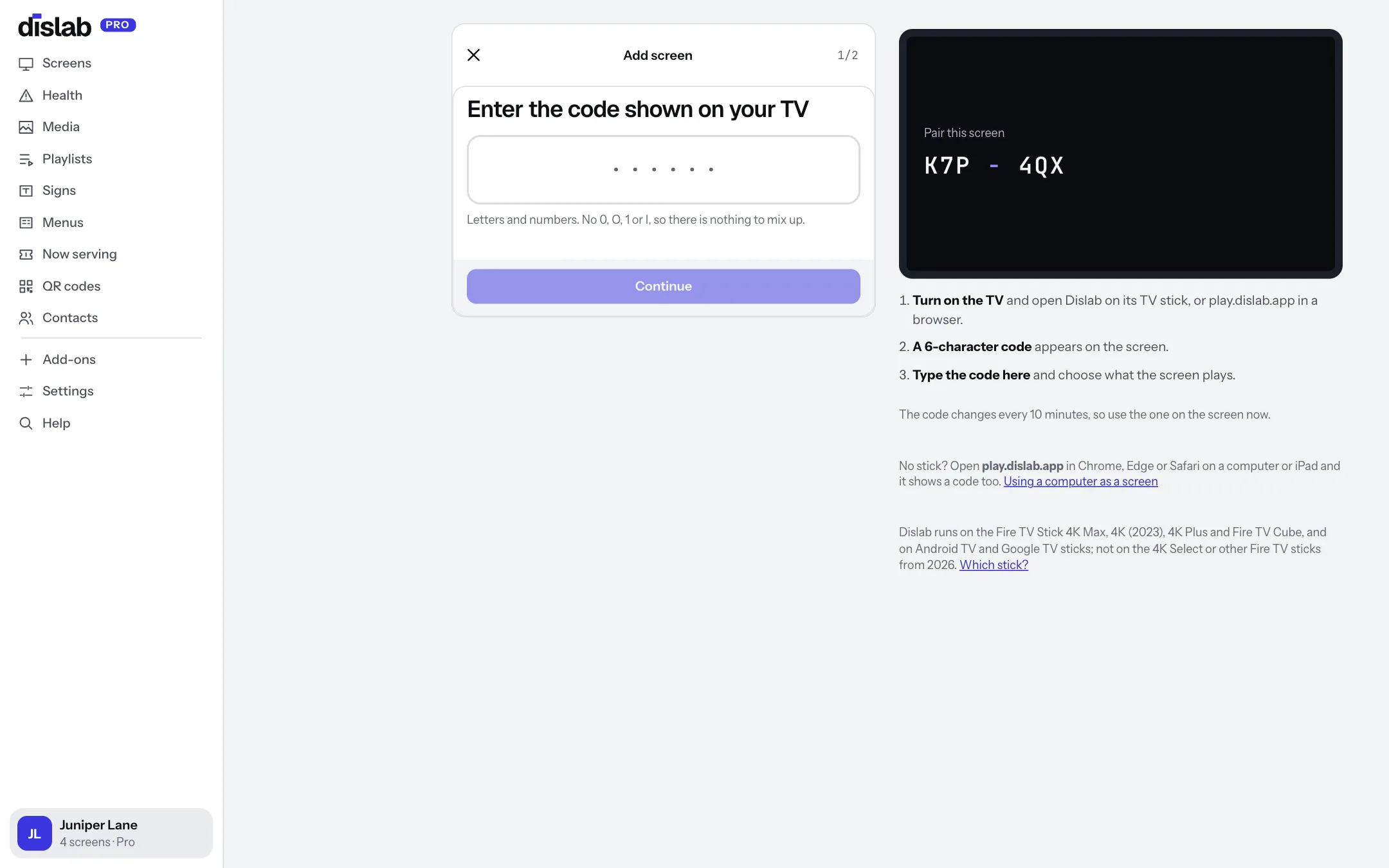
Enter it in your console
On your phone or computer, go to app.dislab.app/pair (or Screens › Add screen). Type the code, name the screen, pick its location and how it’s mounted, and choose what it plays.
 Tap anywhere to close
It syncs and plays
The TV downloads everything first, then starts playing. From now on it checks in every few minutes, picks up changes within seconds, and keeps playing what it has if the internet drops. Screens play offline through the subscription period you’ve paid for, checking in now and then to confirm it; one that can’t check in for longer than that asks to be connected.
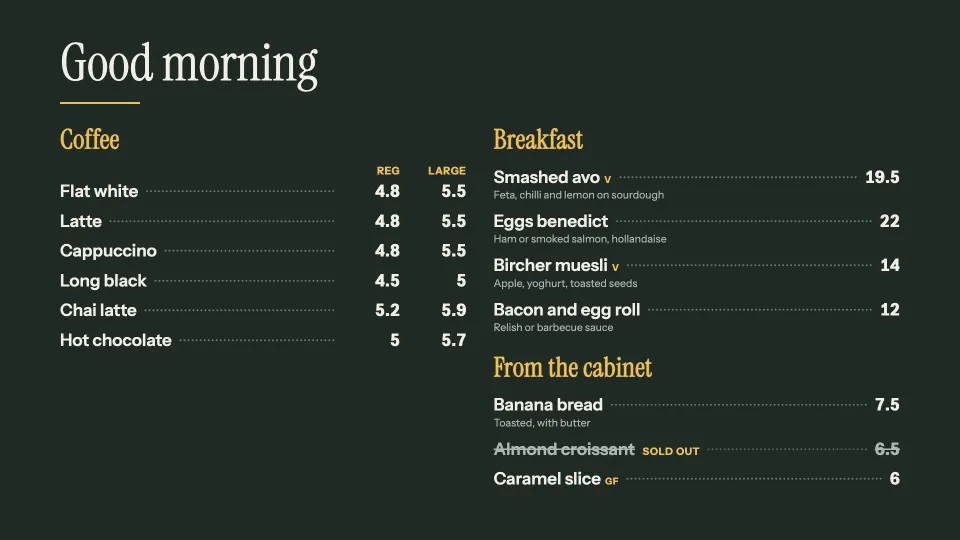
Any browser can be a screen.
Open play.dislab.app in Chrome, Edge or Safari on the computer connected to the screen. It shows a code: pair it exactly as above. Double-click for full screen.
- Plays the same playlists, signs and widgets as a TV
- Keeps playing from what it has stored if the internet drops, while your plan is active
- For screens that run all day, start Chrome in kiosk mode and turn off the computer’s sleep
After that, it looks after itself
Change it any time
Edit a sign, menu or playlist and press Save or Publish. Every screen showing it updates within seconds.
Works offline
Each screen downloads everything before it switches, then plays on its own. Schedules, menus and opening hours keep running with no internet. Screens play offline through the subscription period you’ve paid for, checking in now and then to confirm it; one that can’t check in for longer than that asks to be connected.
Tells you if it stops
If a screen goes offline while you’re open, you get an email, and another when it’s back. Managing screens
Keeps itself up to date
New features reach your screens by themselves. On the TV, press OK on the remote for its menu: Check for updates checks in at once, and it tells you if a newer Dislab app is out.
Put your first screen up today.
One screen is free, with photos, videos, playlists and signs, with no card. Pro is A$9.99 per screen a month, everything included, with 14 days free to try.