
Digital signs that keep playing with no internet
A sign that goes blank when the Wi-Fi drops is worse than no sign. Dislab screens download everything they need first and play it from their own storage, so a router that falls over, a food truck at a market or a patchy shopping-centre network does not stop them. Here is how it works, what does not work offline, and what to do about it.
How offline playing works
- It downloads first. A screen starts a new loop only once every file in it has finished downloading. The first time, the TV shows Getting your screen ready. After that it switches to new content without a gap.
- It plays from its own storage. Files are kept by their contents, so the same photo is never downloaded twice, and a screen checks each file after it arrives.
- It keeps its own time. Clocks, schedules, day-parts and opening hours run on the screen’s clock, so breakfast still gives way to lunch and the sign still goes dark after closing with no internet.
- It restarts offline. Unplug a stick, plug it back in with no internet, and it carries on playing what it has.
What needs the internet
Anything that changes has to reach the screen to show up. While a screen is offline:
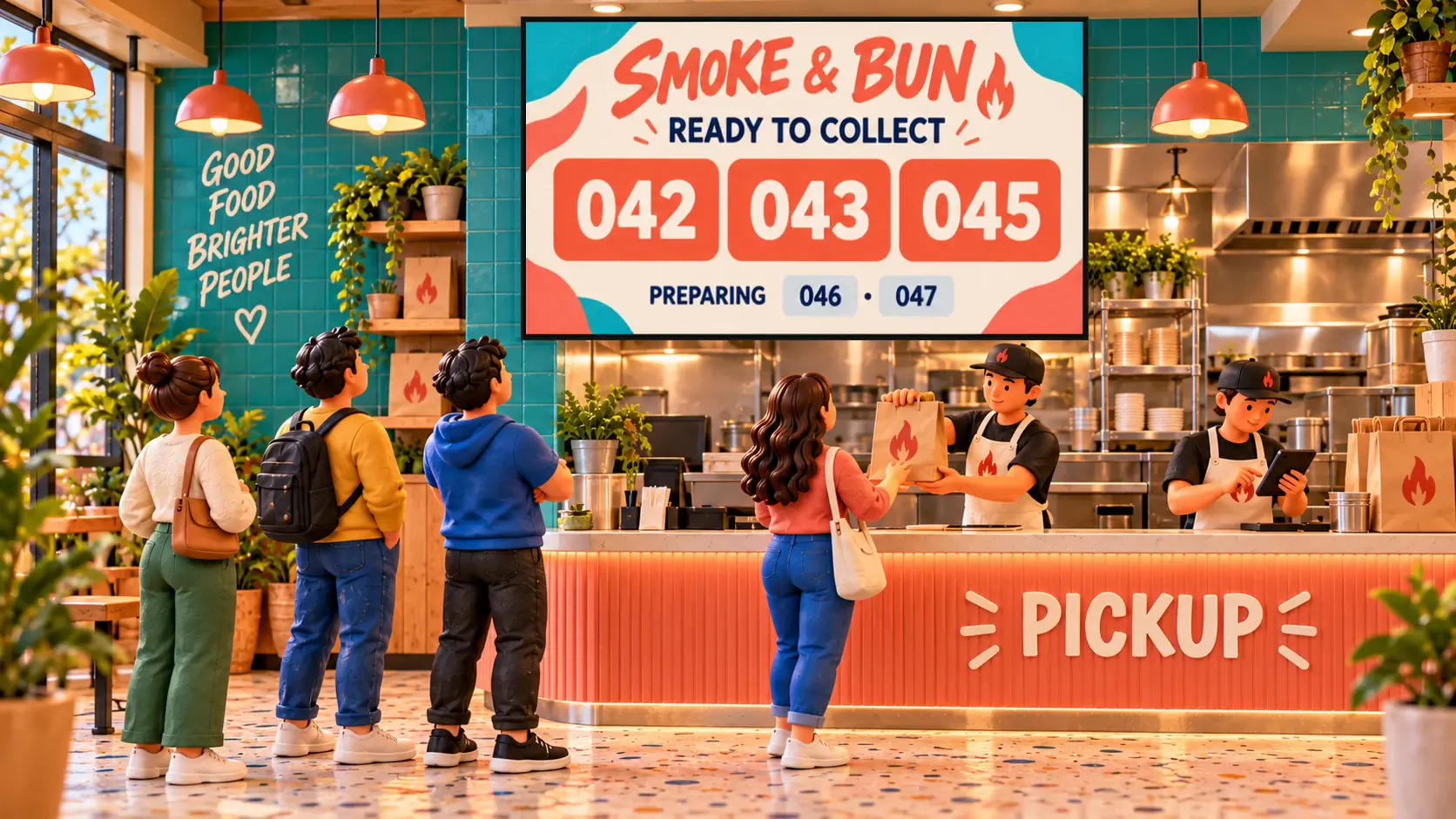
- A new sign, a price change, a sold-out tap, a score or a queue number does not arrive until the screen is back online. It then catches up on its own.
- Weather and news feeds show the last reading they had. The weather widget marks itself OFFLINE once its reading is over an hour old.
- Your subscription has to be confirmed now and then. Each time a TV checks in, Dislab confirms your plan until your next renewal date plus 3 days. That is what lets it play with no internet, and it is the longest a TV can stay offline.
What people see on the TV
A TV playing with no internet keeps playing. After 10 minutes it adds a small notice in the bottom-left corner, “No internet · Press OK to connect”, so whoever is near it knows. If it stays offline until its confirmation runs out, it shows Can’t confirm your subscription and asks to be connected. It starts again by itself as soon as it is.

The console warns you first. Screens and Health list any screen that has not checked in and will stop playing within 5 days unless it connects.
When the Wi-Fi drops
- Press OK on the remote while the TV says there is no internet, or open the menu and choose Network settings. The stick’s Wi-Fi page opens: pick your network and type the password. Dislab comes back by itself once it is connected.
- If the network has a sign-in page, as hotels and shopping centres often do, Dislab cannot get past it. Use a network without one.
- Restart the router, then unplug the stick’s power for 10 seconds and plug it back in.
- Weak Wi-Fi behind the TV? An HDMI extender cable moves the stick out from behind it, or use an Ethernet adapter.
Markets, trucks and other places with bad internet
- Load it before you leave. Publish the screen, then wait until the TV has finished Getting your screen ready and is playing. Everything is now stored on the stick.
- Bring a phone hotspot for changes on the day. The screen only needs to connect briefly to pick them up.
- Skip what changes live if you will have no connection at all, such as a live score. Prices and menus you set before you left will still show.
Questions
How long can a screen stay offline?
Until its subscription confirmation runs out: your plan’s next renewal date plus 3 days. Until then it keeps playing what it has. It needs to go online now and then to pick up changes and confirm your plan.
What happens if I unplug it and plug it back in with no internet?
It opens by itself and carries on playing the files it has stored, with its clocks and schedules still running.
Does a computer or browser screen work offline too?
Yes. The browser player at play.dislab.app keeps its files in the browser and plays them with no internet. Chrome and Edge work, and Safari on a Mac or iPad needs the page added as an app so it is not cleared after a week unused.
Will live scores and queue numbers work offline?
The score and the game clock keep showing and ticking, but a new press from your phone needs the screen to be online to arrive. It catches up once the connection returns.
Screens that do not stop
Start free with one screen on the TV you already have, and see it play with the Wi-Fi switched off.
Related posts
 Set-up and costsWhat digital signage costs a small businessWhat digital signage really costs a small business: the TV, the stick, mounting, software and running costs, with worked examples for one to five screens.
 Set-up and costsFree digital signage on a Fire TV StickTurn a TV and a Fire TV Stick into a sign for free: which stick to buy, how to set it up, what the free plan covers and when it’s worth paying.
 Set-up and costsWhich TV stick to buy for digital signageWhich Fire TV, Android TV or Google TV stick to buy for digital signage, which ones to avoid, and how to set one up with Dislab in about five minutes.