
Free digital signage on a Fire TV Stick
A TV, a Fire TV Stick and Dislab’s free plan make a working sign for the price of the stick. The free plan covers one screen with your photos, videos, playlists and signs, a small “Powered by dislab.app” badge in the corner, and no card. This post covers which stick to buy, how to set it up and what free does and doesn’t include.
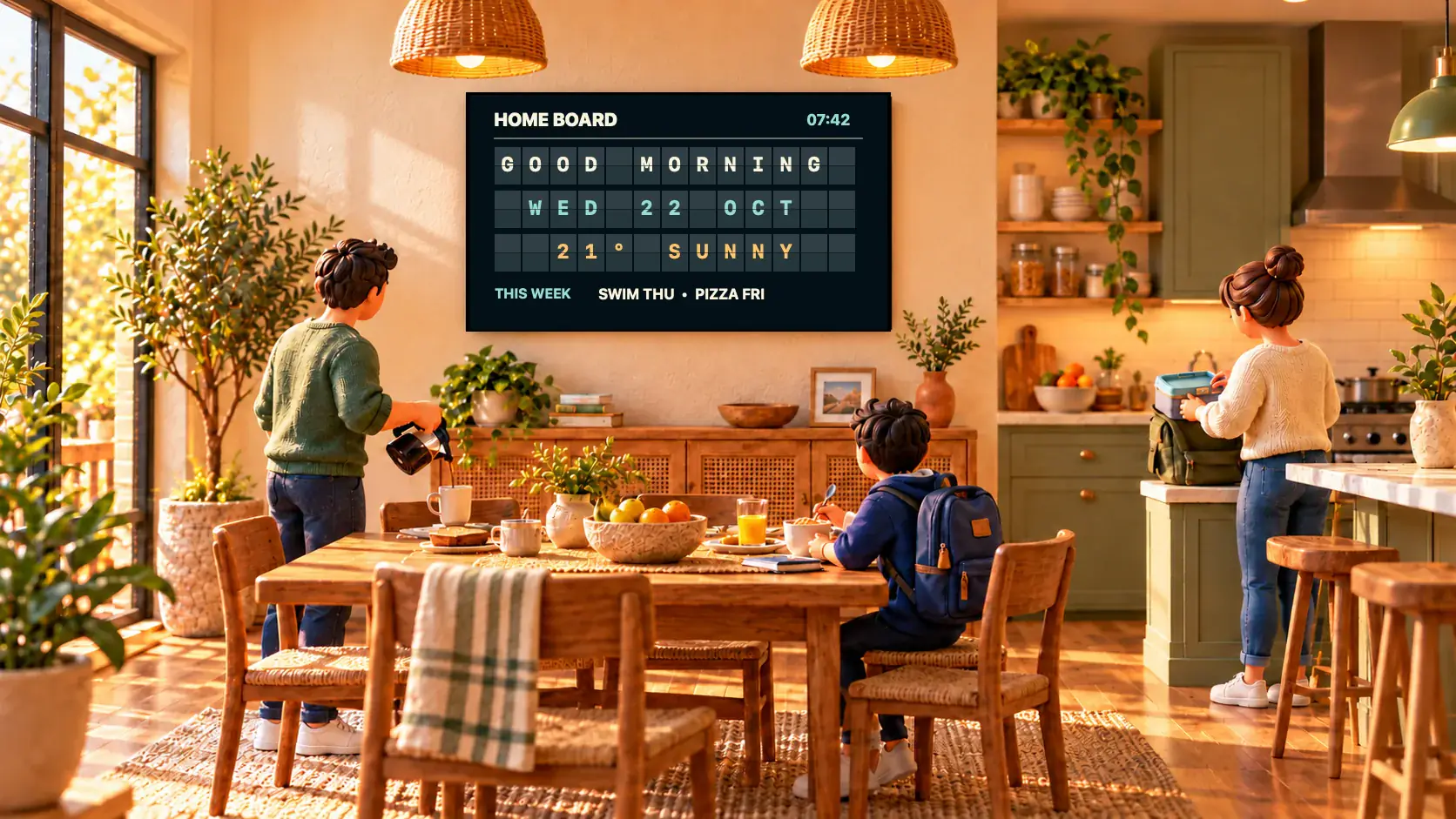
What the free plan covers
- One screen at one location. A TV with a stick, or a computer or iPad with a browser open.
- Photos, videos, playlists and schedules. Upload from your phone or computer; Dislab converts them to suit a TV.
- Signs. Text, photos, video, clocks, weather, QR codes, shapes, stickers and icons, plus the ready-made templates made from those parts.
- A split-flap or pixel board of words, the time, the date and the weather.
- 300 MB of storage and 10 Dislab AI credits a month.
- Playing with no internet once everything has downloaded.
Free shows a small “Powered by dislab.app” badge on the screen. It has no time limit: it isn’t a trial.

Which Fire TV Stick to buy
Most Fire TV sticks from 2018 to 2024 work. The best choices are the Fire TV Stick 4K Max (2nd gen, 2023) and the Fire TV Stick 4K (2nd gen, 2023). The Fire TV Stick 4K Plus (2025), the Fire TV Stick HD (2024) and the Fire TV Cube work too.
Watch out for Amazon’s newest sticks: the Fire TV Stick 4K Select, the Fire TV Stick HD (2026) and the Fire TV Stick 4K (2026) run Vega OS, which can’t run Dislab. Two different sticks are called Fire TV Stick 4K, so check the year on the box. Which TV stick to buy has the full list, and TV sticks that work lists them by model code.
Set it up
- Plug it in. The stick into a spare HDMI port, its power adapter into a wall socket (not the TV’s USB port). Switch the TV to that input.
- Join your Wi-Fi. Follow the stick’s own steps to join the network and sign in to your Amazon account.
- Install Dislab. The app is on its way to the Amazon Appstore. Until it’s listed, email support@dislab.app and we’ll get your stick going. The app is free; your plan lives on your Dislab account.
- Make a free account. Sign up at app.dislab.app on your phone or computer. No card.
- Pair the TV. Open Dislab on the stick. It shows a 6-character code. In the console press Add screen (or go to app.dislab.app/pair), type the code and name the screen.
- Choose what it plays. Pick a sign, a photo, a video or a playlist on the screen’s page. The TV downloads everything first, then starts playing.
- Switch off Still Watching. On the Fire TV, open Settings › Preferences › Data Usage Monitoring and turn off Still Watching. After 4 hours without anyone touching the remote, the Fire TV otherwise puts a prompt over your sign.


Your first sign in five minutes
- Open Signs and pick a template made from free parts: a welcome, opening hours, an offer, a QR code to your website or reviews.
- Type your own words and swap in your photo. Change colours and fonts if you like.
- Save it, and choose it on the screen’s page.
For more than one thing in turn, make a playlist: a welcome, a photo of your best seller, your opening hours and a short video, each for as long as you like. Give an item days, times or dates under When it plays, and it comes and goes by itself on the screen’s own clock.
No stick? Use a browser
A computer, laptop or iPad can be your free screen today. Open play.dislab.app in Chrome or Edge, or add it as an app in Safari on a Mac or iPad, and pair it the same way. It keeps its files and plays offline too.
When it’s worth paying
Free is enough for one screen of photos, videos and signs. Pro is A$9.99 per screen a month, or A$99 a year, with a 14-day free trial, and adds:
- More screens (up to 20) and more locations, with no badge.
- Menu boards with sold out from a phone, queue numbers, live scores and live values.
- Split-flap and pixel boards with live values, event photo walls and slideshows.
- 2 GB of storage and 50 Dislab AI credits a month for every screen, and up to 5 more people with their own logins.
Mistakes to avoid
- Buying a Vega OS stick. Check the model and year before you buy.
- Leaving Still Watching on. The Fire TV’s prompt covers your sign after 4 hours.
- Weak Wi-Fi behind the TV. A short HDMI extender moves the stick out from behind the screen, or use an Ethernet adapter.
- Big video files on Free. Free has 300 MB, counted at the TV-ready size. A few short clips and plenty of photos fit easily; a long 4K video won’t.
Once it has downloaded, the stick plays from its own storage when the internet drops. How that works.
Questions
Is it really free?
Yes. One screen at one location, with photos, videos, playlists and signs, a small “Powered by dislab.app” badge and no card. It isn’t a trial and doesn’t run out.
Can I get Dislab from the Amazon Appstore?
Not yet: the app is on its way to the Appstore. Until it’s listed, email support@dislab.app and we’ll get your stick going. A computer or iPad with play.dislab.app open works straight away.
Do I need an Amazon Prime subscription?
No. The stick needs an Amazon account to set up, but Dislab doesn’t need Prime or any other subscription.
Can I take the badge off?
The badge is part of the free plan. On Pro there’s no badge, on every screen.
What happens if I add a second screen?
Free covers one screen. A second screen needs Pro, which is A$9.99 per screen a month, with 14 days free to try.
Put your first sign up free
Plug in the stick, type the code and have a sign on the TV in about five minutes. No card needed.
Related posts
 Set-up and costsWhat digital signage costs a small businessWhat digital signage really costs a small business: the TV, the stick, mounting, software and running costs, with worked examples for one to five screens.
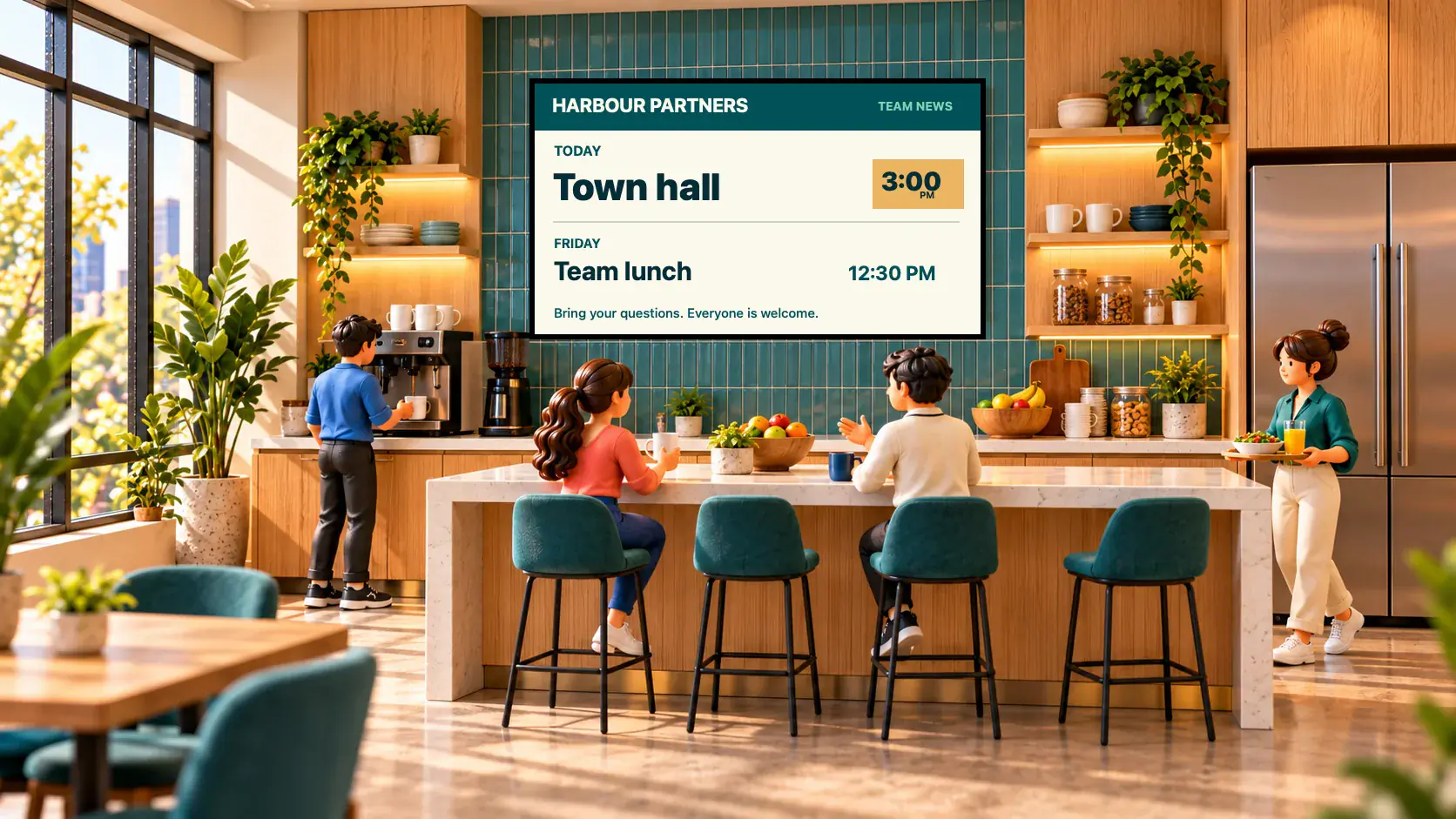 Set-up and costsWhich TV stick to buy for digital signageWhich Fire TV, Android TV or Google TV stick to buy for digital signage, which ones to avoid, and how to set one up with Dislab in about five minutes.
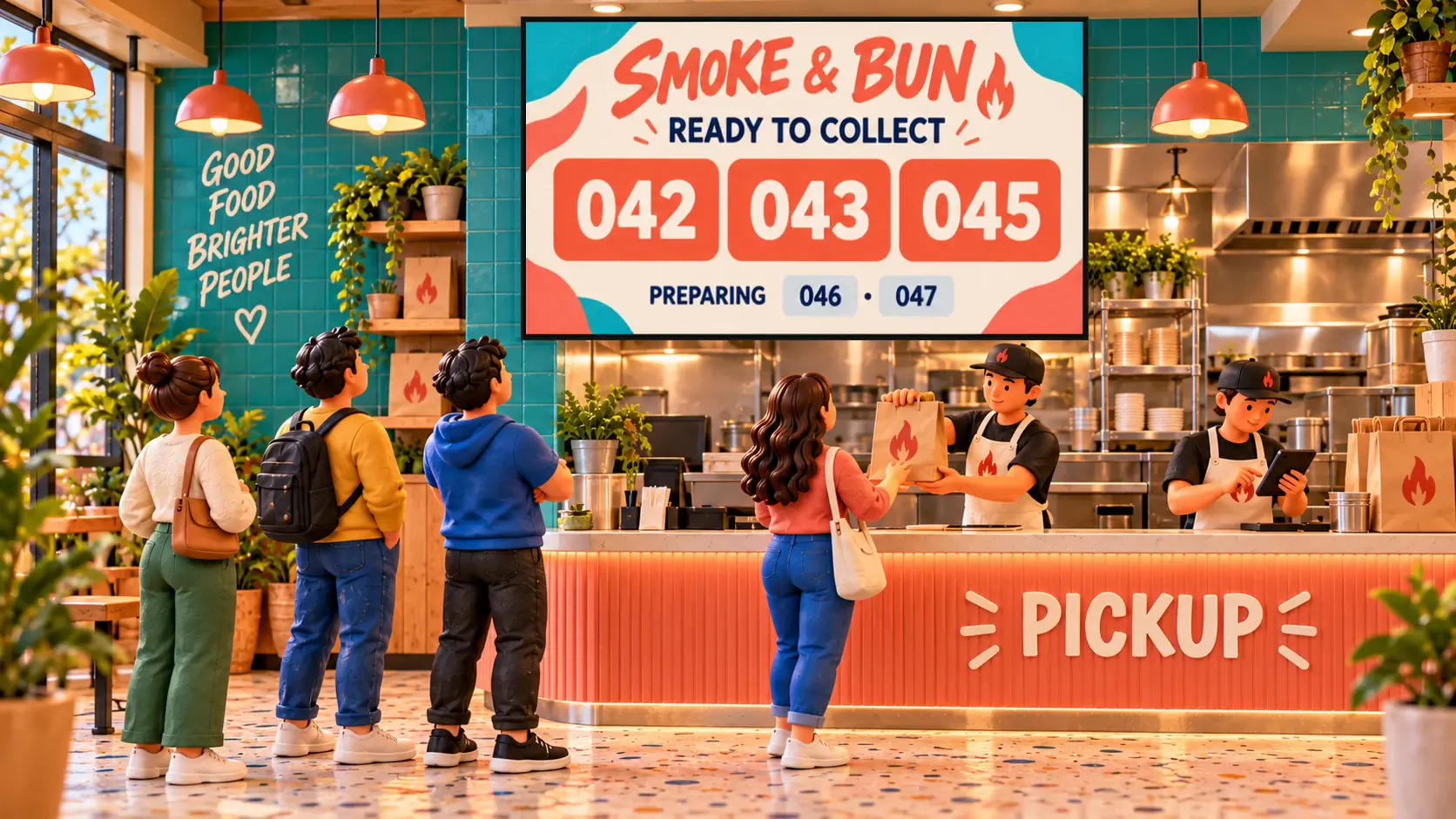 Set-up and costsDigital signs that keep playing with no internetHow offline digital signage works: the screen downloads everything first, plays from its own storage and keeps its schedules when Wi-Fi drops.