
How to show a Google Sheet on a TV screen
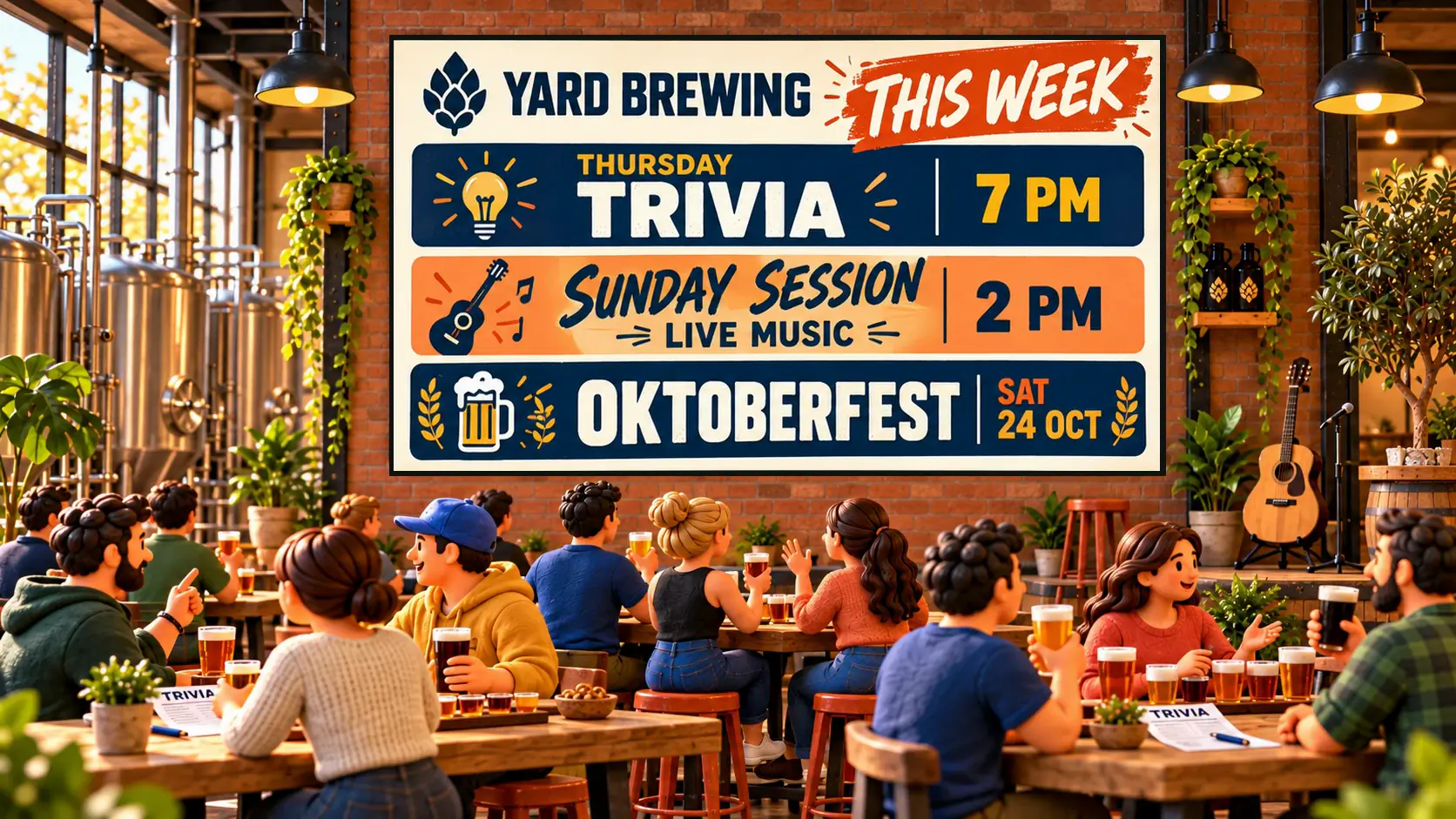
Don’t put the spreadsheet itself on the TV: rows and gridlines are hard to read from across a room. Instead, let a good-looking sign follow the sheet. On Dislab, a menu’s prices, a chart, a club ladder, a live value or a whole set of signs can follow a Google Sheet. Change a cell and the screens change within minutes, with nobody touching the console.
How it works
- You share the sheet as “Anyone with the link” and give Dislab the link.
- You tell Dislab which column holds what: the item, the price, the score.
- Dislab reads the sheet every 5 minutes while it’s on a screen, and whenever you press Get the latest. When something changed, it updates and the screens show it within seconds.
Dislab reads the sheet, never the TV, so a screen never needs a Google login. If the internet drops, screens keep showing the last values they had. Following a Google Sheet is part of Pro.

First, share the sheet
- In Google Sheets, open the tab with your data. Make sure the first row is the headings.
- Press Share, set General access to Anyone with the link, and copy the link.
Anyone with that link can see the sheet, so keep it to what you’d put on a screen anyway. Prices and scores are fine; staff phone numbers aren’t.
Menu prices and sold out
If your prices or stock already live in a spreadsheet, a menu can follow it.
- On the menu’s Setup tab, under From a Google Sheet, press Download as a spreadsheet for a sheet of your whole menu to start from, and import it into Google Sheets. Or use your own sheet with a row per item.
- Press Follow a Google Sheet, paste the link and press Read the sheet.
- Choose Match items by: Till code or Name. Then pick the Price column, a column for each size, and Sold out.
- Leave Publish price changes by themselves ticked for prices to reach screens on their own, or untick it to check them before you press Publish. Press Follow the sheet.
Only items the sheet names change, and a sheet never adds items. Sold out is yes, x, TRUE or 1. More on marking items sold out and menu boards.
A chart from a sheet
- In a sign, choose Widgets › Chart and pick columns, bars, a line, a pie or a doughnut.
- Set Numbers come from to A Google Sheet, paste the link into Link to the sheet and press Read the sheet.
- Choose Labels from, Numbers from and, if you have a column of colours, Colours from. $, commas and % in a number are fine.
- Save the sign.
Sales by day, votes, a fundraising tally by class: the chart redraws as the sheet changes.
Live values and lists
A live value is a number, a line of text or a short list on a sign: coffees poured today, the appeal total, this week’s specials. On the Live values page, set Comes from to A Google Sheet instead of I type it. Show it big on a sign, as a goal bar, or inside a split-flap row so it flips as it grows. See live data.

Club ladders, leaders and fixtures
A club table can take its rows from a sheet: Team, P, W, D, L, For and Against for a ladder; Name, Team and a number for leaders; Round, Date, Time, Home, Away, Venue and Scores for fixtures. Open the table, choose A Google Sheet beside Rows come from, check the columns and press Follow the sheet. A row Dislab can’t read leaves the table as it was and says which row. More on live scores for clubs.
A whole set of signs from a sheet
A sheet with a row per product, property or room can make a sign for each row, and keep them in step:
- In Signs, press Make many from a spreadsheet and choose a sign to start from.
- Open Or read a Google Sheet, paste the link and press Read the sheet. Choose what each column fills: a text box, a photo, the sign’s name.
- Leave Keep these signs in step with the sheet ticked, and pick a column with a different value on every row under Match each sign to its row by.
- Press Make.
When a row changes, its sign changes within 5 minutes while it’s on a screen. Up to 100 rows at a time. SmartStatus can follow a sheet too, for lists like tour departures or repair jobs.
Tips
- Keep headings in the first row and don’t rename them once a sign follows the sheet.
- One tab for the screens. Keep workings on another tab and copy only what shows into the shared one.
- Can’t wait 5 minutes? Press Get the latest.
- If the sheet stops being shared, Dislab says why under Get the latest and screens keep the last values.
Questions
How often does the screen update from the sheet?
Dislab reads the sheet every 5 minutes while something on a screen follows it, and straight away when you press Get the latest. A change reaches the screens within seconds of being read.
Does the TV need a Google login?
No. Dislab reads the sheet, never the TV. The sheet only needs to be shared as Anyone with the link.
What can follow a Google Sheet?
Menu prices and sold out, charts, club ladders, leaders and fixtures, live values, SmartStatus lists, and whole sets of signs made from a sheet’s rows.
Can I use Excel instead?
Signs can be made from an Excel or Numbers sheet saved as a .csv, or pasted in. To stay in step automatically, the data needs to be in a Google Sheet.
Which plan is it on?
Following a Google Sheet is part of Pro: A$9.99 per screen a month, or A$99 a year, with 14 days free to try.
Let your sheet do the typing
Link a Google Sheet once and your screens follow it. Try every Pro feature free for 14 days.
Related posts
 MenusDigital signage for hair salons: what to show and whereDigital signage for hair salons: a price list by the mirror, a QR code to book at the desk, your best work in the window, and what it costs per screen.
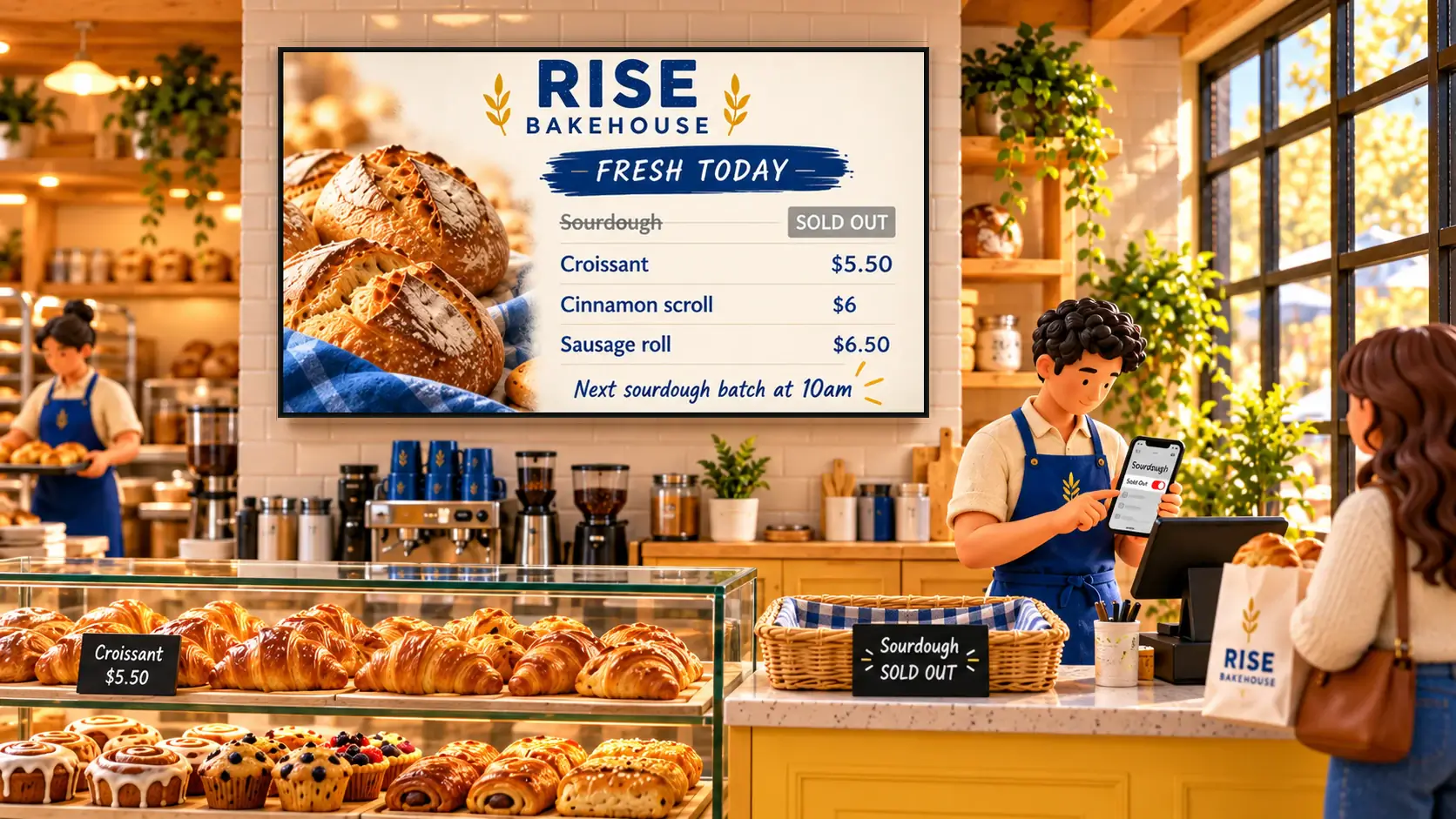 MenusHow to mark items sold out on a digital menu from your phoneHow to mark menu items sold out from your phone so every digital menu board crosses them off within seconds, and choose when they come back by themselves.
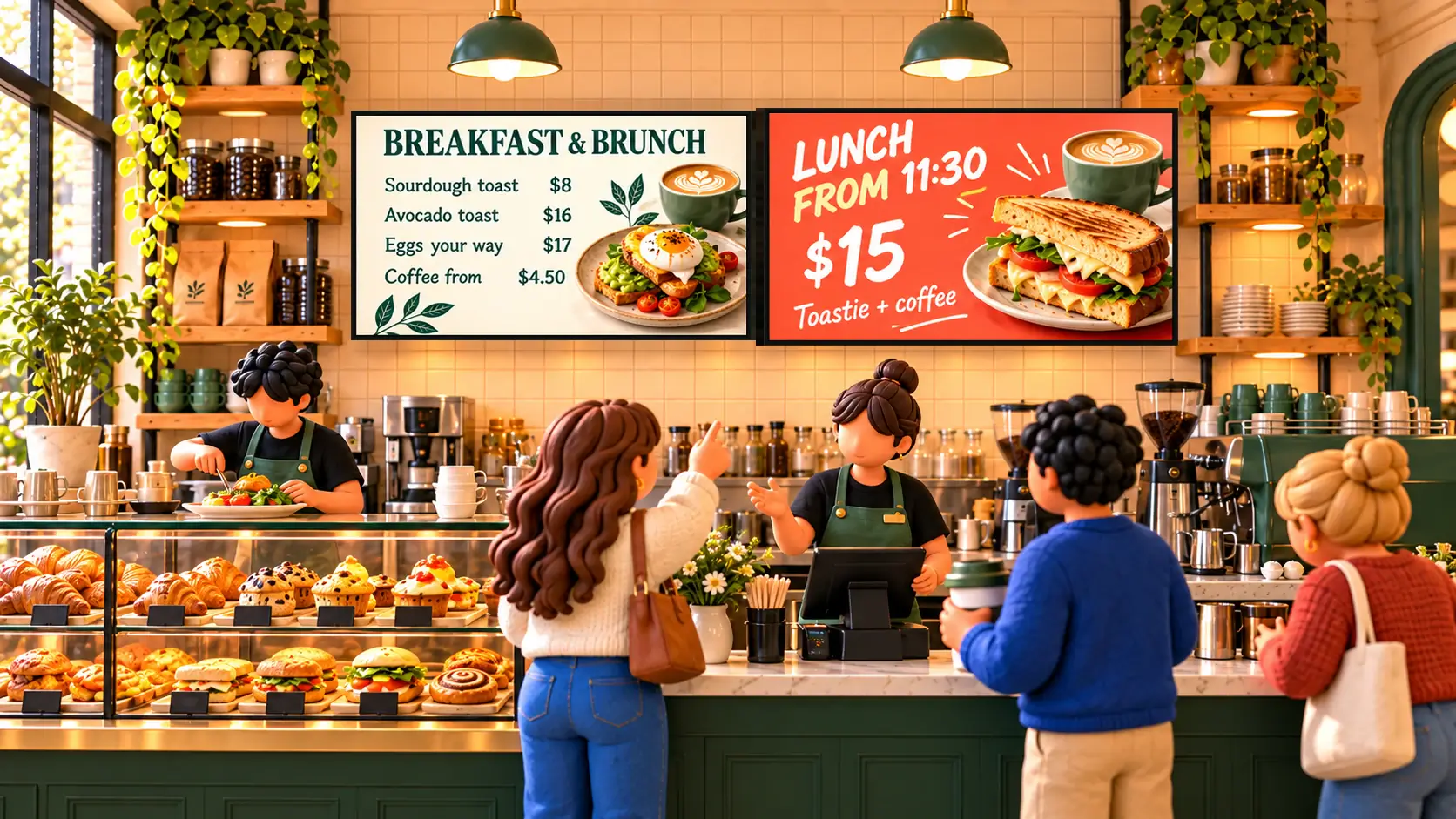 MenusHow to make a digital menu board that updates itselfSet up a digital menu board: type your menu once, switch breakfast to lunch by itself, mark items sold out from a phone, and put it on any TV.