
Flip Notes · Events and venues
Event photo wall: guests’ photos on a big screen
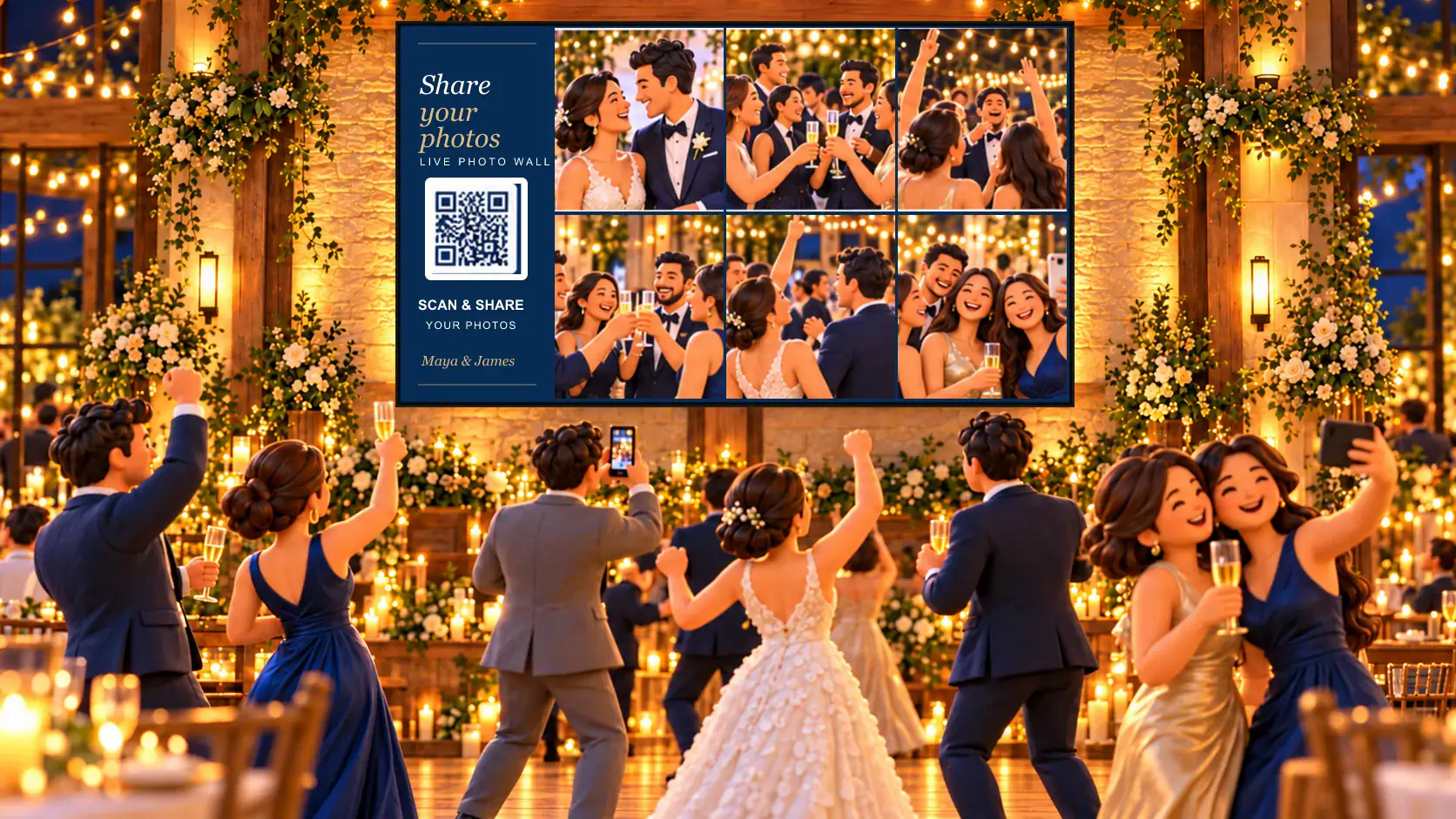
An event photo wall puts the photos guests take on the night onto the big screen while the night is still going. With Dislab, guests scan a QR code on the screen and send photos from their phones, with no app and no sign-in. Nothing shows until you approve it, and every photo plays in a look made for the occasion. Here’s how to set one up and run it on the night.

What you need
- A screen. A TV or projector with a supported stick, or a computer with play.dislab.app open. Two or three screens are even better: each plays its own photos.
- Internet at the screen. New photos reach the screens over the internet, so the screens need a connection on the night. Guests send from their own mobile data or the venue’s Wi-Fi.
- Dislab Pro. Event photo walls are part of Pro, A$9.99 per screen a month, with 14 days free to try.
Set it up
- Open Events, type a name under New event (“Sam’s 40th”) and press Make it.
- Under Screens, tick the screens for the event and press Save screens.
- Under How photos show, press Change the look and its settings. Pick a kind of event, then a look: weddings, the decades, Halloween, Christmas, New Year’s Eve, race day, formals, baby showers, hens and bucks, club nights and more. Set the words, colours and how often a new photo comes in.
- Under Name and logo, add a logo if you like.
- Choose what guests can do before they send: crop and filters, words on the photo, a message with the photo, and a photo booth of three shots in a row.
- Choose how long under For and press Start the event. The screens switch to the event within seconds and go back to what they were showing when it ends.

How guests send photos
The screens show a QR code and a short link. Guests open it on their phone, add their name if they like, and take a photo or choose a few. That’s it: no app, no account. The page they open wears the event’s look, so a wedding feels like the wedding.
Before the night, press Copy the link and put it in the invitation or on the table cards, so people can send their photos from the day as well.
Approve photos as they arrive
Nothing shows until you approve it. Photos arrive on the event’s page as they’re sent, on your computer or your phone. Each has a tick to put it on the screens, a pause to hold it, and a cross to keep it off. Approve all approves everything waiting.

- Play next: tap it on a few photos and they come up next, in the order you tapped. Handy for the speeches or the cake.
- Approve automatically: with a crowd you trust, switch on approving every photo and pause or take off any you don’t like from your phone.
- Add your own photos: walk round and snap the room. Your own photos go straight on, with no approval.
Two or three screens
Put an event on several screens and each one plays its own share, so no two show the same photo at the same moment and guests see far more of the night wherever they stand. Every photo still reaches every screen during the night. Or switch to the same photos on each.

Tips for the night
- Start full. Pick up to 500 photos from your Media to start the night, so the screens aren’t empty before the first guest sends one: the couple through the years, last season’s best moments.
- Test it the day before on the venue’s screens and network.
- Put the QR code where people wait: at the bar, by the dance floor, on the tables.
- Choose a portrait screen if it stands on an easel: every look has a layout for a tall screen.
- Ask a friend to approve, so the host can enjoy the night.
After the event
The screens go back to their usual playlist or sign. For 30 days after the event, Download all photos gives you every one at full size, in folders of allowed, rejected and not reviewed. Then the event and its photos are deleted. Only people in your account can see them, and they never count toward your storage.
No guests? Make it a slideshow
For your own photos and videos with nobody sending any, such as the year in pictures at a work function or a farewell, a slideshow uses the same looks with no QR code and nothing to approve. More looks and ideas are on the event photo wall page, and for venues, screens for wedding and function venues.
A screen plays what it has downloaded when the internet drops, but new photos need a connection to arrive. What works offline.
Questions
Do guests need an app or an account?
No. They scan the QR code or open the link on their phone and send. iPhone and Android photos both work.
Can someone put something unwanted on the screen?
Not without you. Every photo waits for your approval before it shows. With a crowd you trust, you can approve automatically and still pause or take off any photo from your phone.
How long are the photos kept?
For 30 days after the event ends. Download all photos gives you every one at full size, then the event and its photos are deleted automatically. You can delete them sooner from the event’s page.
Can I use more than one screen?
Yes. Each screen plays its own share of the photos, so guests see more of the night, and every photo reaches every screen in time. Or show the same photos on each.
Which plan is it on?
Event photo walls are part of Pro: A$9.99 per screen a month, or A$99 a year, with a 14-day free trial.
Put their photos on the big screen
Make an event, pick a look and let guests fill the screen. Try every Pro feature free for 14 days.
Related posts
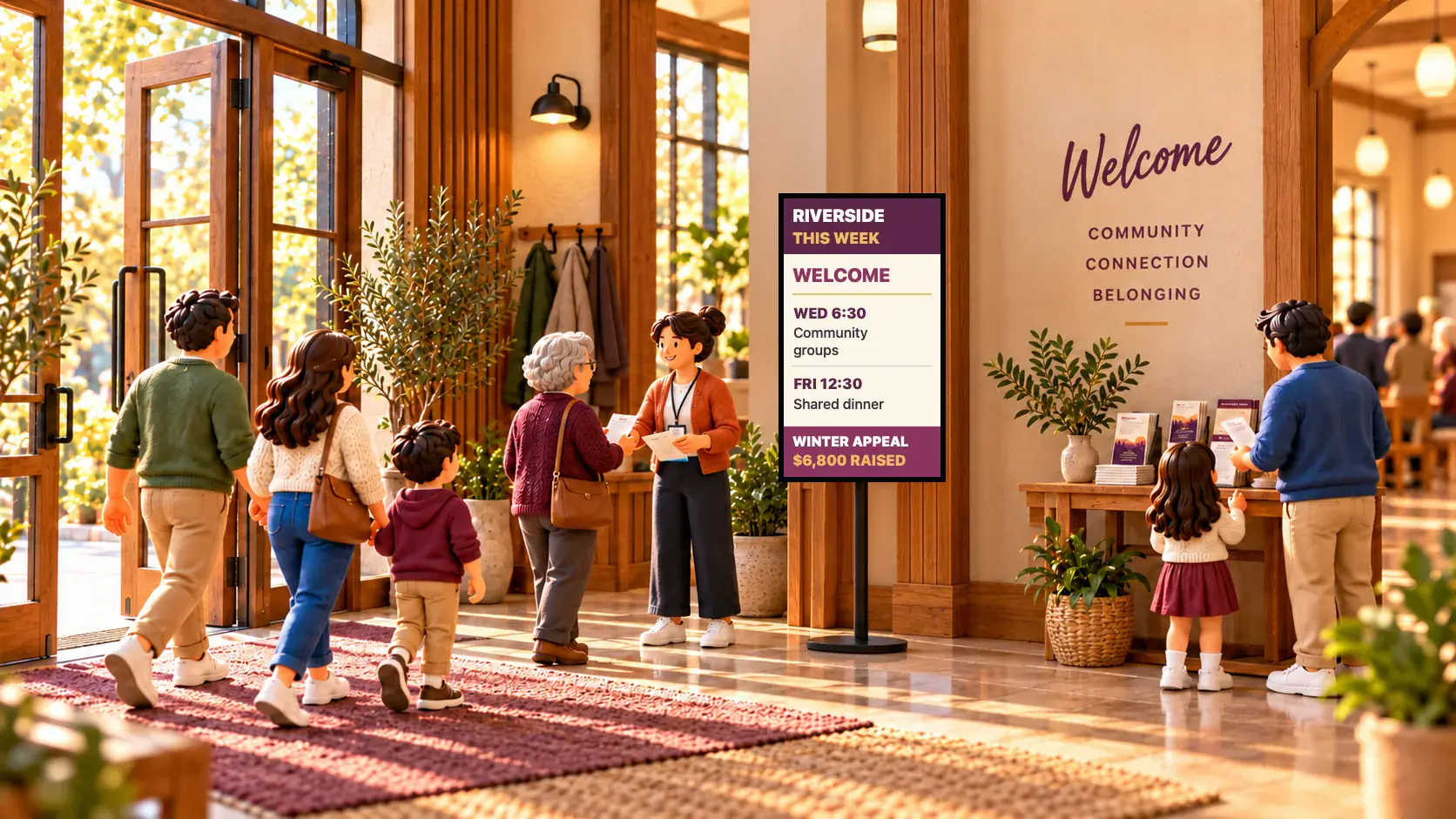 Events and venuesDigital signage for churches and places of worshipDigital signage for churches, mosques, temples and gurdwaras: what to show in the foyer and hall, how volunteers keep it updated, and what it costs.
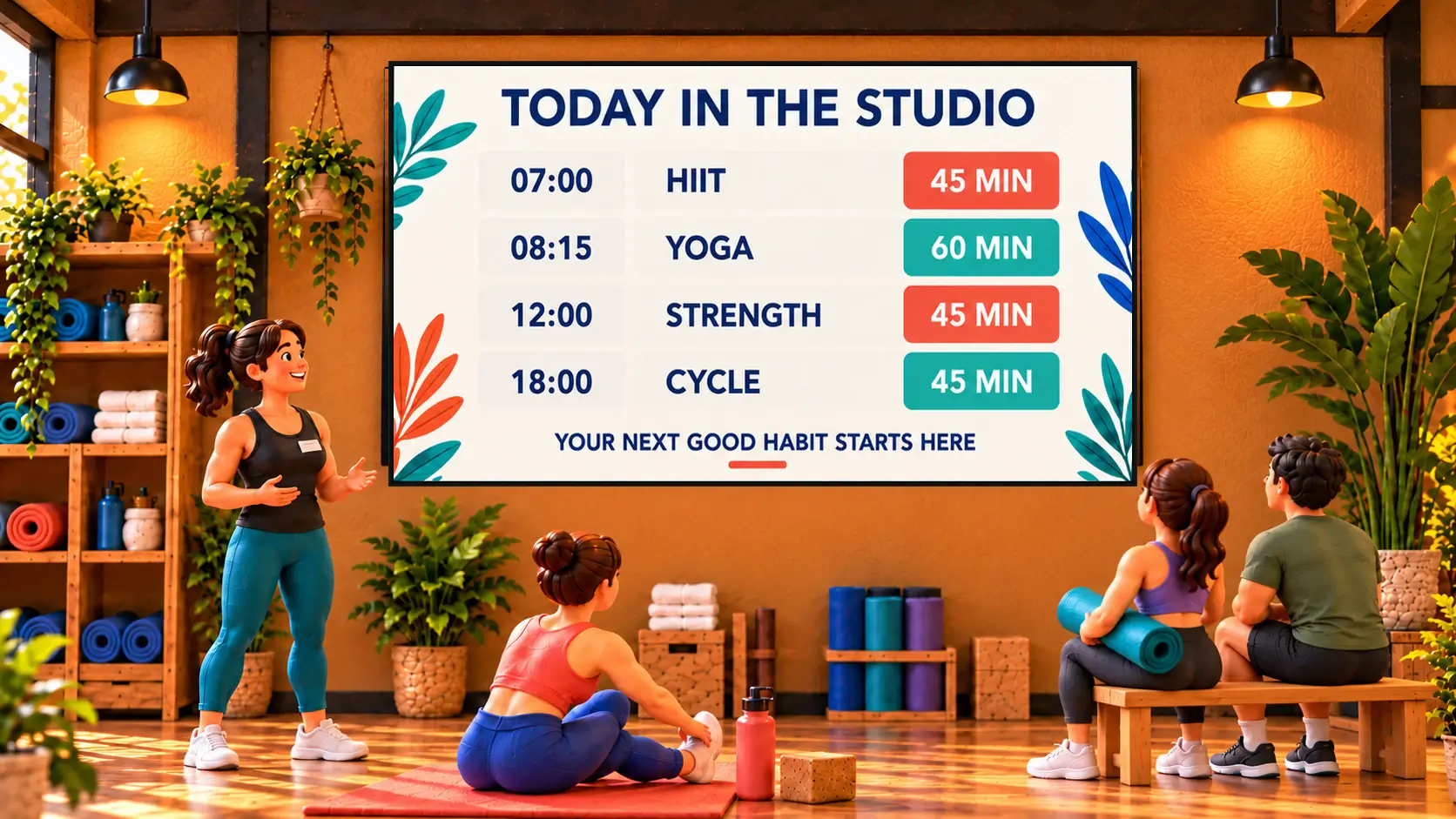 Events and venuesHow to show your gym class timetable on a TVHow to show your gym or studio class timetable on a TV: link your booking calendar once and the screen keeps itself up to date, or type it on a board.
 MenusDigital signage for hair salons: what to show and whereDigital signage for hair salons: a price list by the mirror, a QR code to book at the desk, your best work in the window, and what it costs per screen.