
Flip Notes · Events and venues
How to show your gym class timetable on a TV
The easiest gym timetable screen is one you never retype. On Dislab you paste your booking system’s calendar link into a Class timetable once, and the TV shows today’s classes, with the one on now picked out and finished ones faded. Change a class in your booking system and the screen catches up by itself. Or, for a simple weekly timetable, type it onto a split-flap board.
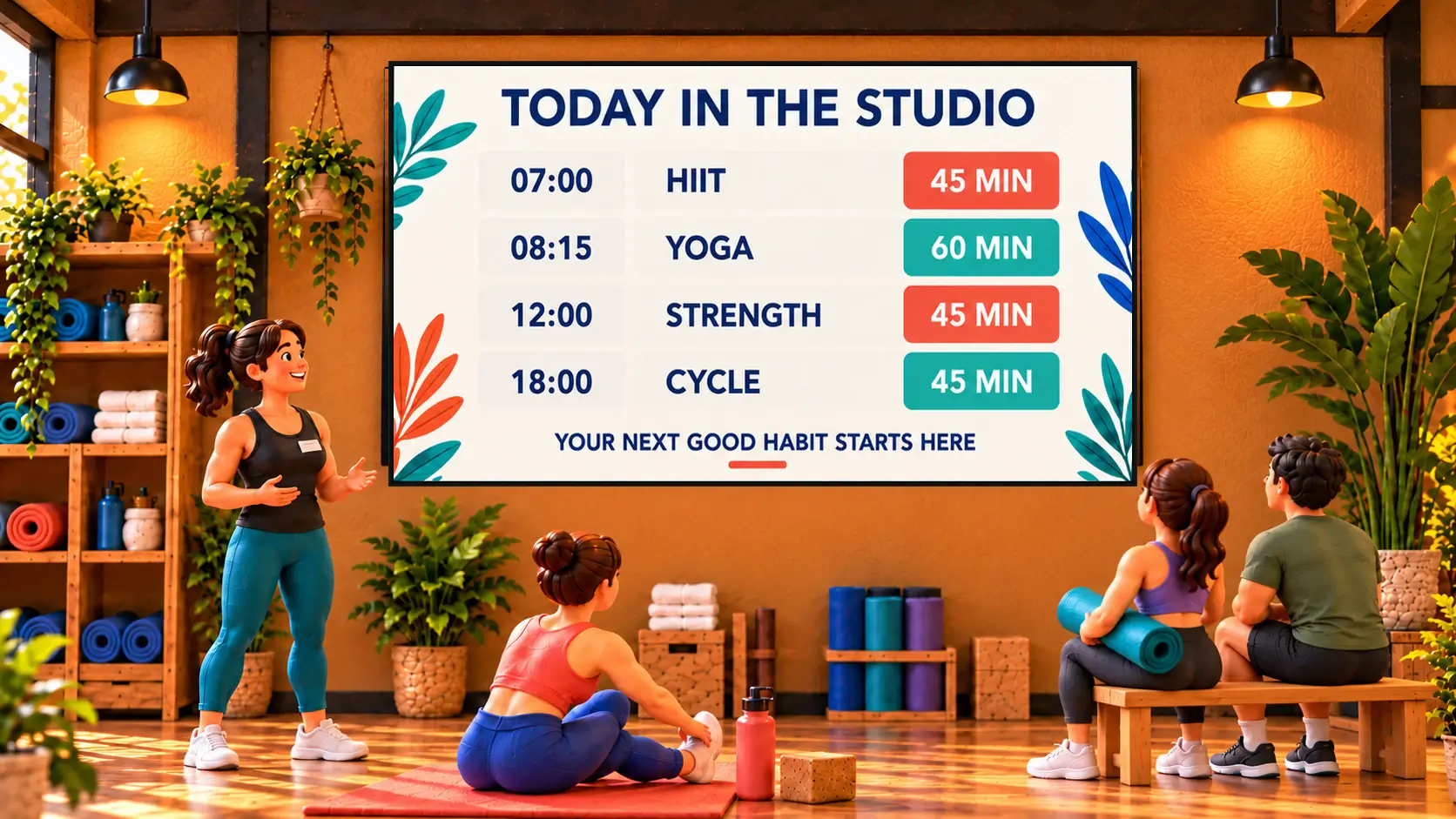
Two ways to do it
- From your booking calendar (Pro). The screen reads your classes from the calendar link your booking system gives you. Best when classes change often.
- Typed on a board (any plan). Type the day’s classes onto a split-flap or pixel board. Best for a short timetable that rarely changes, and the board itself is a feature on the gym floor.
From your booking calendar
- Find your timetable link. Look in your booking system’s settings for “calendar sync”, “iCal” or “subscribe”. The link ends in .ics or starts with webcal://.
- TeamUp: calendar sync in its settings, a link for all classes or one per instructor.
- Punchpass: its calendar feed of all classes (a webcal:// link works).
- Mindbody: each instructor’s schedule sync link; add one per instructor.
- Google, Outlook or Apple calendars: the calendar’s secret iCal address or published link.
- Start from a template. In Signs, open the templates and pick one of the Gyms and classes timetables: this week’s classes, today’s classes, or the next three days. Or choose Widgets › Calendar, then Class timetable.
- Paste the link into Timetable link. Press Add another link for up to 5 more, one per instructor or room, and they’re merged into one timetable.
- Choose how many days under Days to show, from today, from 1 to 7.
- Save it and put it on the screen by the studio door.

Dislab reads the calendar every 15 minutes, up to two months ahead, so a cancelled class drops off the screen within about 20 minutes. On a TV on its side the days go one under another.
Typed on a split-flap board
- In Signs, pick the Class timetable split-flap board.
- Type each class on a row: the time, the class and the room.
- Drag the time onto the top row so the board ticks over all day.

A board of words, the time, the date and the weather plays on the free plan. Make one board per day and put them in a playlist with When it plays set to each day, and Monday’s board shows on Mondays by itself. More on split-flap boards on a TV.
Where to put it
- By the studio door, so people see what’s on next and which room.
- At the front desk, with the week ahead and the bring-a-friend offer.
- On the gym floor, with the time to the second for intervals, a quote of the day and the members’ challenge.
What else to show next to it
- A members’ challenge with a goal bar that fills up: kilometres rowed this month, typed from a phone.
- Rotating quotes, a new one every minute. See rotating quotes.
- New class or first class free with your own photo.
- Open 24/7 in neon by the door.
- A QR code to your app or booking page, counting every scan.
Make it readable from the mat
- Big times, short names. “6:00 Spin” reads from across a room; “6:00am Rhythm Ride with Kate (all levels)” doesn’t.
- High contrast. Light words on a dark background suit a dim studio and don’t glare.
- Say where. If you have more than one room, put the room on every line.
- Mind the light. A screen opposite a window washes out by mid-morning. Hang it where the sun won’t reach.
Dislab warns you in the designer when words are too small for the size of TV and how far away people stand.
Mistakes to avoid
- A link with private events in it. Anyone with a secret calendar link can see that calendar. Use one that holds only classes.
- The whole week on one small screen. Today or the next three days reads far better from across a room than seven columns.
- Retyping changes. If classes move a lot, use the calendar link so the screen follows your booking system.
Once downloaded, the timetable keeps playing with no internet and still fades classes as they finish, by the screen’s own clock. See more ideas on screens for gyms and fitness studios.
Questions
Which booking systems work?
Any that give you a calendar link, often called calendar sync, iCal or subscribe: TeamUp, Punchpass, Mindbody (each instructor’s link), and Google, Outlook or Apple calendars. If yours has none, keep the timetable in a Google Calendar and use that link.
How quickly does a changed class show on the screen?
Dislab reads the calendar every 15 minutes, so a change in your booking system shows up within about 20 minutes, with nothing to retype.
Can I show more than one room or instructor?
Yes. Add up to 6 calendar links in all, one per room or instructor, and they’re merged into one timetable.
Is the class timetable free?
The timetable from a calendar link is part of Pro, at A$9.99 per screen a month. A timetable you type onto a split-flap or pixel board plays on the free plan.
Will it work on a screen hung on its side?
Yes. Set the screen’s rotation once and the timetable is drawn upright, with the days one under another.
Put your timetable on the wall
Paste your calendar link once and the screen keeps itself up to date. Try every Pro feature free for 14 days.
Related posts
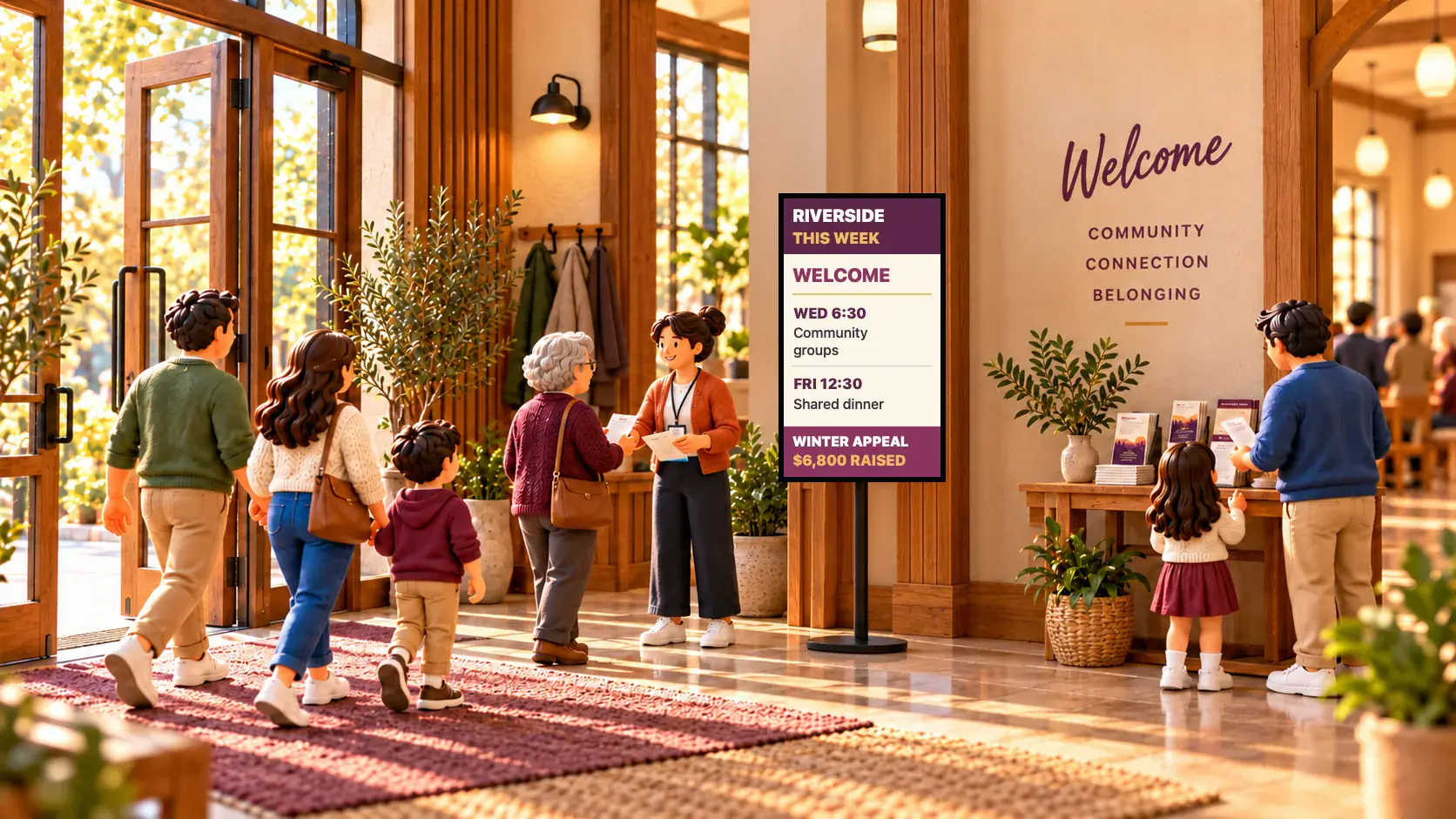 Events and venuesDigital signage for churches and places of worshipDigital signage for churches, mosques, temples and gurdwaras: what to show in the foyer and hall, how volunteers keep it updated, and what it costs.
 Events and venuesEvent photo wall: guests’ photos on a big screenHow to put guests’ photos on a big screen at a wedding, party or event: guests scan a QR code, you approve each photo, and it plays in the look you chose.
 MenusDigital signage for hair salons: what to show and whereDigital signage for hair salons: a price list by the mirror, a QR code to book at the desk, your best work in the window, and what it costs per screen.