
How to mark items sold out on a digital menu from your phone
On Dislab, a sold-out dish is one tap on a phone. Open the menu’s Sold out page, tap the item, and every board showing it crosses it off within seconds, with no Publish and nobody at a computer. You choose whether it comes back when someone taps it, at the next day-part or the next morning. Here is how to set it up and hand it to your staff.
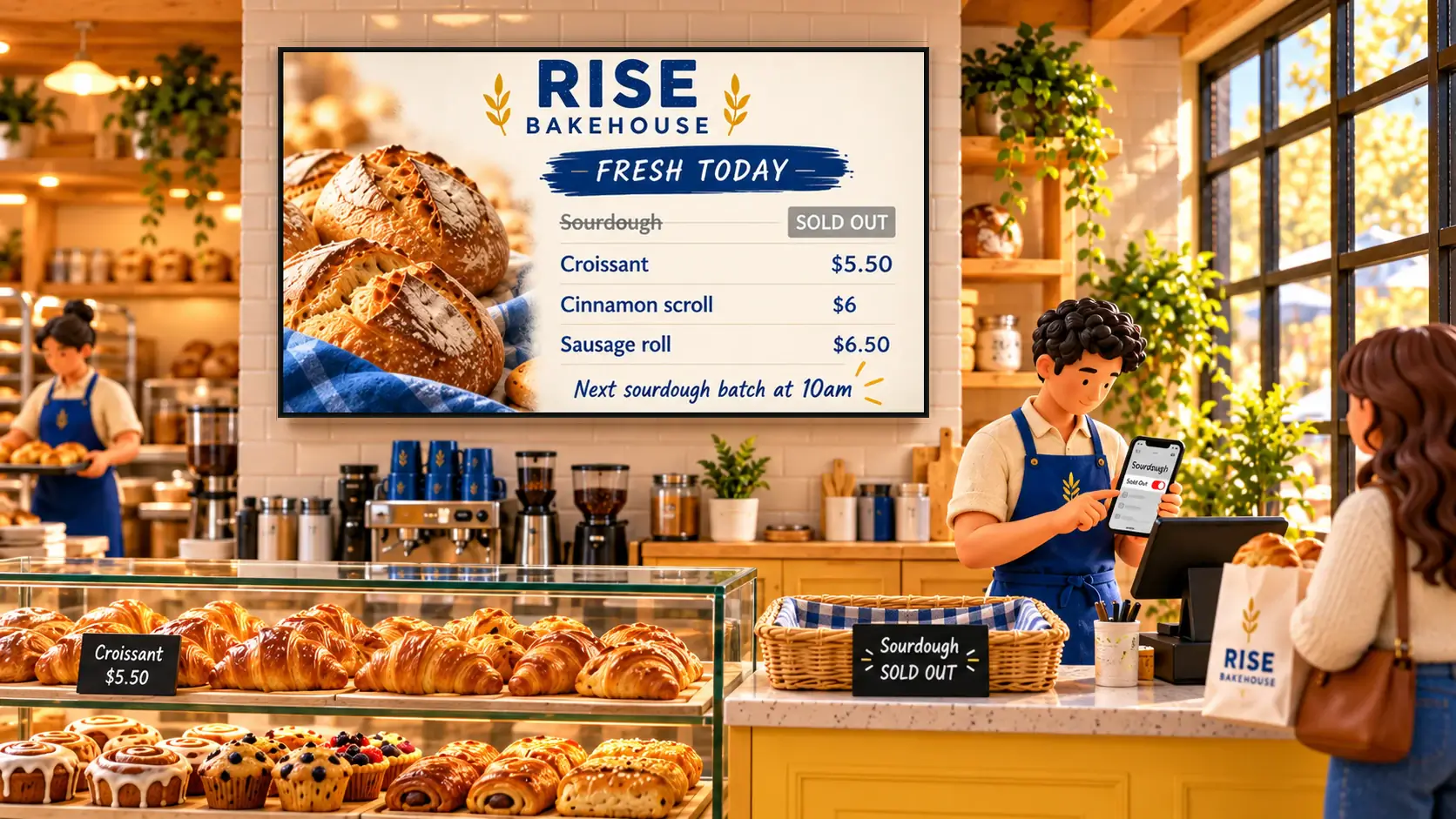
Why it matters
A menu board that still shows the dish you ran out of an hour ago costs you twice: the customer who queued for it, and the staff member who has to explain. Changing a printed menu means tape. Changing most digital menus means a laptop. Sold out has to be quicker than saying “sorry, we’re out”, or nobody does it.
Before you start
- A menu on a board. Menu boards are part of Pro. If you don’t have one yet, make a digital menu board first.
- A phone. Any phone with a browser. There’s no app to install.
Mark something sold out
- On your phone, open Dislab, go to Menus and press Sold out beside the menu.
- Tap an item. It turns to Sold out and the screens change within a few seconds.
- Tap it again to put it back In stock.
Add the page to your phone’s home screen and it’s a tap away all day. The same switch is beside each item in the menu editor, under Sold out · live, if you’re at a computer.

Choose when it comes back
Each menu decides when sold-out items return by themselves, on the menu’s Rules tab:
- When I switch it back: only when someone taps it.
- When the menu next changes day-part: sold out at breakfast is back for lunch.
- The next morning at a time you set, such as 5am, so nobody has to remember to clear yesterday’s.
The times are each screen’s own, so a shop in another time zone resets at its own 5am.

Crossed out or taken off?
On each board, the Menu box sets whether sold-out items are crossed out or taken off the board altogether. Crossed out tells regulars the dish is still on the menu, just not today. Taken off keeps a busy board short. Many cafés cross out on the main board and take them off on a small board by the till.
Let staff do it without your password
Invite staff with their own login and the Staff role (Settings › People). They see only the phone pages: sold out, queue numbers, scores and the like, never your billing or screens. Pro includes you and up to 5 more people.
On a phone, Live in the bar along the bottom lists everything that changes while it’s on the screens, so staff open Dislab straight to the sold-out buttons. See live data for everything else that works this way.
One tap, every board
Sold out belongs to the menu, not to a board. If the same menu is on the counter board, the window board and a portrait screen by the door, one tap crosses the dish off on all three. Several shops can share one menu, or each can have its own so a dish sold out in one shop stays on in the other.
A dish shown big on its own beside the menu reads the same menu, so it follows the same tap and doesn’t keep promising the last slice of pie.
Sold out versus Publish
- Sold out goes live at once. It doesn’t wait for Publish and doesn’t touch any changes you haven’t published yet.
- Names, prices and photos wait for Publish. That lets you check a price change before customers see it.
Sold out from a spreadsheet
If your stock lives in a Google Sheet, a menu can follow it: a Sold out column with yes, x, TRUE or 1 crosses an item off, matched to items by till code or name. Dislab reads the sheet every 5 minutes while a board shows the menu. See Google Sheets on a TV screen.
Tips from the counter
- Put the page on the counter phone or tablet as its home screen, not buried in a browser tab.
- Mark it before the last one goes, if the last one is spoken for.
- Use the morning reset. Nobody remembers to put things back at 6am.
- Mark specials sold out too. The cabinet’s banana bread runs out more often than the coffee.
Sold out reaches a screen as soon as it’s online. If the Wi-Fi drops, the board keeps showing the menu and catches up when it’s back. See menu boards for the rest of what a board does, and screens for cafés and restaurants for ideas.
Questions
How fast does a sold-out item change on the screens?
Within a few seconds of the tap, on every board showing that menu. It goes live at once and doesn’t wait for Publish.
Do my staff need my password?
No. Invite them with their own login and the Staff role. They see only the phone pages, such as sold out and queue numbers, and never your billing or screens.
Can sold-out items come back by themselves?
Yes. Each menu chooses: only when someone taps them, when the menu next changes day-part, or the next morning at a time you set.
Can sold-out items disappear from the board instead of being crossed out?
Yes. Each board’s Menu box sets whether sold-out items are crossed out or taken off the board.
What plan do I need?
Menu boards and sold out are part of Pro: A$9.99 per screen a month, or A$99 a year, with 14 days free to try.
Cross it off in one tap
Put your menu on a board and mark things sold out from any phone. Try every Pro feature free for 14 days.
Related posts
 MenusDigital signage for hair salons: what to show and whereDigital signage for hair salons: a price list by the mirror, a QR code to book at the desk, your best work in the window, and what it costs per screen.
 MenusHow to show a Google Sheet on a TV screenShow a Google Sheet on a TV and keep it up to date: menu prices and sold out, charts, ladders, live values and whole signs that follow the sheet.
 MenusHow to make a digital menu board that updates itselfSet up a digital menu board: type your menu once, switch breakfast to lunch by itself, mark items sold out from a phone, and put it on any TV.