
Flip Notes · Queues and scores
A live scoreboard for your club, run from a phone
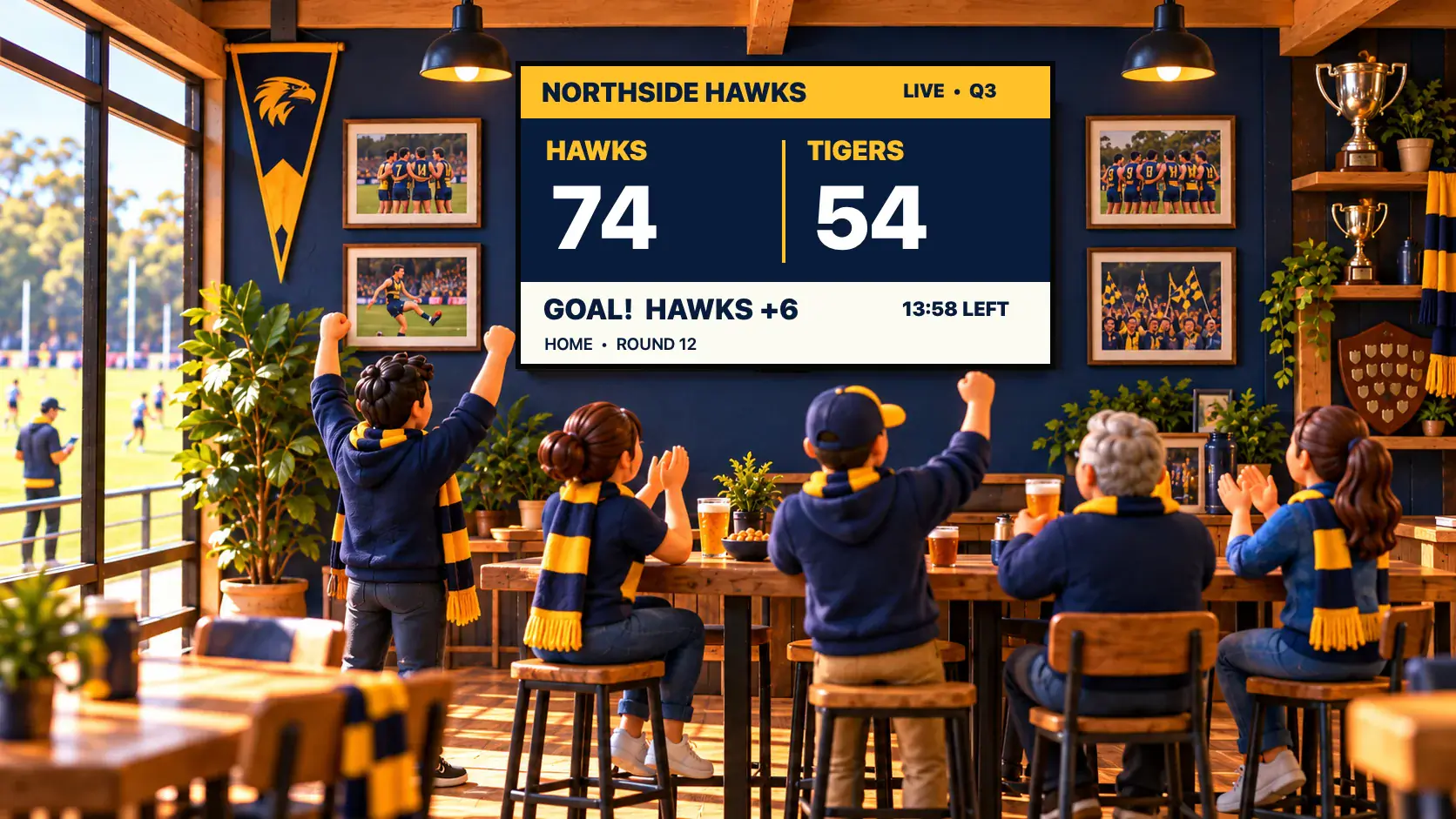
A scoreboard on a TV in the clubrooms or at the ground is only useful if someone can keep it up to date without fuss. In Dislab the volunteer scores from a phone, with buttons made for the sport, and the screen changes as they press. This post sets one up from scratch.
What you need
- A screen paired to your account, and a TV where people will see it. Get started covers pairing.
- A Pro plan: scoreboards are part of Pro, A$9.99 per screen a month, with 14 days free.
- A phone for the scorer. Two scorers can keep the same board from two phones.
1. Set up the game
- Open Scoreboards (on a phone, under More). A new board asks What are you scoring? Tap the sport, then type the team names.
- Dislab fills in how the sport is played: four quarters, two halves, three periods, innings or sets, and the minutes. Change any of them for juniors or a social league.
- Choose whether the Game clock Counts up, Counts down or there is No clock, and pick the teams’ colours.
To change it later, press Set up the game. Changing the sport starts a new game at 0–0.
2. Put the board on a sign
- In the sign designer, choose Widgets, then Scoreboard, or start from one of the Scoreboards templates.
- Choose your board under Score from, then pick one of 48 real scoreboard designs under Design: a heritage ground board, tin plates that swing off their hooks, bulbs, seven-segment LEDs, split flaps, a stadium screen and more.
- Give each team a crest in your colours, or its logo from Media. Add a heading for the ground or club, a line at the foot, and up to three sponsors.
- Put the sign on the screen with Publish to screen.

3. Score the game
- Press the sport’s own buttons, in each team’s colour, as they score: Goal and Behind for Australian rules, Try and Conversion for rugby, 2 points and 3 points for basketball, runs, Wicket and Wide or no ball for cricket. Tennis, darts, golf and ten-pin have their own pages.
- Run the clock with Start clock and Pause clock. Screens keep it ticking by themselves, even without the internet.
- Press Next to move through the game: first quarter, quarter time, second quarter, half time and on to full time.
- Undo takes back the last press on your phone, and Fix the score lets you type the right score in.

Tips for game day
- Practise on a spare board. Make a second scoreboard, play a pretend quarter and press Undo until it feels natural.
- Let a volunteer score. Invite them as Staff under Settings, People. They see only the phone pages, so they cannot change your signs.
- Show the ladder and fixtures too. The Club tables page keeps ladders, leaders and fixtures you type in, and the Score and ladder template puts the ladder beside the live score.
- Check the connection. A press reaches the screen when the screen is online. If the ground’s Wi-Fi is poor, put the stick on a phone hotspot or a wired adapter.
Questions
Which sports are supported?
Australian rules, soccer, rugby league and union, basketball, netball, cricket, hockey, ice hockey, American football, volleyball, touch football and baseball, plus tennis, darts, golf, ten-pin, lawn bowls and many more. If your sport is not listed, “another sport” gives you plain scoring buttons.
Can two people score the same game?
Yes. Two scorers can keep the same board from two phones. The page catches up every few seconds, so each sees the other’s presses.
What if the internet drops at the ground?
The board and the game clock keep showing and ticking. A new score from your phone needs the screen to be online, and it catches up once the connection returns.
Can I show sponsors on the board?
Yes. Add up to three sponsors on the scoreboard, and use sponsor spots to sell time on your other screens too.
Score it from the sideline
Pick your sport, choose a board and run your next game from a phone. The first 14 days of Pro are free.
Related posts
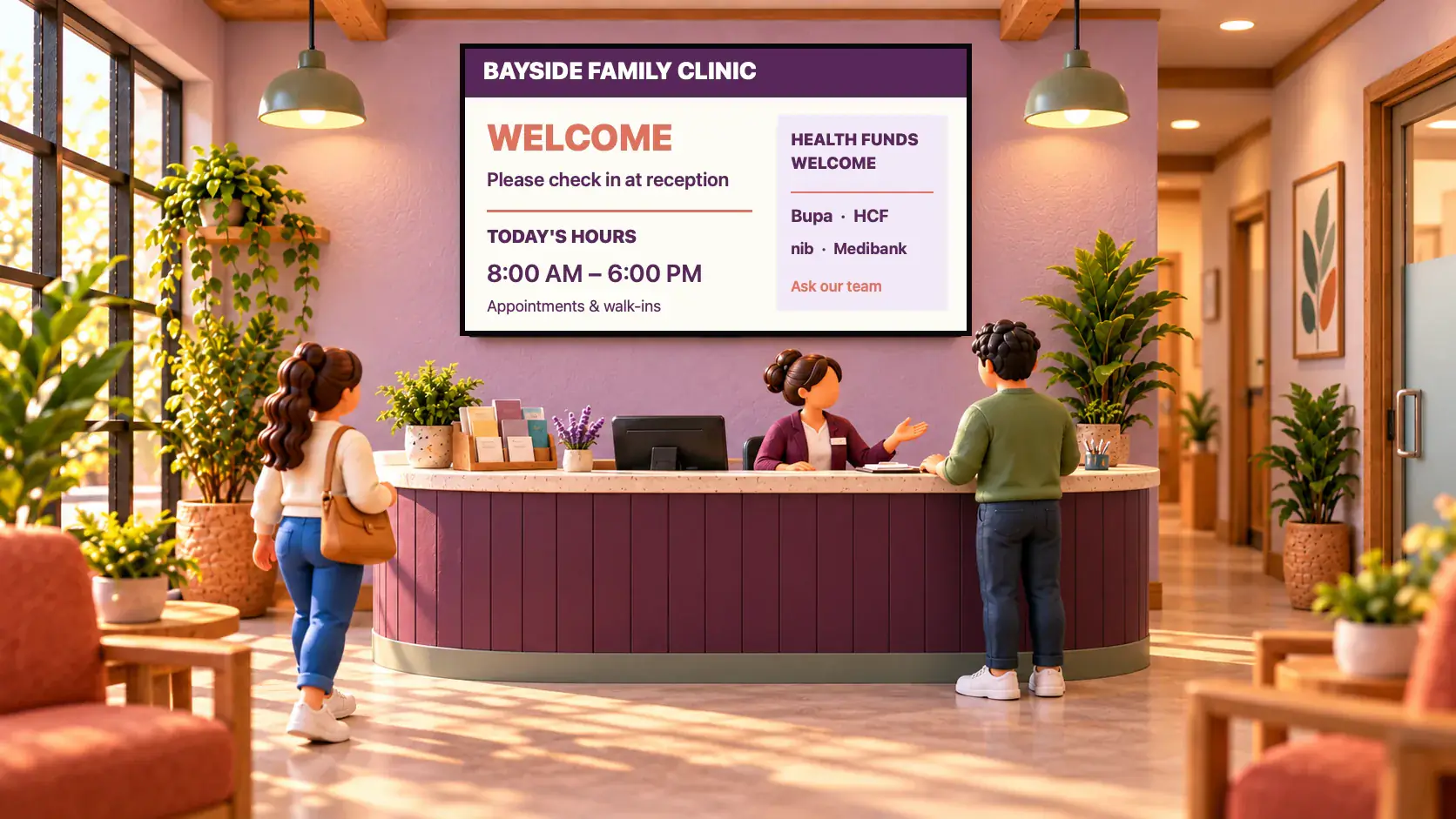 Queues and scoresWaiting room TV ideas for clinicsTen ideas for a clinic waiting room TV, from the queue number and wait time to hours and health tips, plus what to leave off and how to set it up.
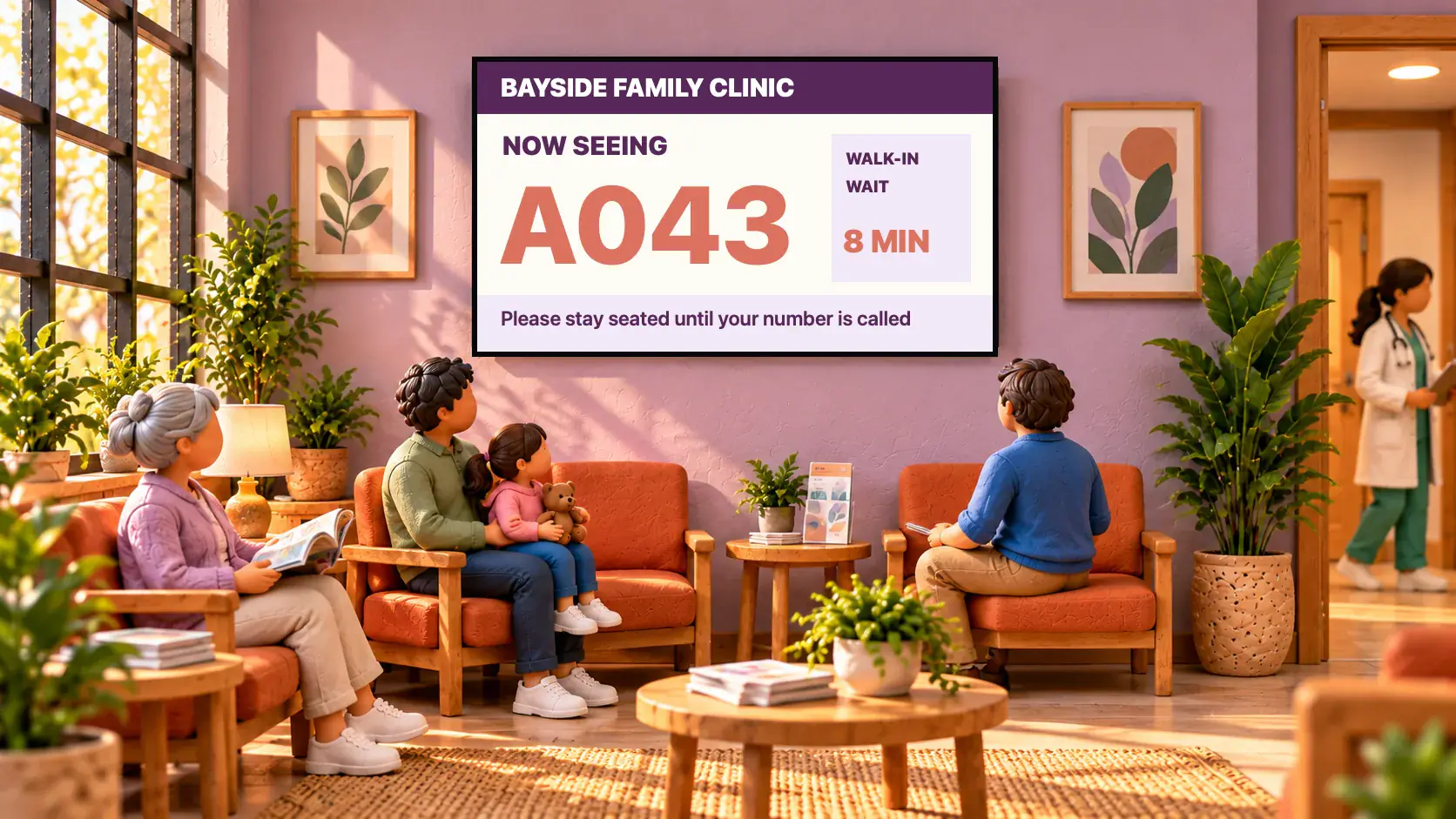 Queues and scoresHow to set up a queue number screenSet up a Now serving queue number display for a clinic, barbershop, pharmacy or counter: a big number on the TV that staff move on from a phone.
 MenusDigital signage for hair salons: what to show and whereDigital signage for hair salons: a price list by the mirror, a QR code to book at the desk, your best work in the window, and what it costs per screen.