
Adding a widget to a sign
Every planWidgets keep themselves up to date: clocks, weather, countdowns, queue numbers, boards and live data.
- In a sign, press Add widget under Layers.
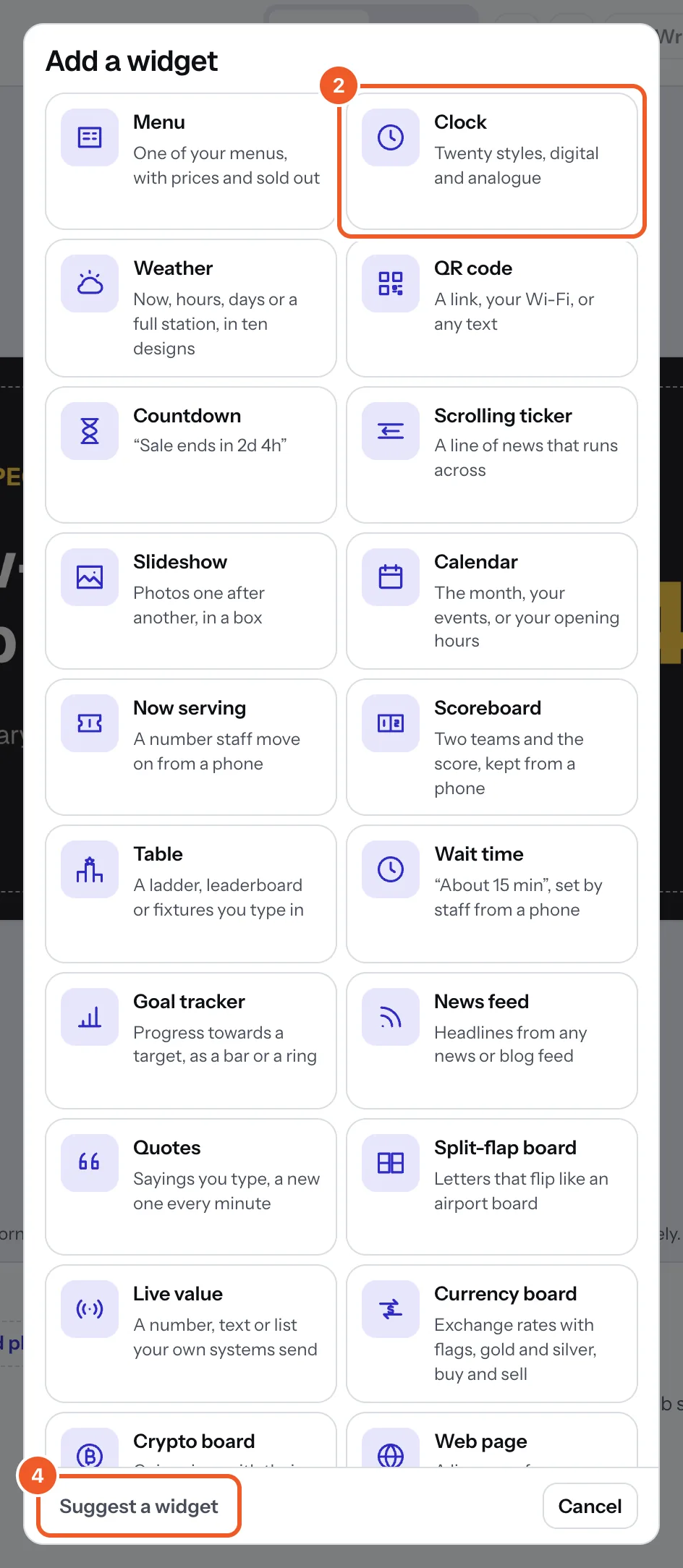
- Pick one from the list. Some ask one thing first: a clock its style, weather its town, a calendar what it shows, a menu or live value which one.
- It lands in the middle of the sign. Drag it into place, pull a corner to resize it, and set it up on the right. Every widget’s settings have a How this works link to its guide here.
- Missing something? Press Suggest a widget, say what you’d like on your screens, and press Send. It goes straight to the Dislab team.
Without the internet, clocks, countdowns and quotes keep running by themselves, and weather, rates and headlines show the last ones the screen had for a while (each guide says how long). Only a web page needs the internet all the time.
On Free: clocks, weather and QR codes. The other widgets come with Pro and are marked Pro in the list.
Thanks for telling us. If something’s missing, tell us what and we’ll add it.
Still stuck?
Email support@dislab.app, or send us a message. If it’s about a screen, tell us its name. We answer within one business day.