
Payments and invoices
Start Pro with a 14-day free trial, then one bill a month or year; card, invoices and cancelling are in Manage billing.
Only the account’s owner sees the plan and billing.
- Open Settings and go to Your plan. Choose Monthly or Yearly (two months free).
- Press Start 14-day free trial under Pro. Stripe’s secure page asks for your card; nothing is charged for 14 days. Under the button you see what you’ll pay for the screens you have.
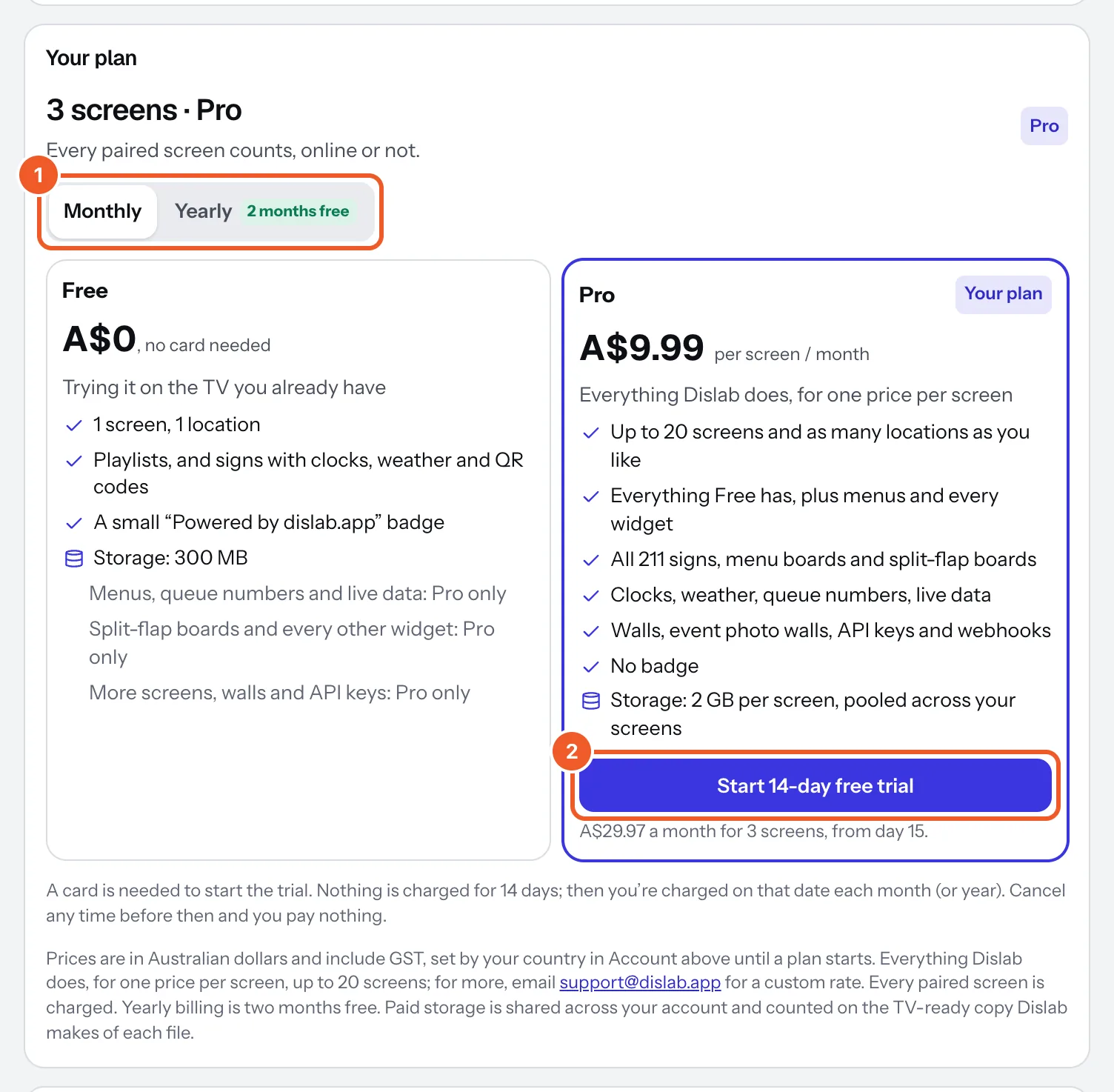
- Back in Dislab, Your plan says when the trial ends and what you’ll be charged then. That day becomes your billing date.
- Cancel before the trial ends and you pay nothing.
- Adding a screen charges the rest of the month or year straight away.
- Removing a screen isn’t refunded; it stays paid until your next billing date and isn’t renewed, and a new TV can take its place free until then.
- A failed payment keeps your plan 3 days; Your plan says until when. Then the account moves to Free until it’s paid.
- Cancelling keeps your plan to the end of the paid period, then moves to Free.
Once you’re on Pro, Manage billing under Your plan opens Stripe’s billing page: change your card, switch between monthly and yearly, cancel, and download invoices (add your ABN there).
If Your plan says billing isn’t switched on yet, Pro can’t be started from the console yet: email support@dislab.app.
Thanks for telling us. If something’s missing, tell us what and we’ll add it.
Still stuck?
Email support@dislab.app, or send us a message. If it’s about a screen, tell us its name. We answer within one business day.