
Pairing a TV
Install Dislab on the stick, then type the 6-character code it shows into the console.
- On the TV, open Dislab. It shows a 6-character code. (New stick? Start with Set up a Fire TV stick.)
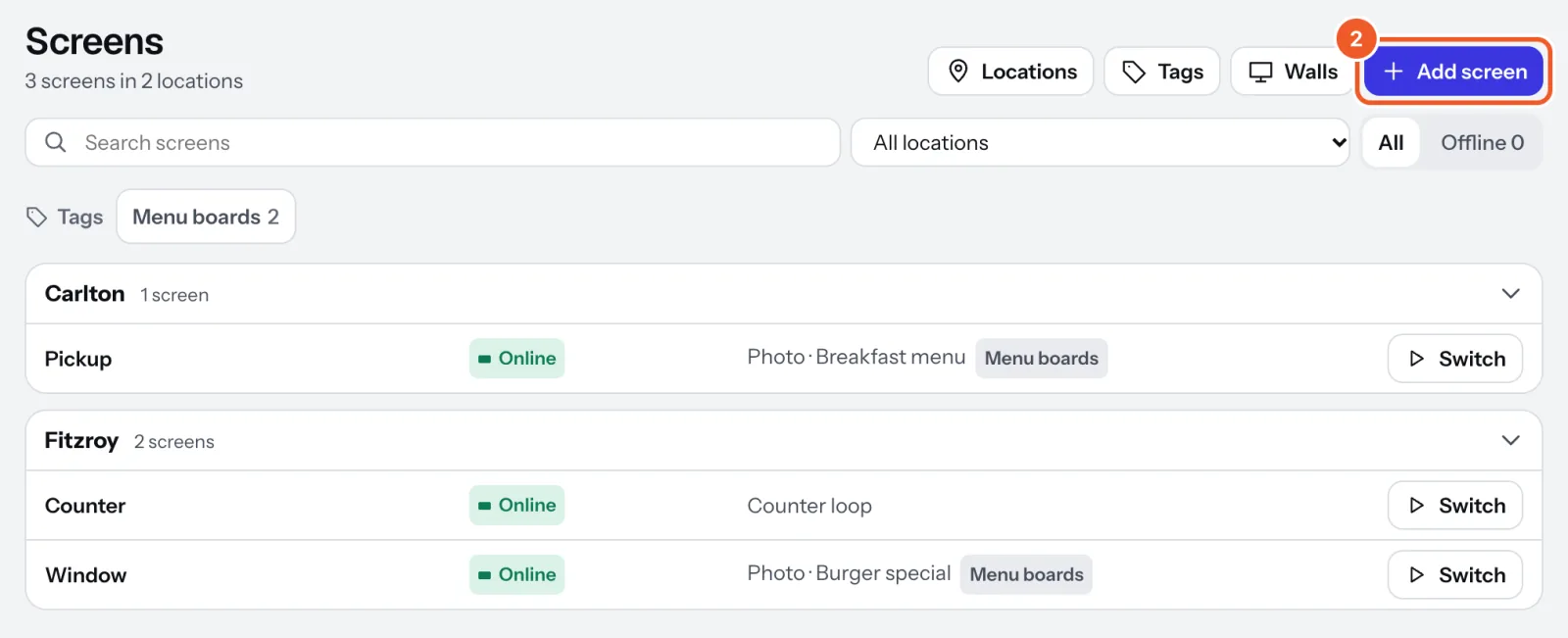
- In the console, open Screens and press Add screen (or go to app.dislab.app/pair on your phone).
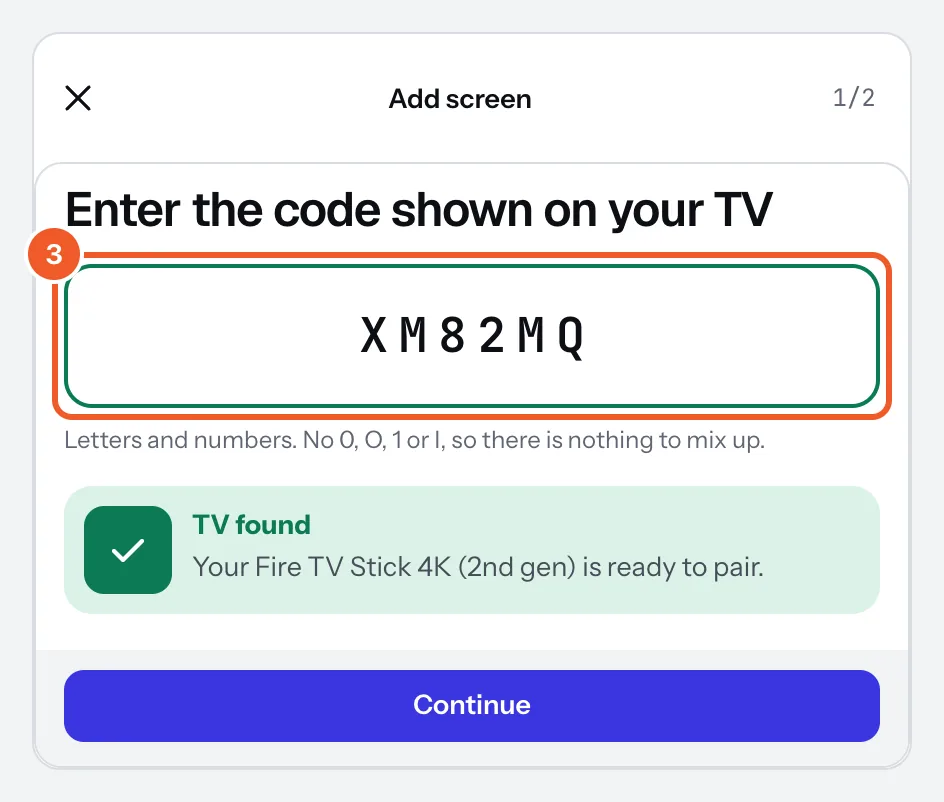
- Type the code: it checks itself and says TV found. Press Continue.
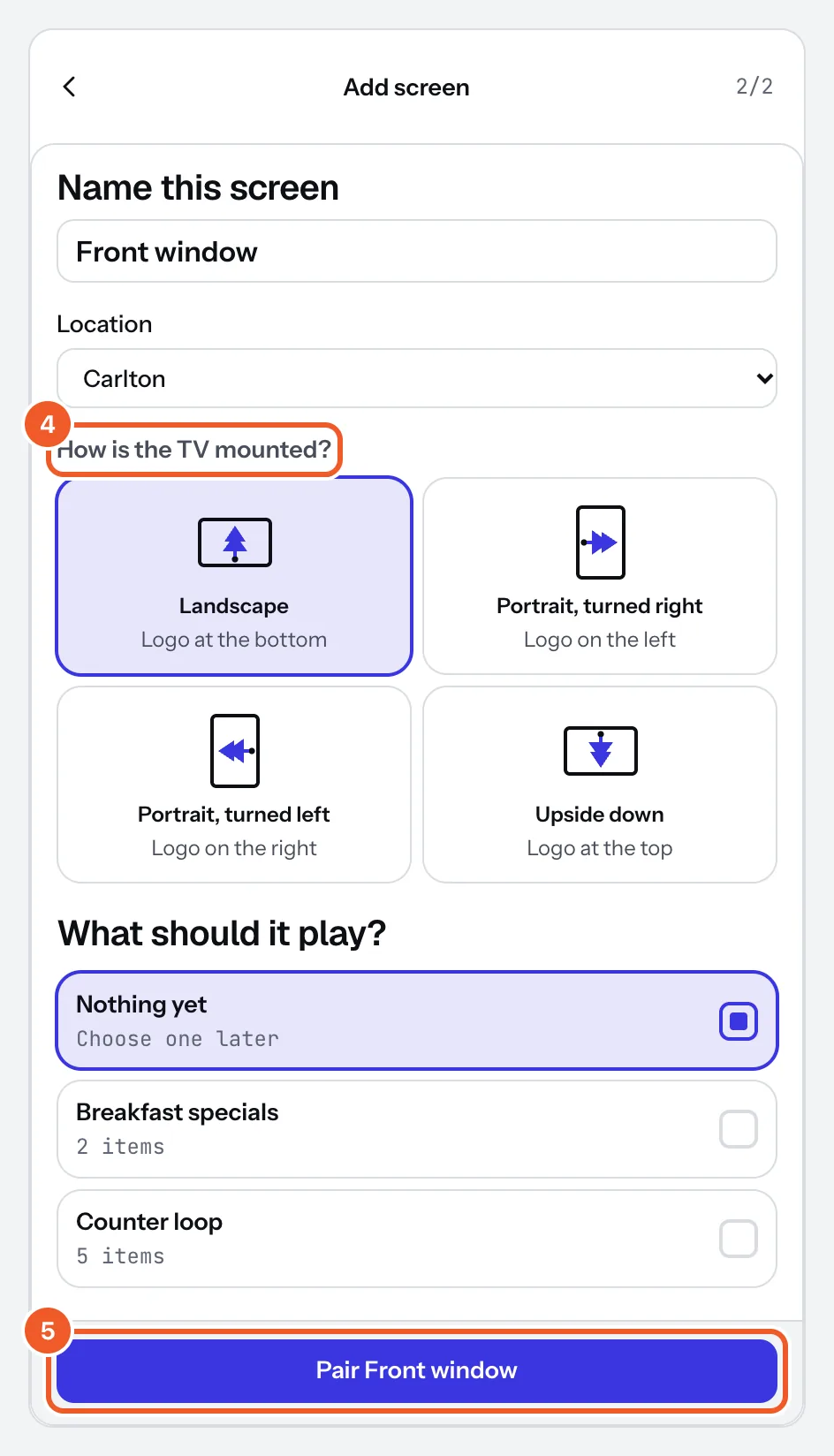
- Under Name this screen give it a name (“Front window”), pick its Location, and choose How is the TV mounted?: landscape, portrait turned right or left, or upside down. With no location yet, Dislab asks Where is this screen? and makes one.
- Under What should it play? choose a playlist, or Nothing yet, and press Pair (the button carries the name: “Pair Front window”).
- Dislab says Paired. Press View to open the screen’s page and choose a photo, video or sign for it, or Pair another screen.
Codes change every 10 minutes, so use the one on the screen now. Codes never use 0, O, 1 or I. If the TV says No internet, connect it to Wi-Fi (Fire TV Settings › Network) and a code appears by itself.
Free covers one screen. Pairing a second shows Start the free trial (or Move to Pro once your trial is used): start it, then come back and type the code again. Pro goes up to 20 screens; for more, email support@dislab.app for a custom rate.
No stick to hand? A computer can be a screen too: see Using a computer as a screen.
Thanks for telling us. If something’s missing, tell us what and we’ll add it.
Still stuck?
Email support@dislab.app, or send us a message. If it’s about a screen, tell us its name. We answer within one business day.