
Showing a photo or video on a screen
Every planOpen it in Media and press Show on a screen, or choose it on the screen’s page.
From Media, onto one or more screens
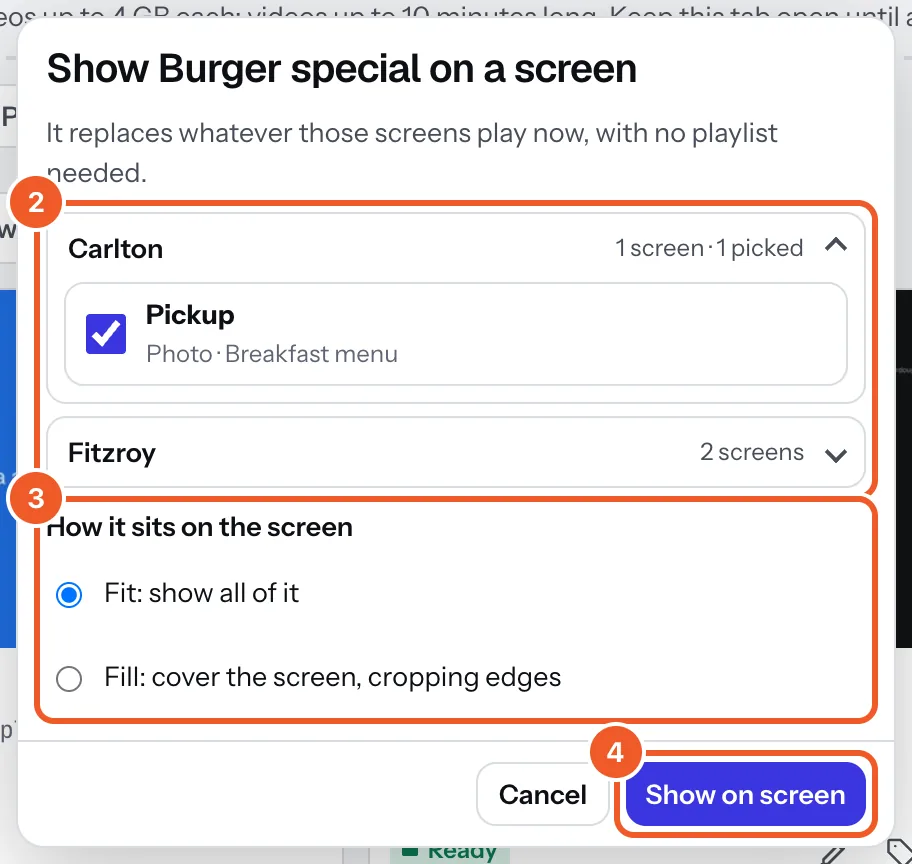
- In Media, click the photo or video and press Show on a screen.
- Tick the screens. They’re grouped by location: click a location to open it.
- Under How it sits on the screen choose Fit (show all of it, with bars where it doesn’t reach) or Fill (cover the screen, cropping the edges).
- Press Show on screen (it says how many screens when you tick more than one). It replaces whatever those screens play, straight away.
From a screen’s page
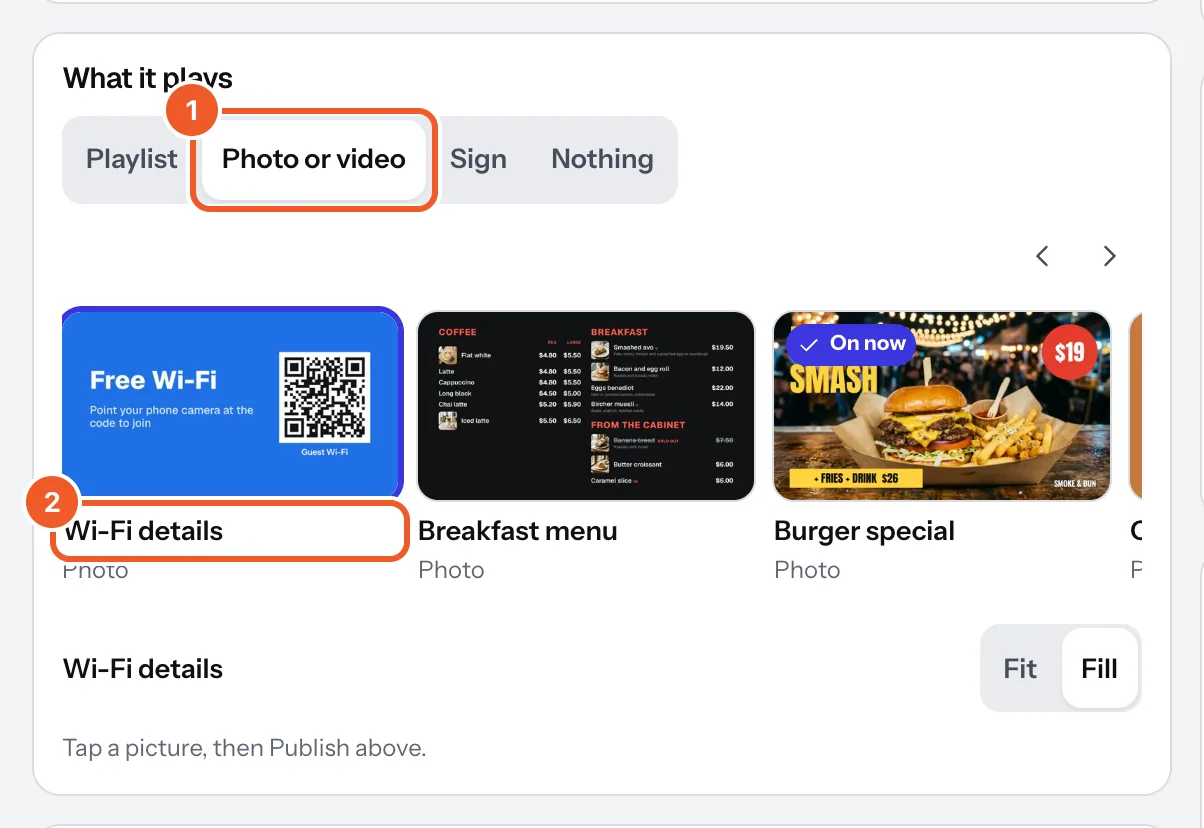
- Open the screen in Screens. Under What it plays choose Photo or video, then tap a picture (or Upload a new one). Choose Fit or Fill beside its name.
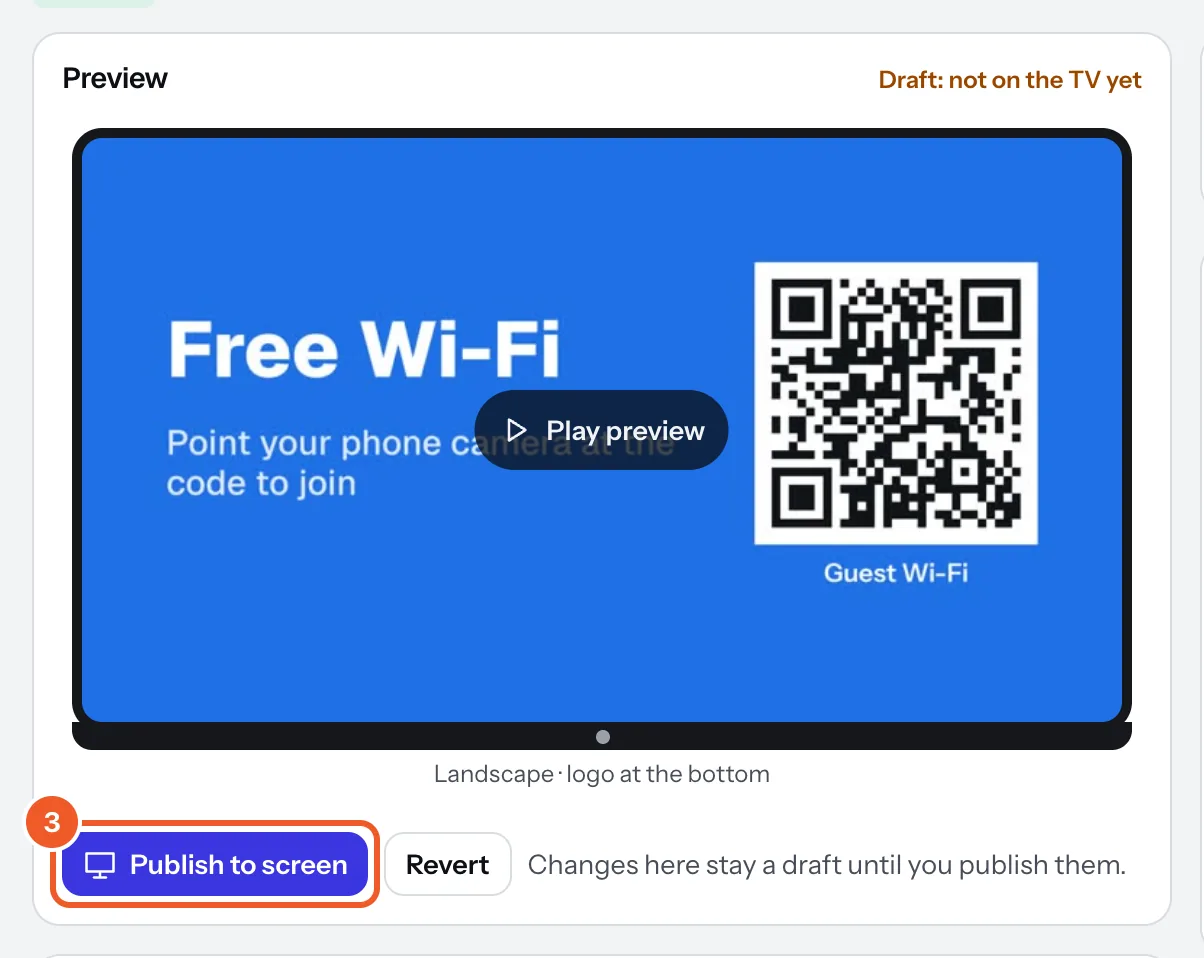
- The preview shows how it will look. Nothing changes on the TV yet.
- Press Publish to screen to send it, or Revert to keep what’s on.
A screen can also play a playlist (several photos, videos and signs in turn) or a sign. To swap quickly between things you’ve made, use Switch on the Screens list.
Thanks for telling us. If something’s missing, tell us what and we’ll add it.
Still stuck?
Email support@dislab.app, or send us a message. If it’s about a screen, tell us its name. We answer within one business day.