
Using a computer as a screen
Open play.dislab.app in Chrome, Edge or Safari (on a Mac or iPad) and pair it like a TV. Handy, but a Fire TV stick is better for a screen that runs all day.
- On the computer connected to the screen, open play.dislab.app in Chrome, Edge or Safari. It shows a 6-character code. (On a Mac or iPad, add it as an app first: see below.)
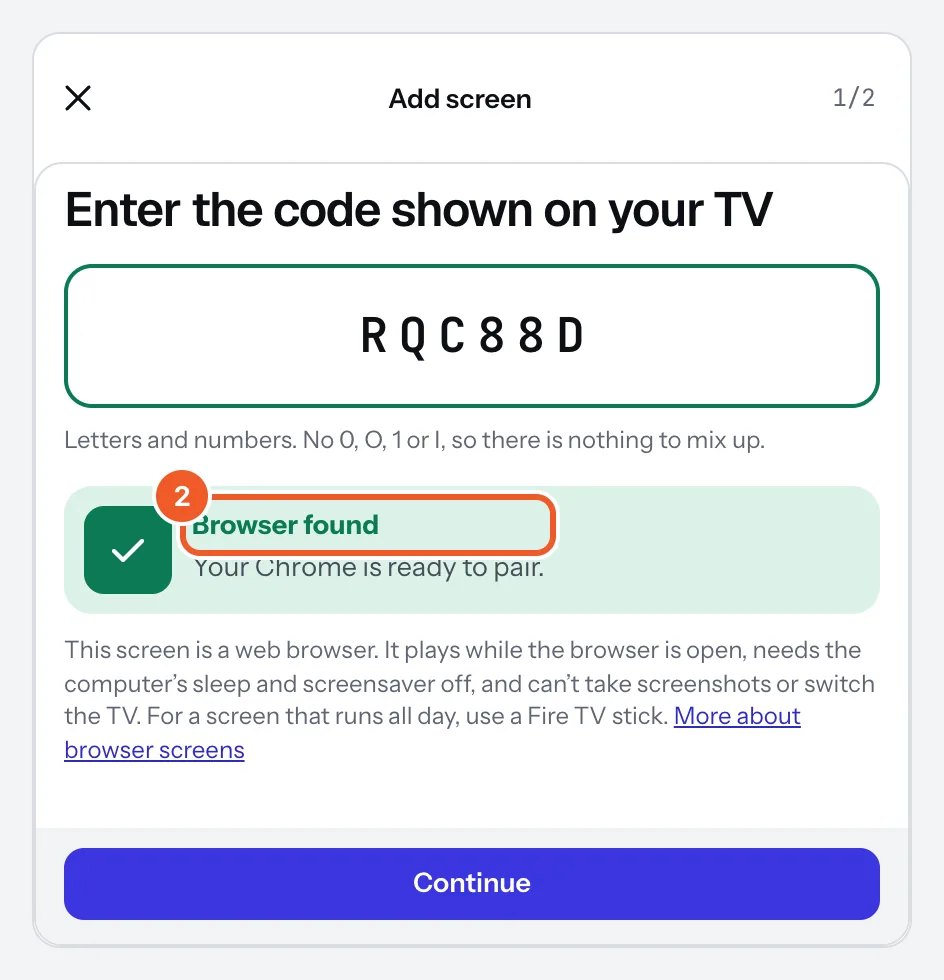
- Pair it as you would a TV: Add screen, type the code, and Dislab says Browser found. Press Continue and choose what it plays.
- Double-click the picture (or press F) for full screen. Press I for the screen’s status, and Esc to close it.
- Turn off the computer’s sleep and screensaver, and set its display never to turn off.
It plays the same playlists, signs and widgets as a TV, keeps to schedules and opening hours, and keeps playing from what it has downloaded if the internet drops. It counts as a screen on your plan like any other.
What a browser can’t do as well as a stick:
- It only plays while the browser is open. After a power cut or restart it doesn’t open by itself unless you set the computer up to (below).
- Full screen needs a double-click, or Chrome started in kiosk mode.
- The computer’s own sleep and screensaver must be off, or the screen goes dark.
- A browser can clear the files it has stored (when the disk is nearly full, or if someone clears browsing data). It then downloads them again, which needs internet.
- Chrome, Edge, and Safari 16.4 or later. Not Firefox.
- Only one tab plays: open play.dislab.app in a second tab and the first says it’s playing in another tab.
- No screenshots (On the TV now), no TV on/off or restart from the console, and Turn the TV off after hours shows black instead.
On a Mac or iPad, add it as an app. Safari deletes what a website has stored after 7 days without anyone using it, which would unpair the screen. Added as an app it keeps everything, opens full screen and has no browser bars. On a Mac: open play.dislab.app in Safari, then File, Add to Dock, and open it from the Dock. On an iPad: Share, then Add to Home Screen, and open it from there; to keep the iPad on Dislab, turn on Guided Access (Settings, Accessibility) and set Auto-Lock to Never.
To run it all day on Windows: start Chrome in kiosk mode, which opens full screen with nothing else on it, every time the computer starts.
- Right-click the desktop, choose New › Shortcut, and type
"C:\Program Files\Google\Chrome\Application\chrome.exe" --kiosk https://play.dislab.app. - Press Windows+R, type
shell:startupand move the shortcut into the folder that opens. - Settings › System › Power: set the screen and sleep to Never.
- Restart the computer to check it opens by itself. To leave kiosk mode, press Alt+F4.
On a Chromebook, a managed device can run play.dislab.app as a kiosk app.
Thanks for telling us. If something’s missing, tell us what and we’ll add it.
Still stuck?
Email support@dislab.app, or send us a message. If it’s about a screen, tell us its name. We answer within one business day.