
Putting a sign on a screen
Every planShow a sign on its own, or add it to a playlist with other signs, photos and videos.
On its own:
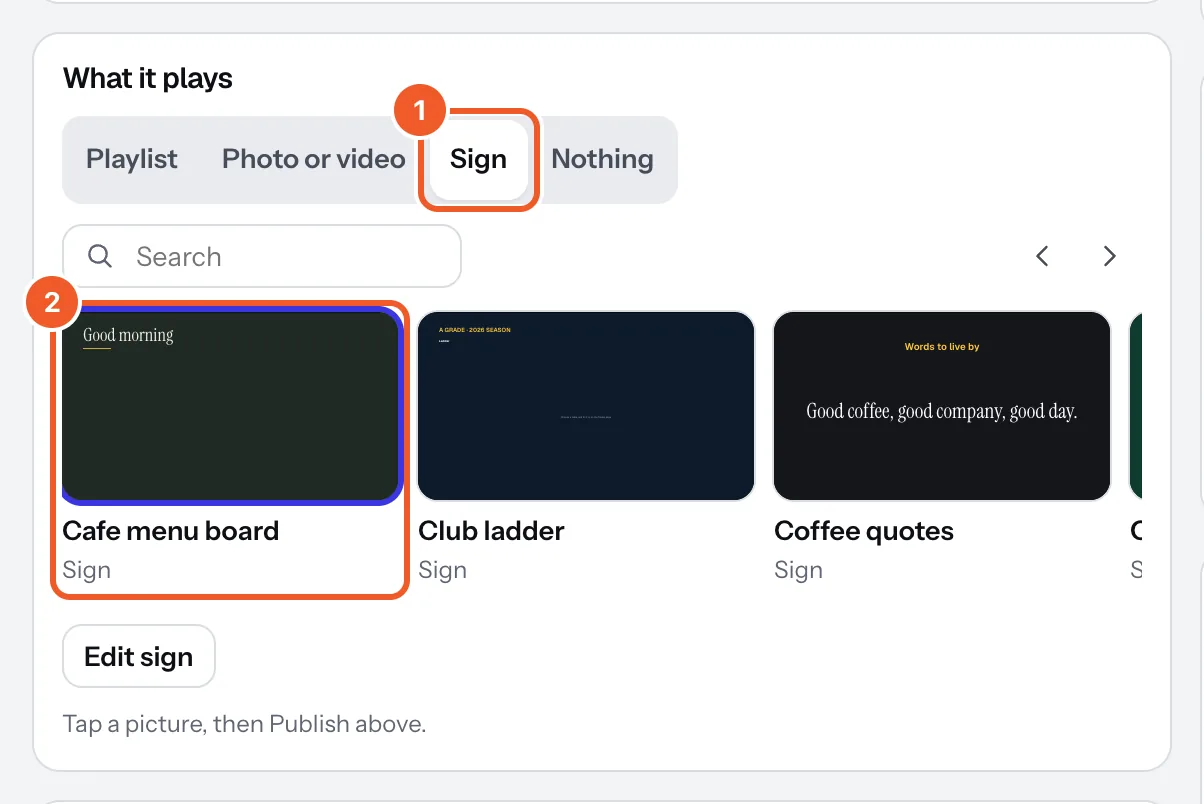
- Open Screens and the screen. Under What it plays, choose Sign.
- Tap the sign’s picture, then press Publish to screen at the top of the page.
In a playlist: in the playlist press Add media or signs, tick the sign under Signs, and set how long it shows (making a playlist).
No sign yet? On the screen’s page press New sign: when it’s saved, Put on the screen at the top of the designer takes you back with it picked, ready to publish. Screens showing a sign change within seconds whenever you save it.
Thanks for telling us. If something’s missing, tell us what and we’ll add it.
Still stuck?
Email support@dislab.app, or send us a message. If it’s about a screen, tell us its name. We answer within one business day.