
Clock and world clocks
Every planTwenty clock styles, in the screen’s local time or any city’s.
- In a sign, choose Add widget › Clock and pick one of the twenty styles, digital or analogue. Each is drawn live, so you see it as the TV will.
- Drag and resize it; the clock fills its box.
- Style switches to another look without losing its place. Then choose the colours and, where the style has them, Seconds, Date and 24-hour time. The Mono style can show a Place name.
- Time in is This screen’s own time to start with: the time zone of the screen’s location (time zones). Choose a city to make it a world clock.
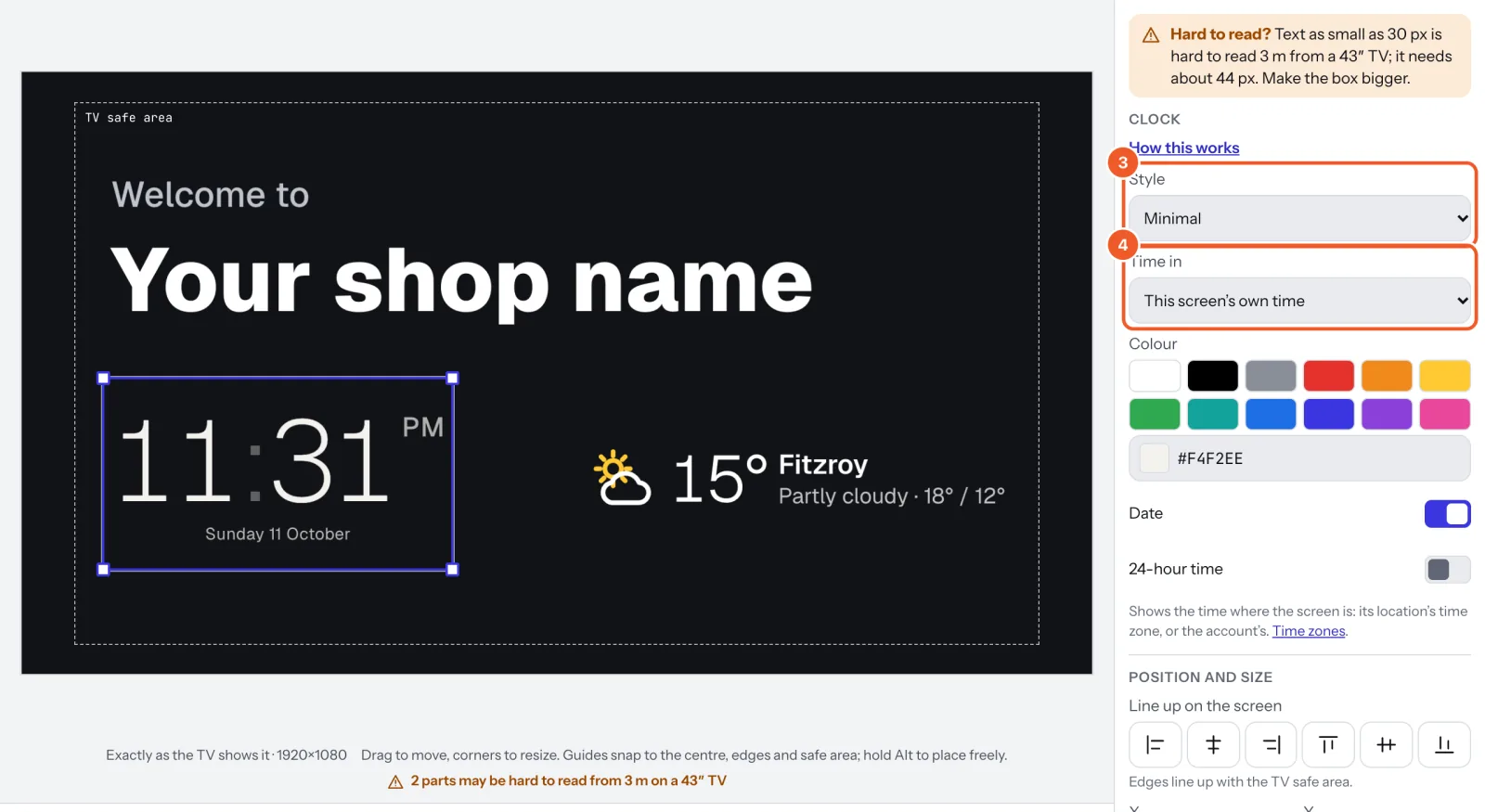
World clocks: under Time in, pick a city. Daylight saving is looked after, and with the date on you can see where it’s already tomorrow. The World clocks templates start you with a set of cities in different styles; change any clock’s city, and the name under it, to your own.
Thanks for telling us. If something’s missing, tell us what and we’ll add it.
Still stuck?
Email support@dislab.app, or send us a message. If it’s about a screen, tell us its name. We answer within one business day.