
Switching what a screen plays
Every planPress Switch on the Screens list and tap a picture: it plays on that TV straight away, with Undo.
- In Screens, press Switch beside the screen.
- Under Change what it plays, tap a picture: a playlist, a sign, or a photo or video. It plays on that TV from now on, within seconds. What’s playing now is marked On now. Narrow the pictures with Playlists, Signs or Photos and videos, or search when you have lots.
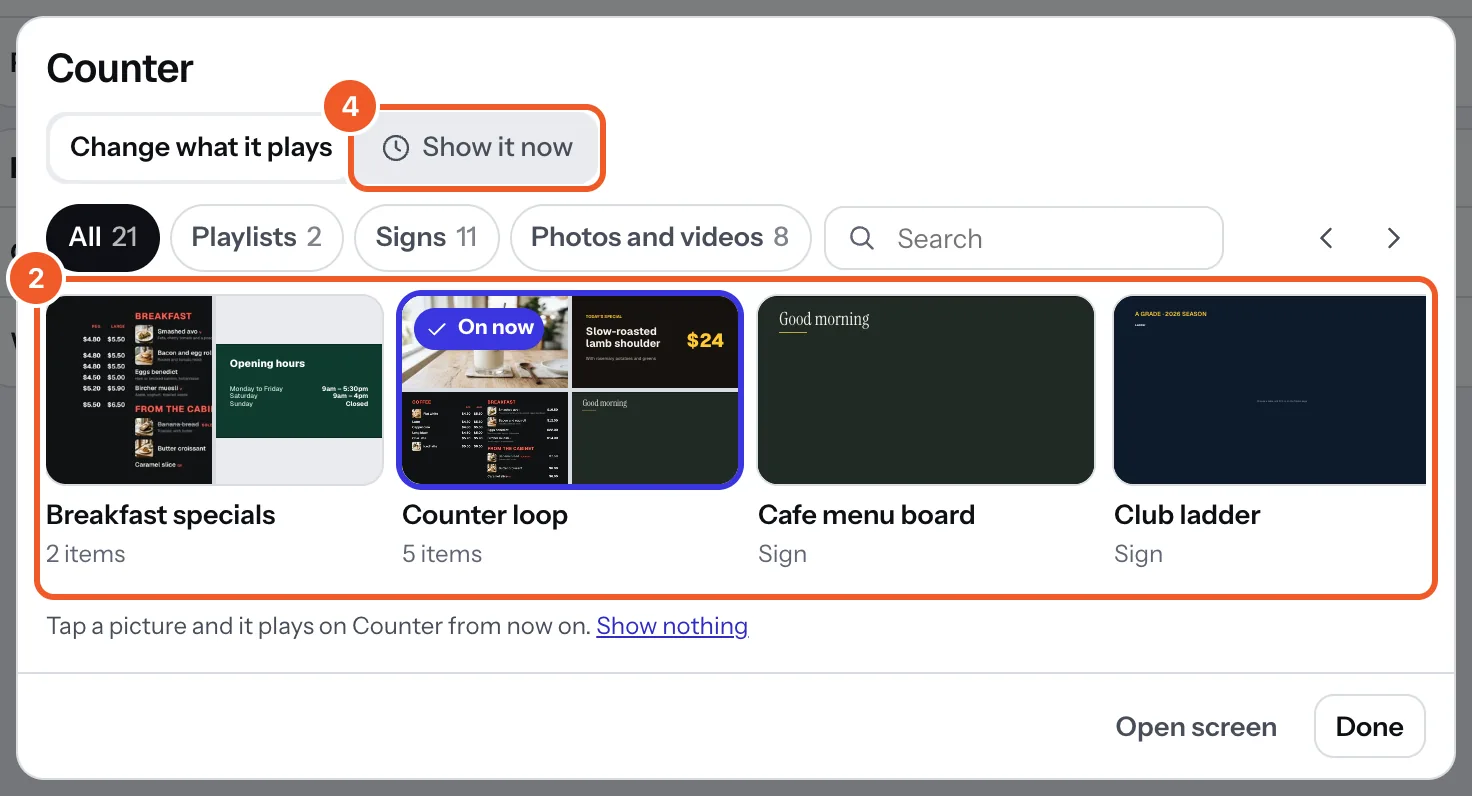
- Changed your mind? Press Undo to put back what it played before. Show nothing clears the screen.
- For a short time only, choose Show it now instead (Pro): see Show it now.
Press Done to close, or Open screen for its page. Unlike the screen’s page, Switch has no draft: a tap goes straight to the TV.
Thanks for telling us. If something’s missing, tell us what and we’ll add it.
Still stuck?
Email support@dislab.app, or send us a message. If it’s about a screen, tell us its name. We answer within one business day.