
No internet, or Dislab isn’t answering, on the TV
The TV can’t reach Dislab. It keeps playing what it has; changes reach it once it’s back online.
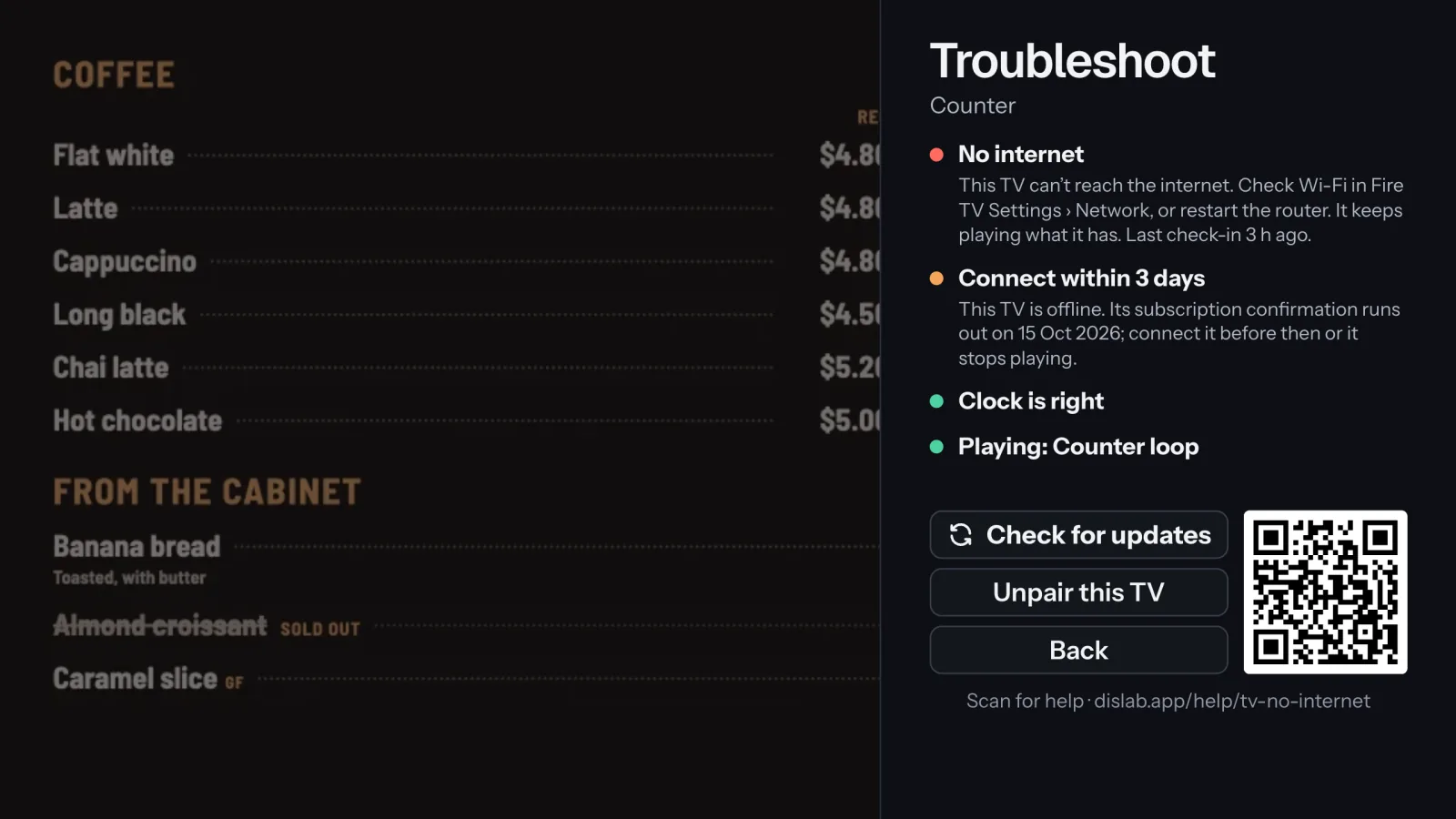
- No internet: the TV can’t reach the internet at all. It keeps playing what it has.
- Check the TV is on the Wi-Fi you expect: Fire TV Settings › Network (on an Android TV or Google TV stick, Settings › Network & Internet). On a stick set up for Dislab, open the menu and choose Network settings.
- If the network has a sign-in page (hotels, shopping centres), Dislab can’t get past it: use a network without one.
- Restart the router, then unplug the stick’s power for 10 seconds and plug it back in.
- Weak Wi-Fi? Move the router or stick closer, or use Amazon’s Ethernet adapter for Fire TV.
- Dislab isn’t answering: the internet works, but Dislab’s server didn’t answer properly. The TV tries again every 30 seconds and keeps playing. If it lasts more than half an hour, email support@dislab.app. A network that blocks some websites (a school or office firewall) can also cause it: ask whoever runs it to allow dislab.app and supabase.co.
- Dislab doesn’t recognise this screen: Dislab refused the TV, usually because it was unpaired in the console. After the third refusal it starts again with a new code to pair. If you didn’t mean to unpair it, pair it again: see Pairing a TV.
- Connected to Dislab: all fine. Changes arrive within seconds.
A TV with no internet keeps playing for days. It does need to check in before its subscription confirmation runs out: see The TV can’t confirm your subscription.
Thanks for telling us. If something’s missing, tell us what and we’ll add it.
Still stuck?
Email support@dislab.app, or send us a message. If it’s about a screen, tell us its name. We answer within one business day.