
Uploading photos and videos
Every planDrop files on Media or press Upload; Dislab converts each one to play smoothly on a TV.
- Open Media and press Upload, or drag files onto the page from your computer. On a phone, Upload lets you pick from your camera roll. You can pick several at once.
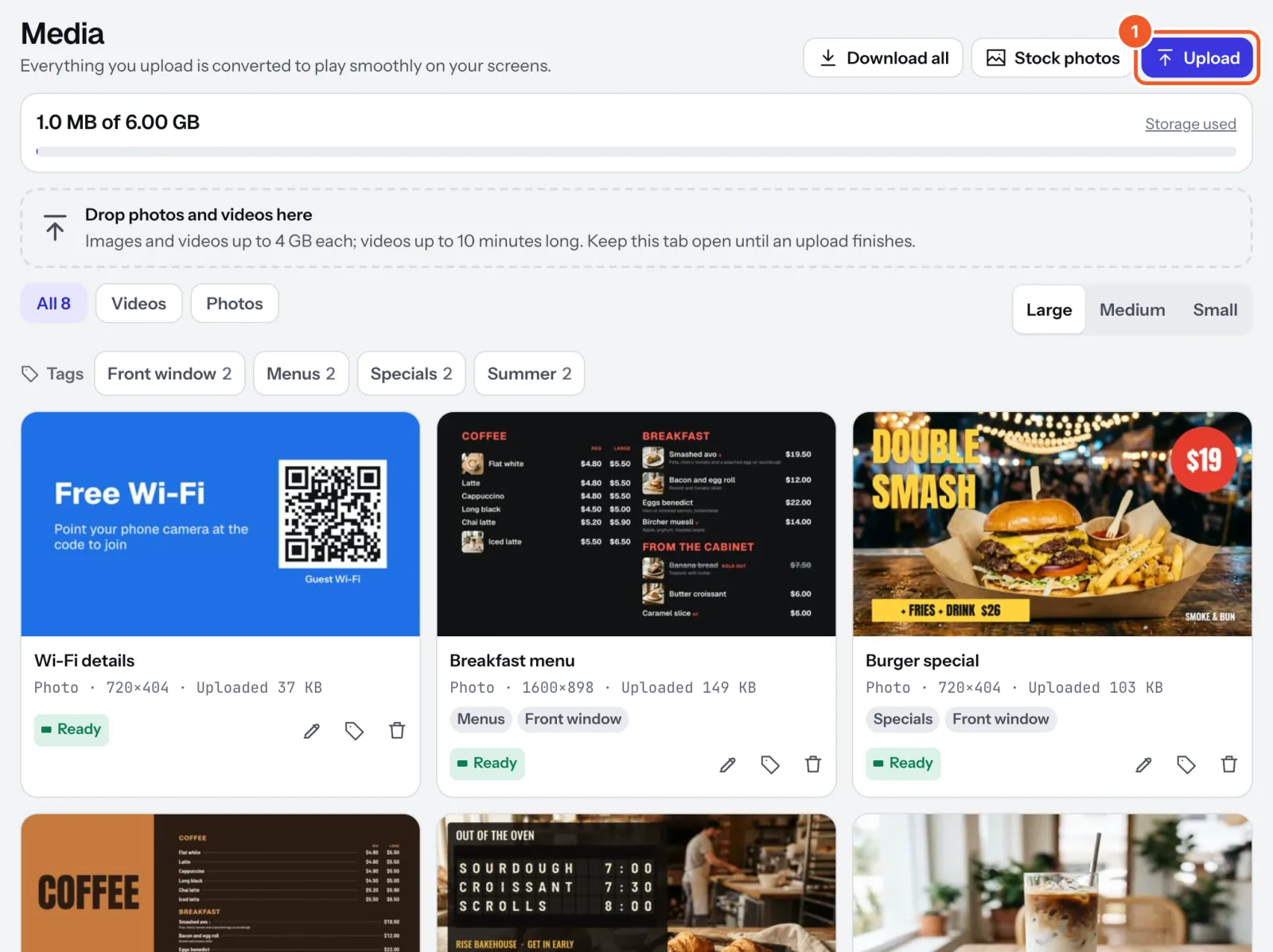
- Each file shows Uploading with how far it’s got, then Finishing upload. Keep the tab open until it changes to Processing: closing it earlier stops the upload.
- Processing means Dislab is converting it for TVs. You can leave the page now. It turns Ready, usually within a minute (longer for long videos), and can then go on any screen.
What you can upload
- Photos: JPEG, PNG, WebP, GIF and iPhone HEIC, up to 64 megapixels.
- Videos: MP4, MOV, M4V and WebM, up to 10 minutes long.
- Any file up to 4 GB.
Dislab turns photos the right way up, makes videos 1080p (and 4K too, when the original is sharper and you have a 4K screen), turns pictures for portrait screens, and removes the location data cameras add. A landscape 16:9 picture (1920 × 1080) fills a landscape TV; 9:16 fills a portrait one.
If something goes wrong
- Not uploaded: the upload didn’t finish (often the connection dropped, or storage is full). The reason is under the file. Press Dismiss and try again.
- Failed: Dislab couldn’t convert the file, and says why (damaged, or a format it can’t read). Fix it, upload it again, then press Dismiss on the failed one. Failed files don’t use storage.
- Uploads wait if this month’s converting time is used up: see Storage.
Thanks for telling us. If something’s missing, tell us what and we’ll add it.
Still stuck?
Email support@dislab.app, or send us a message. If it’s about a screen, tell us its name. We answer within one business day.