
Portrait and upside-down TVs
Every planTell Dislab which way the TV hangs and it turns everything to match. The stick itself needs no settings.
- Open the screen in Screens.
- Under How the TV is mounted, pick the way it hangs: Landscape, Portrait, turned right, Portrait, turned left or Upside down. Not sure which? Look for the maker’s logo on the TV’s frame: each choice says where it ends up (on the left, on the right, at the top).
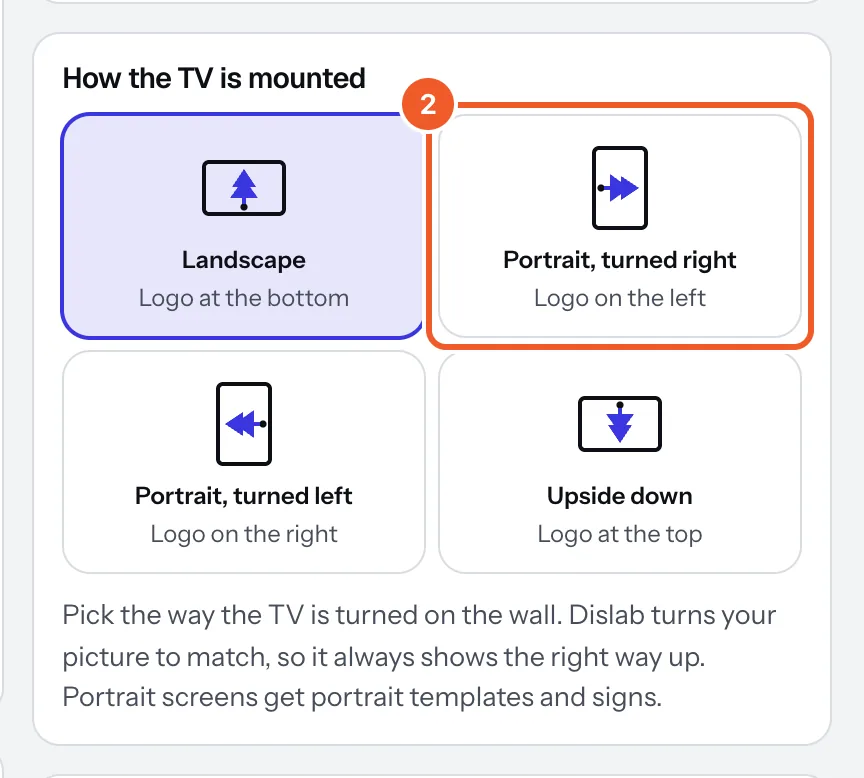
- The preview turns to match. Press Publish to screen.
Dislab turns photos, videos and signs for you, so they show the right way up. Videos and photos get a turned copy made on our servers, which can take a few minutes the first time; the TV switches when it’s ready. Never turn the picture in the stick’s own settings as well.
A portrait screen fills best with portrait content: signs made at 9:16 (templates come in both shapes), and photos and videos shot upright. A landscape sign on a portrait screen shows as a band across the middle, and the preview says so.
You can set this when you pair the TV too, under How is the TV mounted?
Thanks for telling us. If something’s missing, tell us what and we’ll add it.
Still stuck?
Email support@dislab.app, or send us a message. If it’s about a screen, tell us its name. We answer within one business day.