
Timing, transitions and order
Every planHow long each item shows, how it comes in, Fit or Fill, and the order they play in.
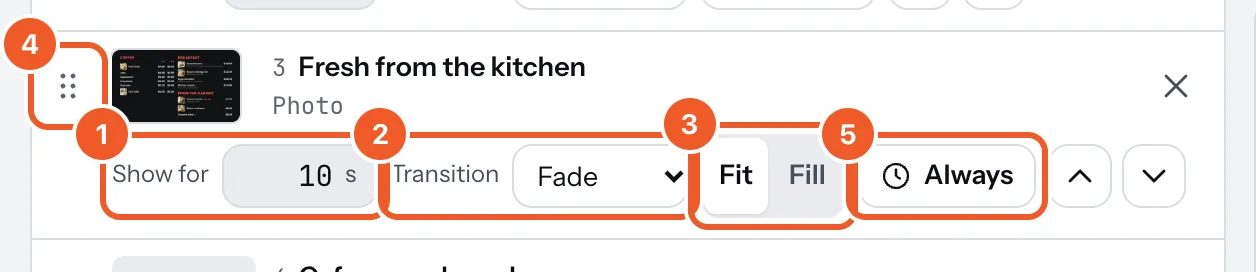
Every item in a playlist has its own row:
- Show for: how many seconds a photo or sign stays up, from 1 to 3600 (an hour). New items start at 10. A video always plays to the end, so its row says Plays for and its length instead.
- Transition: how the item comes in: Cut (straight away), Fade, Slide left or Slide up.
- Fit shows the whole photo or video, with black bars where its shape differs from the screen. Fill covers the screen and crops the edges. The little picture on the row shows you which. Signs are made for the screen’s shape, so they don’t have this.
- To change the order, drag an item by the dots on its left, or use the up and down arrows. The cross on the right takes an item out (the file stays in Media).
- Always means the item plays every time round. Press it to give the item days, times or dates: see Scheduling.
Then press Save. If a time is out of range, the bar says so and Save waits until it’s fixed. Items marked Still processing are still converting and join in once they’re ready.
Thanks for telling us. If something’s missing, tell us what and we’ll add it.
Still stuck?
Email support@dislab.app, or send us a message. If it’s about a screen, tell us its name. We answer within one business day.