
QR code
Every planA code that opens a link, joins Wi-Fi or shows a message on the customer’s phone.
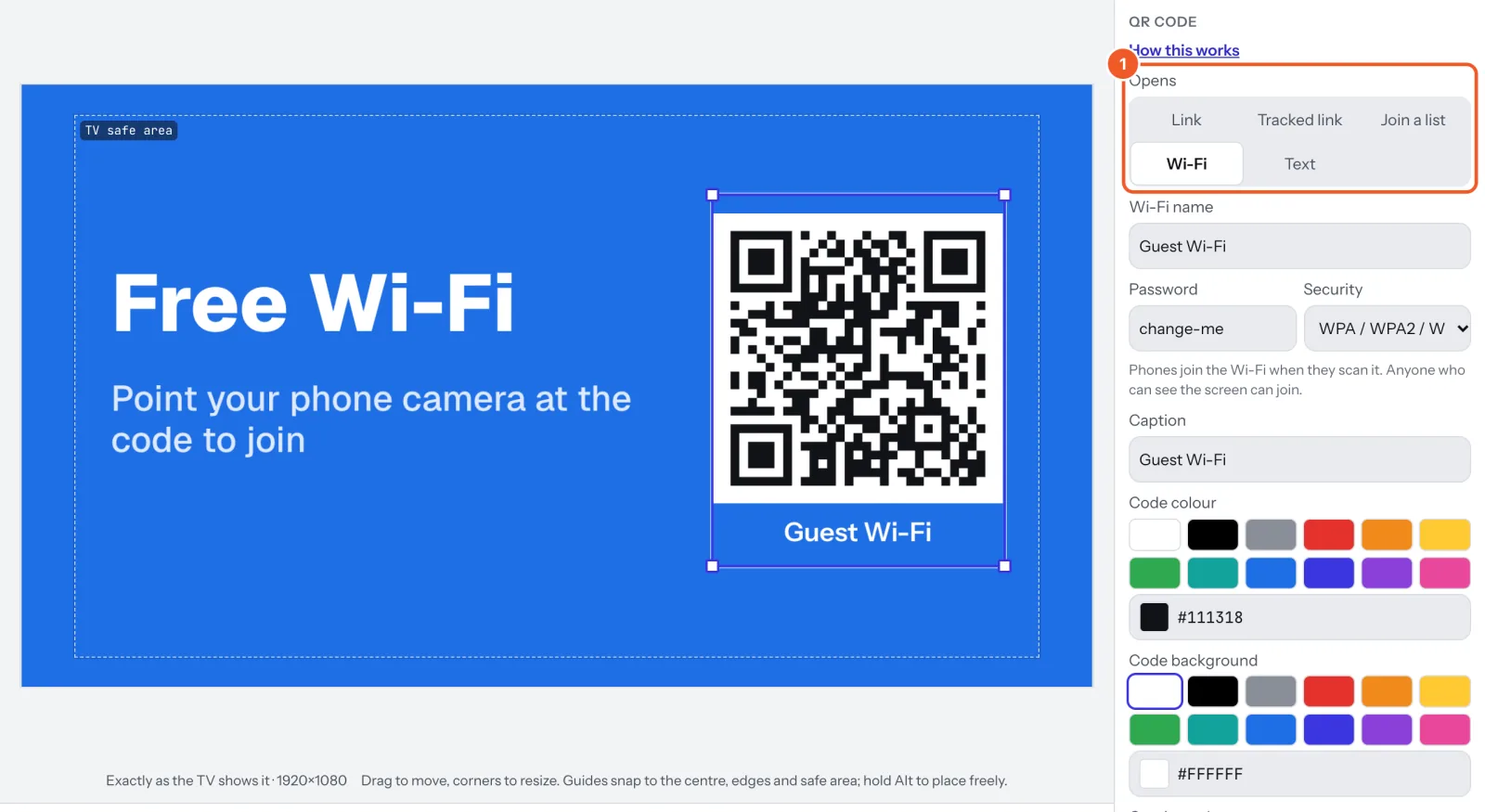
In a sign, choose Add widget › QR code, then under Opens choose what it does:
- Link: the full address starting with https:// (copy it from your browser’s address bar).
- Web address
- https://yourshop.com/menu
- Wi-Fi: the network name exactly as phones show it (capitals and spaces count), and its password. Use your guest network: anyone who sees the screen can join.
- Wi-Fi name
- Cafe Guest
- Password
- flatwhite42
- Security
- WPA / WPA2 / WPA3
- Text: a short message shown on the phone.
- Tracked link to count scans (tracked QR codes), or Join a list to collect sign-ups (join our list).
Add a Caption under the code (“Scan for today’s menu”), and set the Code colour and Code background. Make it at least a fifth of the screen’s height, dark on light, and test it with your phone. If the address is too long for a QR code, the panel says so.
Tracked links and join lists come with Pro.
Thanks for telling us. If something’s missing, tell us what and we’ll add it.
Still stuck?
Email support@dislab.app, or send us a message. If it’s about a screen, tell us its name. We answer within one business day.