
Calendar, class timetables, meeting rooms and opening hours
ProThis month, upcoming events, a gym’s class timetable, a meeting room’s status, or this week’s opening hours.
In a sign, choose Add widget › Calendar, then This month, Your events, Class timetable, Meeting room or Opening hours. You can switch later under Shows.
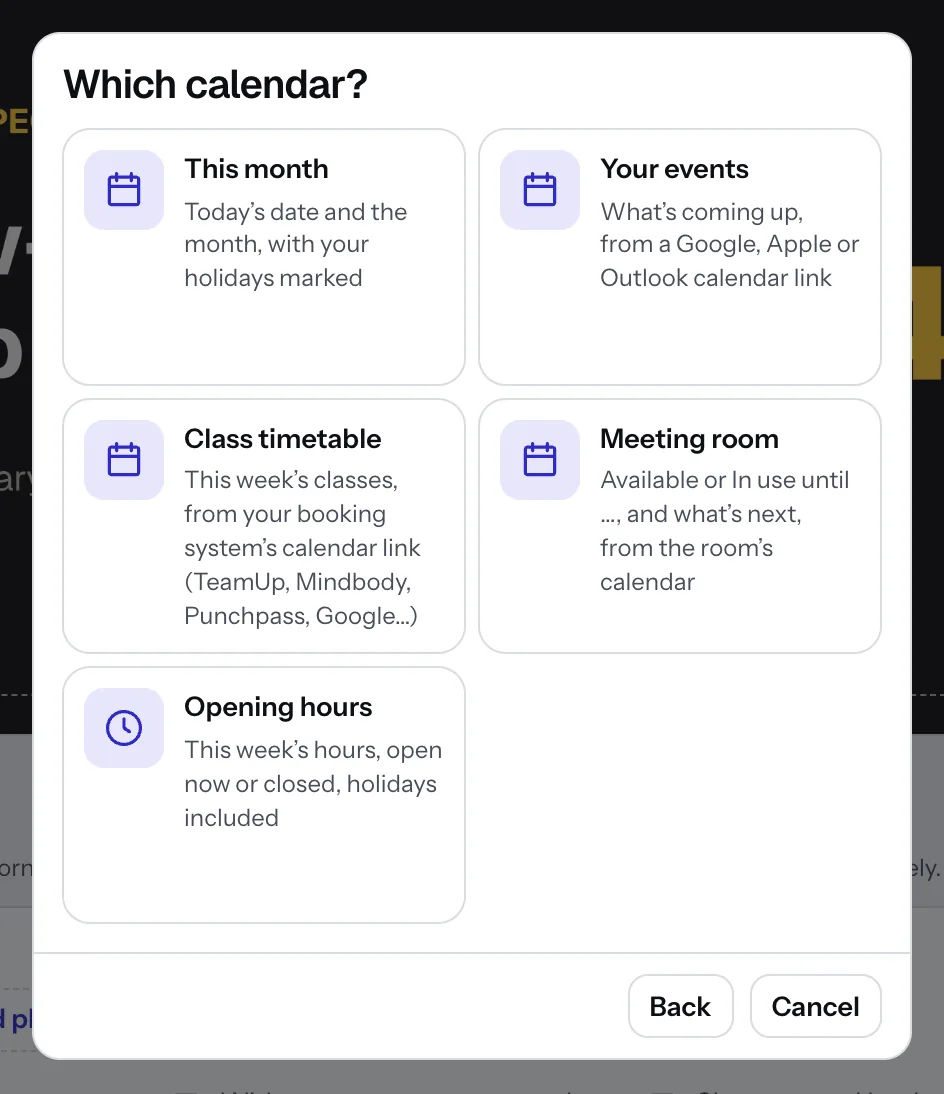
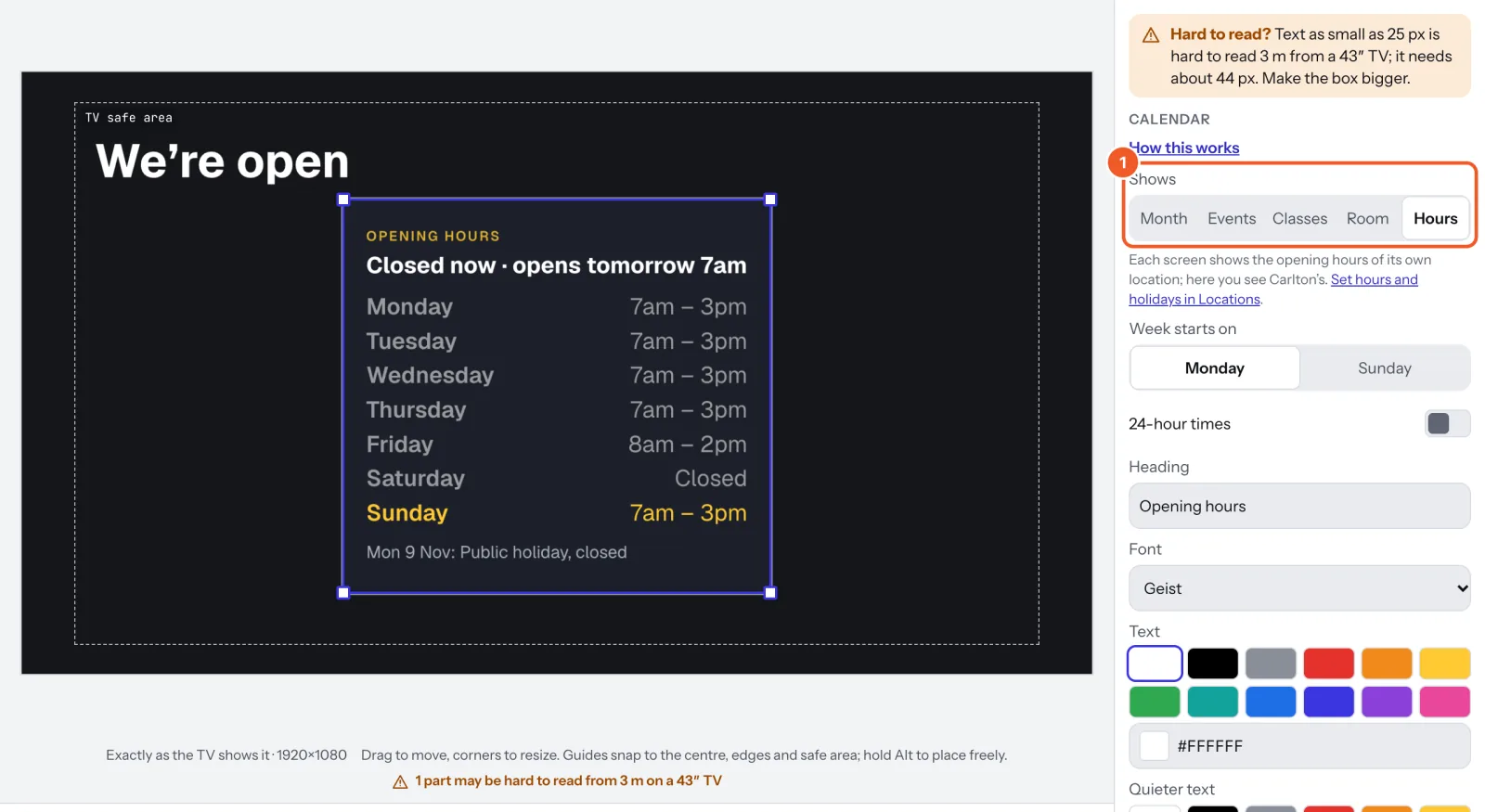
Opening hours and This month need no link: each screen shows the hours and holidays of its own location, with “Open now · until 3pm” or “Closed”. Set them in Locations, under Opening hours. Week starts on Monday or Sunday.
Your events shows what’s coming up from a calendar link: paste it in Calendar link, and choose Events to show and a Heading.
Class timetable shows your classes day by day from today (Days to show, from today: 1 to 7), from your booking system’s link in Timetable link. Finished classes fade and the one on now is picked out; on a TV on its side the days go one under another. Press Add another link for up to 5 more (one per instructor or room) and they’re merged into one timetable. The Gyms and classes templates start you off.
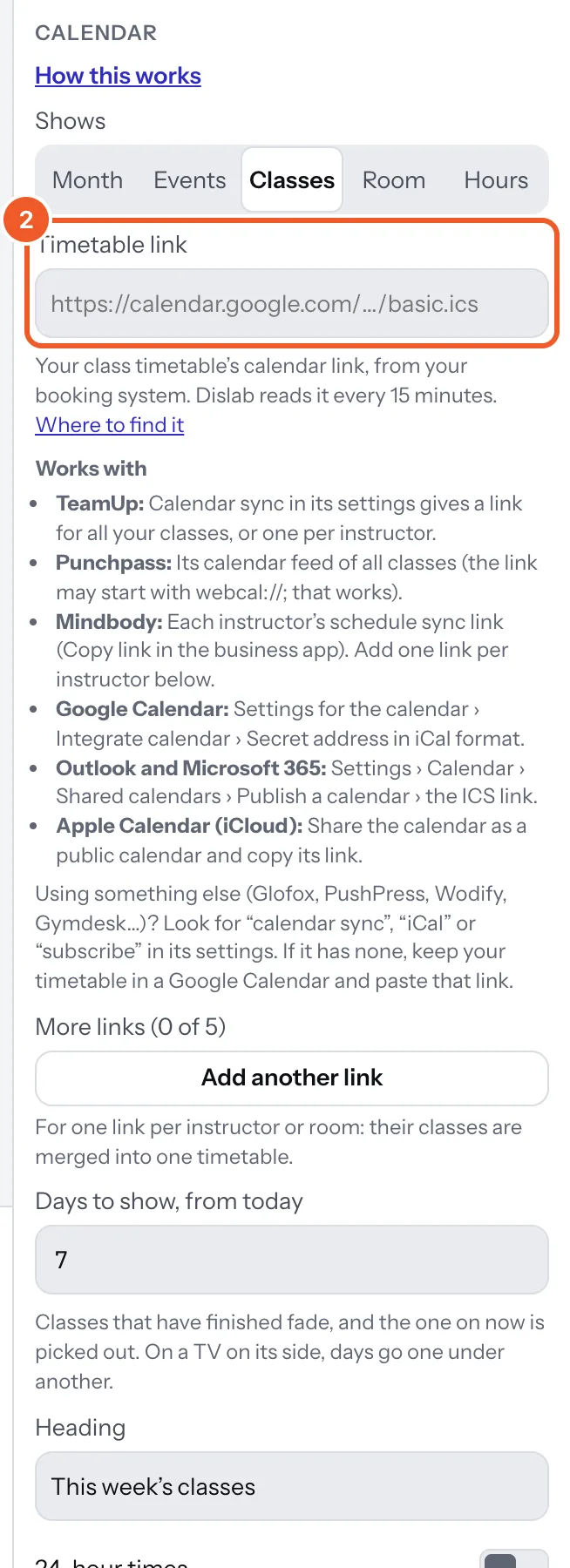
Where the timetable’s link comes from:
- TeamUp: calendar sync in its settings, a link for all your classes or one per instructor.
- Punchpass: its calendar feed of all classes (a webcal:// link works).
- Mindbody: each instructor’s schedule sync link (Copy link in the business app): add one per instructor under More links.
- Google, Outlook or Apple calendars: as below.
Using something else? Look for “calendar sync”, “iCal” or “subscribe” in its settings. If it has none, keep your timetable in a Google Calendar and use that link.
Meeting room reads the room’s own calendar and shows Available or In use until 2:30pm with the meeting’s name, and what’s next today. It changes on the minute by itself. Choose the Available and In use colours in the sign; the Meeting rooms templates start you off.
Finding your calendar link (it ends in .ics or starts with webcal://):
- Google: Settings › the calendar › Secret address in iCal format.
- Apple (iCloud): share as a Public Calendar and copy the link.
- Outlook: Settings › Calendar › Shared calendars › Publish a calendar, the ICS link.
Read every 15 minutes, up to two months ahead. Anyone with a secret link can see that calendar, so use one that holds only what you want on screen.
Thanks for telling us. If something’s missing, tell us what and we’ll add it.
Still stuck?
Email support@dislab.app, or send us a message. If it’s about a screen, tell us its name. We answer within one business day.