
Show it now
ProPut a special, a video or a playlist on a screen for 15 minutes to 4 hours; then it goes back by itself.
- Open the screen in Screens and find Show it now (or press Switch on the list, then Show it now).
- Next to For, choose how long: 15 min, 30 min, 1 hour, 2 hours, 4 hours or Until I stop it.
- Tap a picture: a playlist, a sign, or a photo or video. It’s on the screen within seconds.
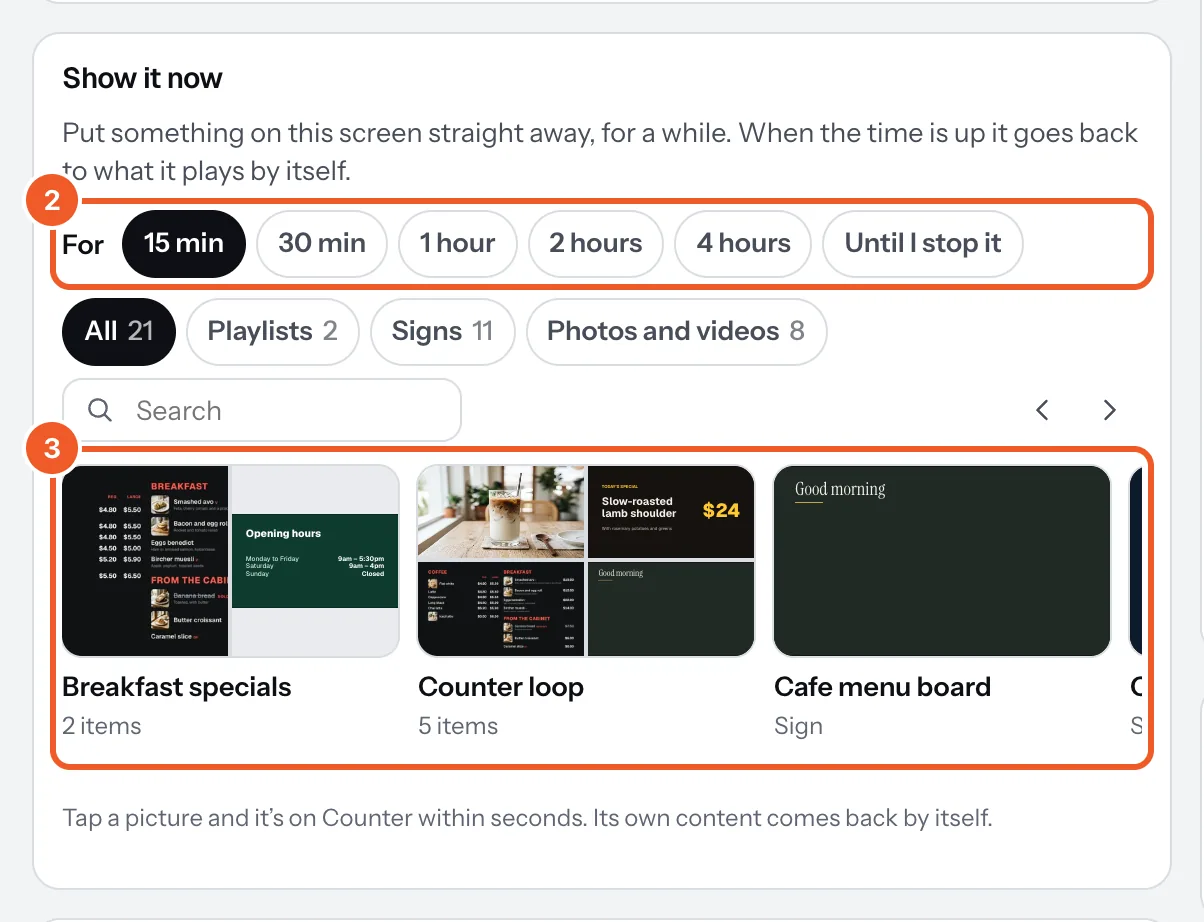
- When the time is up, the screen goes back to its own content by itself. To end it sooner, press Stop now.
While it’s on, the Screens list says what’s showing and until when. The screen’s own content isn’t touched: you can still change and publish it, and it plays once Show it now ends. A TV that’s offline when the time is up carries on showing it until it next checks in.
For something that should come on at the same time every week, use a schedule in a playlist instead.
Thanks for telling us. If something’s missing, tell us what and we’ll add it.
Still stuck?
Email support@dislab.app, or send us a message. If it’s about a screen, tell us its name. We answer within one business day.