
A screen’s settings
Every planRename a screen, move it, set its size, check its device, or unpair it, all on its page.
Open the screen in Screens:
- Rename next to its name: type the new name and press Save.

- Under the name: Online or Offline, its location, and when it last checked in (every 5 minutes or so).
- Location: pick another; it moves straight away, and takes that location’s time zone, opening hours and weather town.
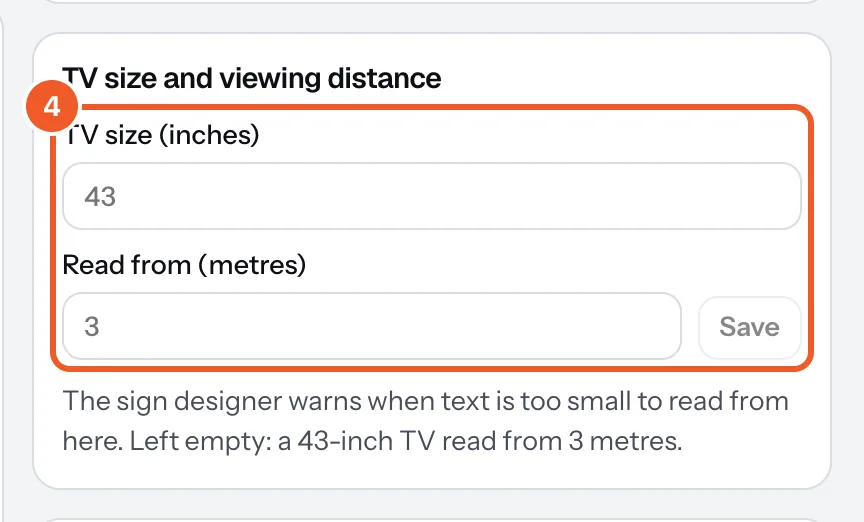
- TV size and viewing distance: the TV’s size in inches and how far away people read it, then Save. The sign designer’s readability check uses them; left empty it assumes 43 inches from 3 metres.
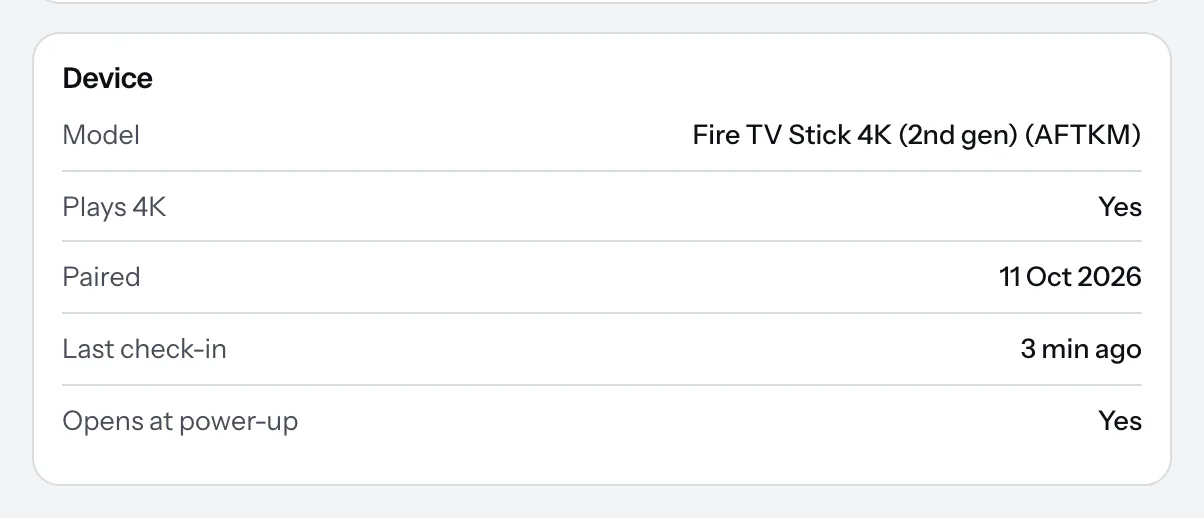
- Device: the stick’s model, whether it plays 4K, when it was paired, its last check-in, and whether Dislab opens at power-up. If that says No, see step 6 of Set up a Fire TV stick.
- Report a problem at the top sends us a request about this screen, with its details filled in.
- Unpair this screen at the bottom: press Unpair to confirm. The TV stops playing and shows a new code.
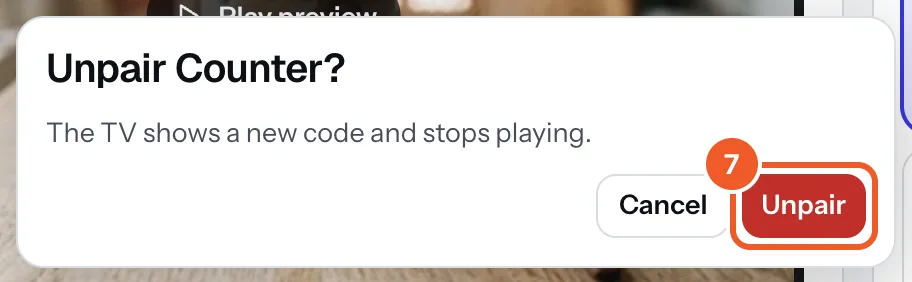
Every paired screen is billed, so unpair TVs you no longer use. You can also unpair at the TV: press OK on the remote, then Troubleshoot or unpair › Unpair this TV (it needs the internet). To move a stick to another TV or shop, just plug it in there: it stays paired.
How the TV hangs is set under How the TV is mounted: see Portrait and upside-down TVs. What it plays, Show it now, tags, screenshots and after hours have guides of their own.
Thanks for telling us. If something’s missing, tell us what and we’ll add it.
Still stuck?
Email support@dislab.app, or send us a message. If it’s about a screen, tell us its name. We answer within one business day.