
Moving, sizing and arranging layers
Every planDrag, resize, line things up, bring a layer forward, copy it, delete it and undo.
- Click a layer on the sign (or its name in Layers) to select it. A blue box goes round it.
- Drag it to move it. Pull a corner to resize it. Guides show and snap to the centre, the edges and the TV safe area; hold Alt while dragging to place it freely.

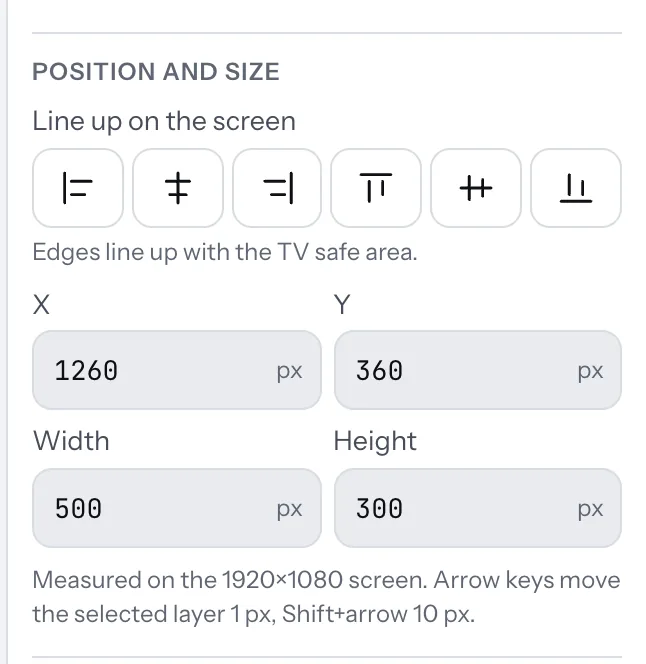
- For exact placing, use the arrow keys (1 pixel; with Shift, 10), or type numbers under Position and size on the right.
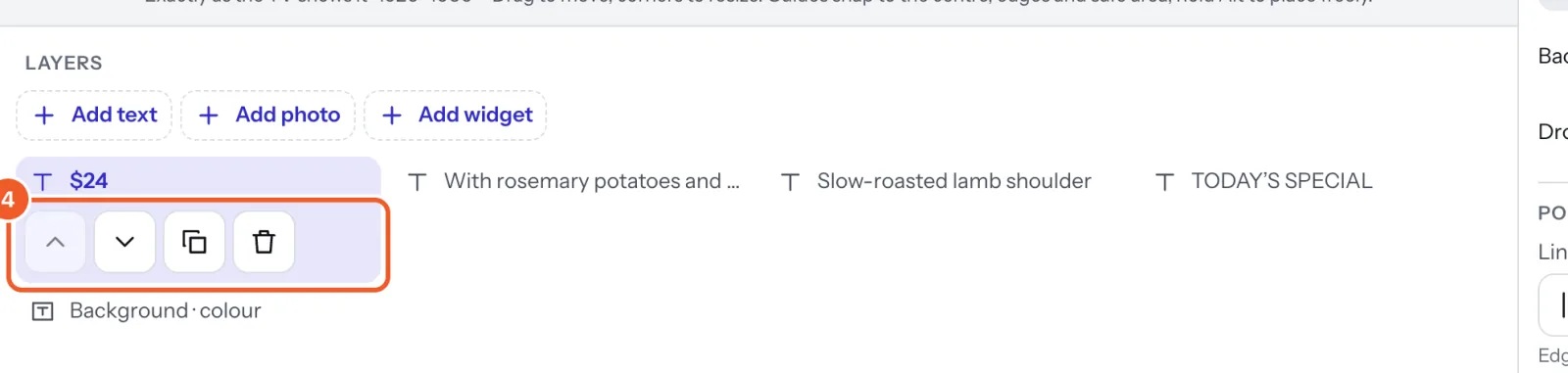
- In Layers, the selected layer gets four buttons: up (bring it forward), down (send it back), copy, and delete. The top of the list is at the front; the last row is always the background.
Undo and Redo are the arrows at the top (Ctrl or Command Z, and Shift with it to redo). The Delete key removes the selected layer; Escape lets go of it. A sign can have up to 50 layers.
Thanks for telling us. If something’s missing, tell us what and we’ll add it.
Still stuck?
Email support@dislab.app, or send us a message. If it’s about a screen, tell us its name. We answer within one business day.