
Photos, videos and the background
Every planPut photos on a sign, or a photo or video behind everything.
Photos and videos come from Media, so upload them there first (uploading).
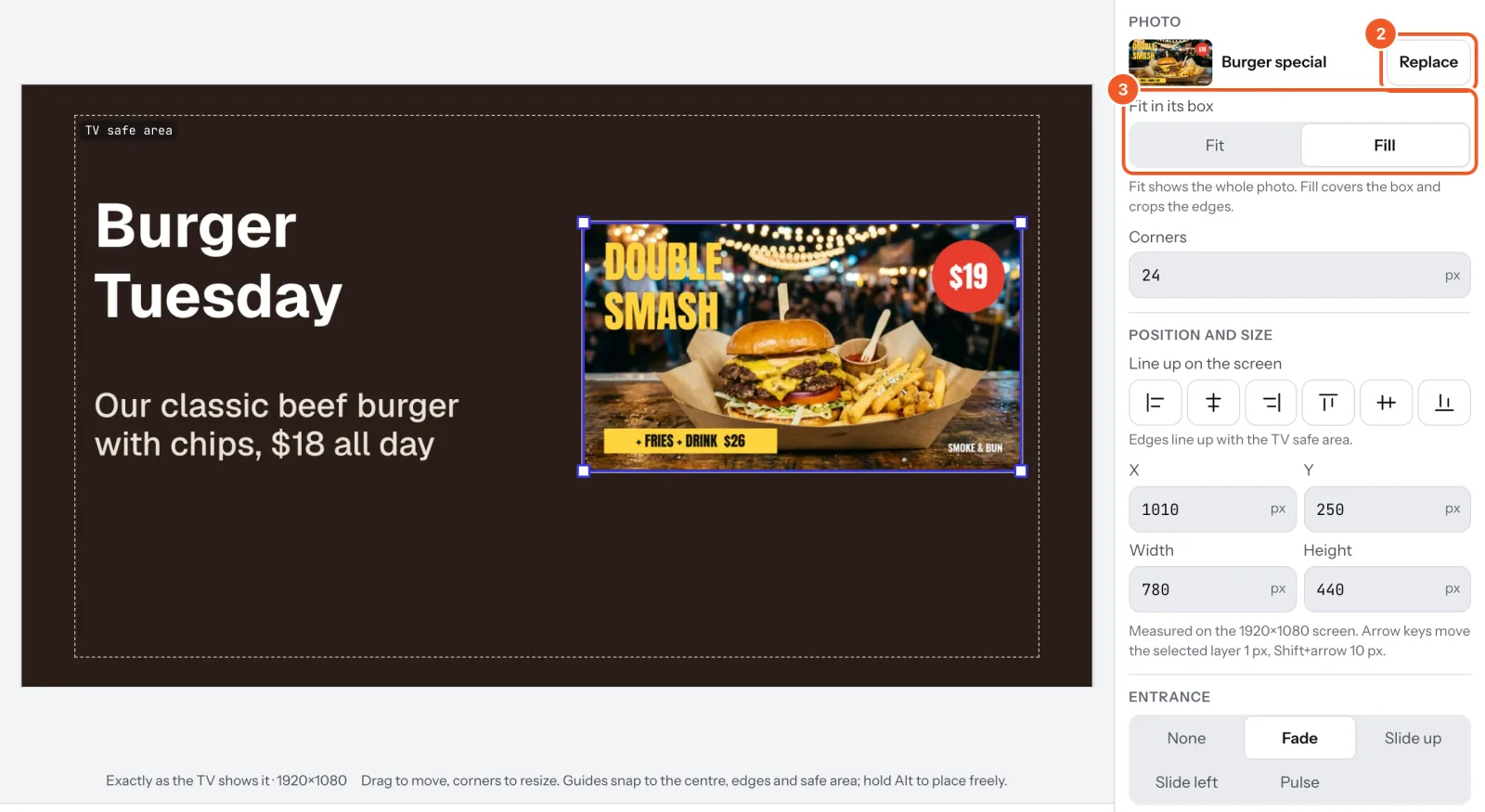
- Press Add photo and pick one (pick a tag above them to see only those files). Move and size it like any layer.
- Replace swaps in another photo, keeping its place and size.
- Fit in its box: Fit shows the whole photo; Fill covers the box and crops the edges. Corners rounds them.
- For the background, select nothing (or click the last row in Layers). Under Background, choose Colour, Photo or Video.
- A colour is picked from the swatches or typed as a code (#17120F). For a photo or video, pick it, then set Sizing: Fit or Fill.
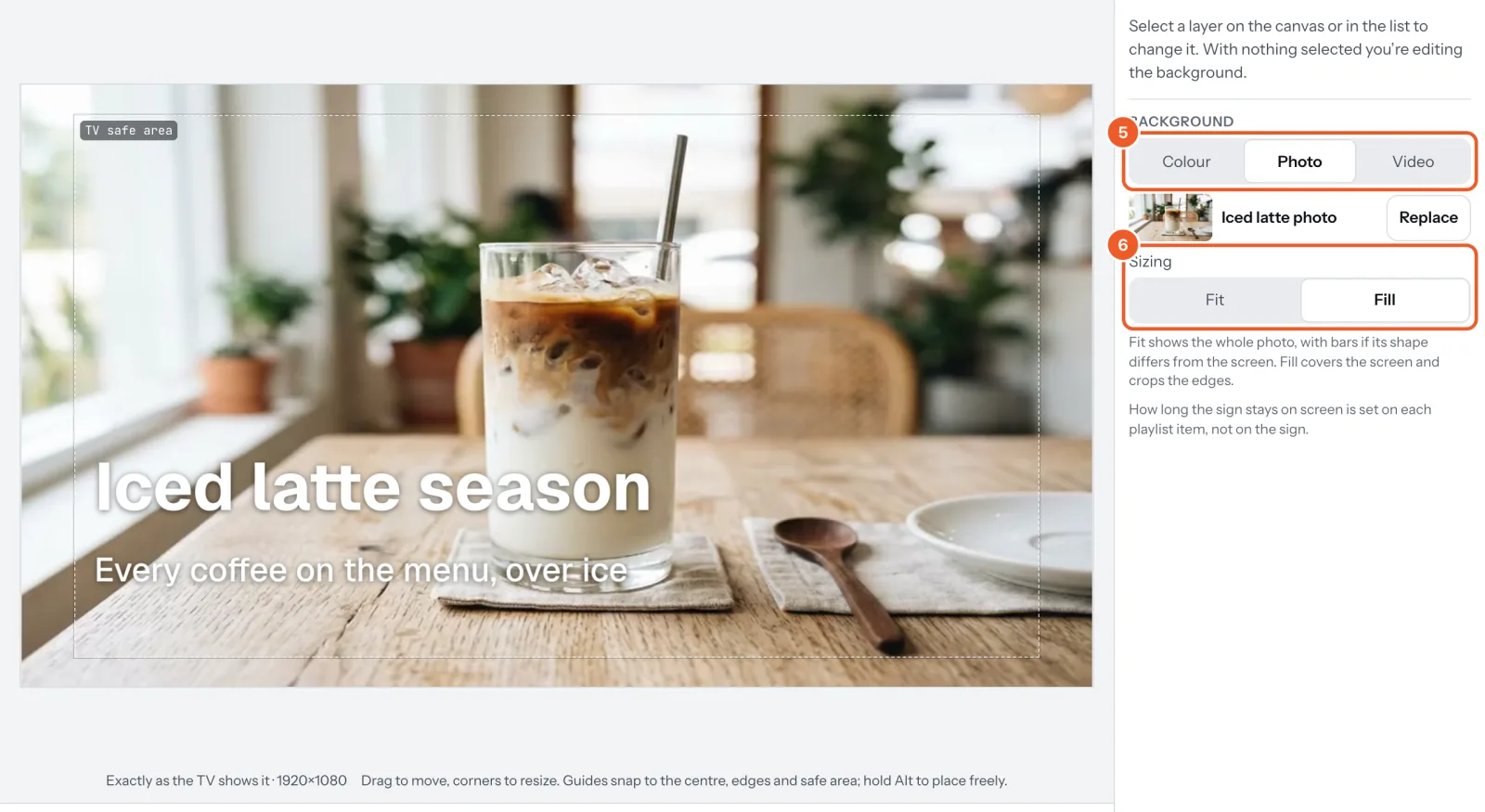
A video can only be the background, where it loops. How long a sign stays up is set on its playlist item, not on the sign. A photo blown up much bigger than it was taken looks soft on the TV, and the designer warns you.
Thanks for telling us. If something’s missing, tell us what and we’ll add it.
Still stuck?
Email support@dislab.app, or send us a message. If it’s about a screen, tell us its name. We answer within one business day.