
API keys and what each can do
ProMake a key per system, tick only what it needs, copy it once, and switch it off when you’re done.
- Open Settings and find API keys.
- Under What the new key can do, tick only what this system needs.
- Name it after what will use it (“Till”, “Booking system”).
- Press Make a key. Press Copy key and store it in that system now: it’s shown once, and Dislab keeps only a fingerprint of it. Then press I’ve saved it.
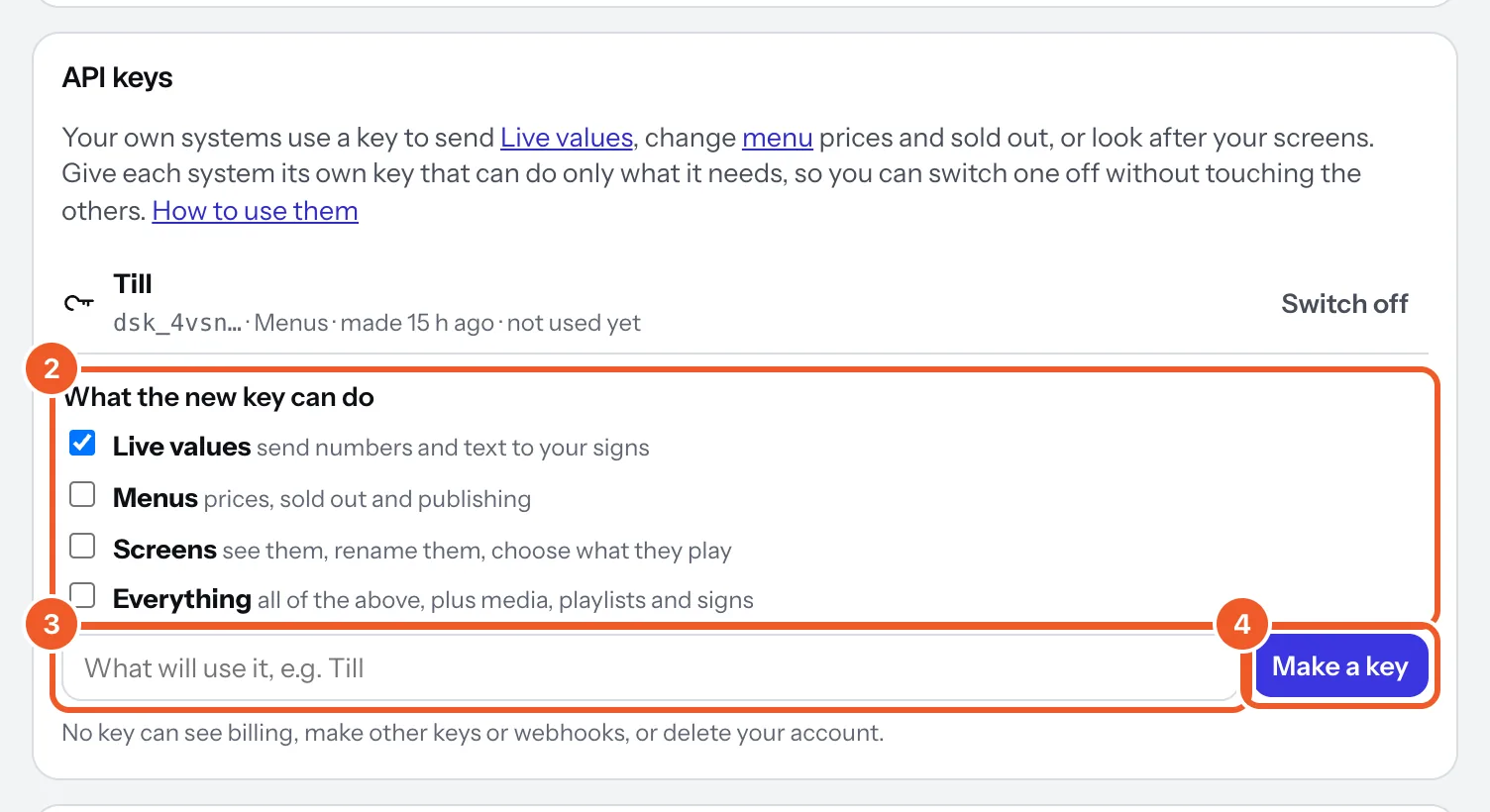
What each tick allows
- Live values: read and set live values (
/values). Making, renaming and deleting values stays in the console. - Menus: read menus, change prices and sold out, edit and publish (
/menus). Not deleting a menu. - Screens: list and read screens, rename them, choose what they play, Show it now, check in now; and read locations, playlists, signs, tags, walls and health so it can choose. Not unpairing.
- Everything: all of the above, plus media, playlists, signs and the rest of what the console does.
No key can reach billing, other API keys, webhooks, connected apps, phone alerts, people and invitations, downloading everything, or deleting the account, whatever it was given. A key asking for something it can’t do gets 403 insufficient_scope.
- Keys start
dsk_. The list shows each key’s first characters, what it can do and when it was last used. - Up to 20 keys at once. Make a new key rather than sharing one, so you can switch one off without touching the others.
- Switch off stops a key straight away. It stays in the list, marked switched off, as a record.
- Keys stop working if the account leaves Pro, and work again when it’s back.
- Lost a key? It can’t be shown again: make a new one, update your system, then switch the old one off.
Thanks for telling us. If something’s missing, tell us what and we’ll add it.
Still stuck?
Email support@dislab.app, or send us a message. If it’s about a screen, tell us its name. We answer within one business day.