
The sign designer on a phone
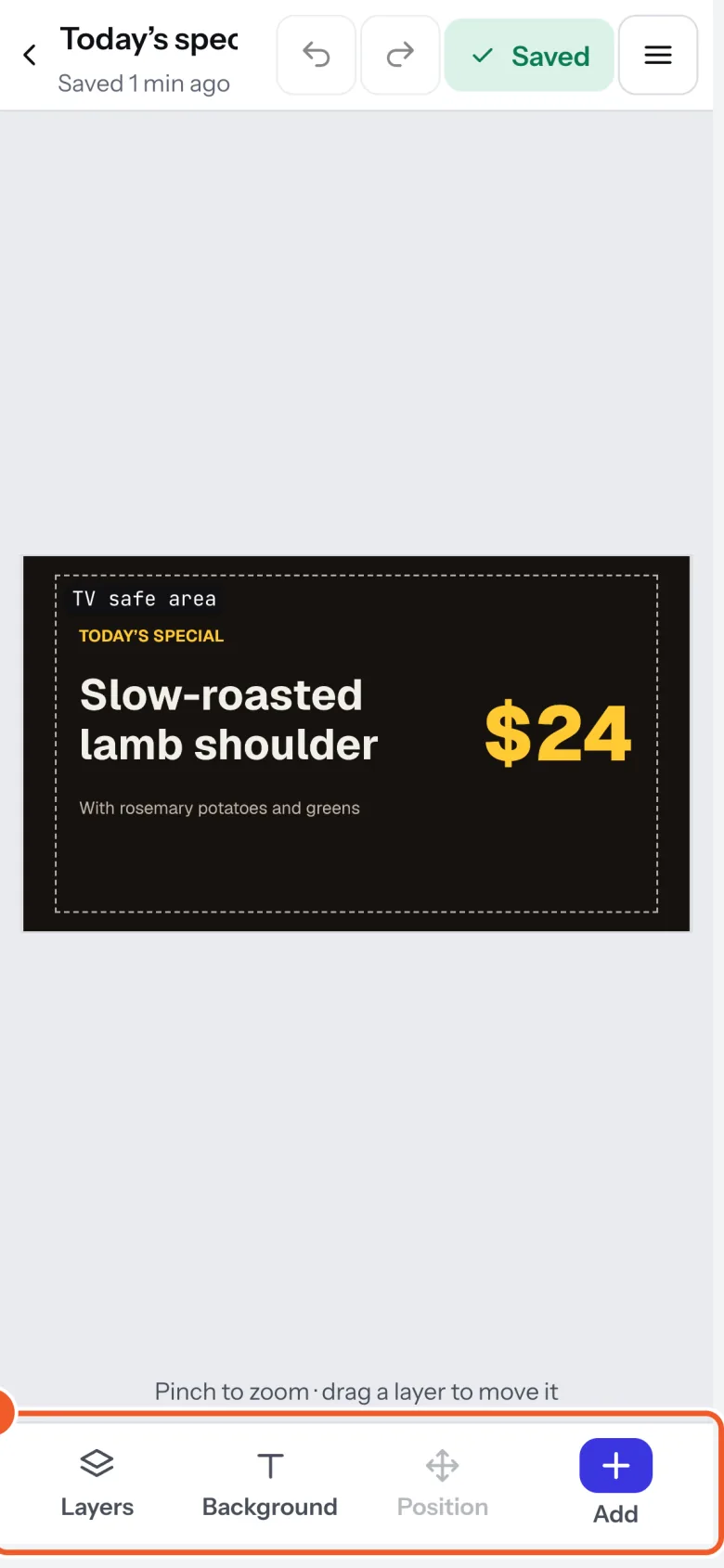
On a phone the designer fills the screen: pinch to zoom, and Layers, Style, Position and Add along the bottom.
On a phone or small tablet, a sign opens full screen, so the sign stays in view while you change it.
- Zoom: pinch with two fingers, and drag with two fingers to look around. The button in the corner shows the zoom; press it (Fit) to see the whole sign again.
- Along the bottom: Layers (what’s on the sign, to pick or reorder), Style (the selected layer’s look, or Background with nothing selected), Position and Add (text, a photo or a widget). Each opens under the sign; press it again to close it.
- Position has Line up on the screen and arrows to nudge a layer: hold an arrow to keep moving.
- More (top right) has the shape, Play preview and, on a board, Edit the item list and Publish menu.
- Settings for menus, split-flap boards, currency and crypto boards, calendars and feeds are on a computer; on a phone, change their words, size and place.
Thanks for telling us. If something’s missing, tell us what and we’ll add it.
Still stuck?
Email support@dislab.app, or send us a message. If it’s about a screen, tell us its name. We answer within one business day.