
The TV’s menu
Press any button on the remote to see what the TV is playing, when it last checked in, and how it’s doing.
- Press any button on the TV’s remote except the volume buttons. Dislab’s menu opens on the right; what’s playing keeps playing behind it.
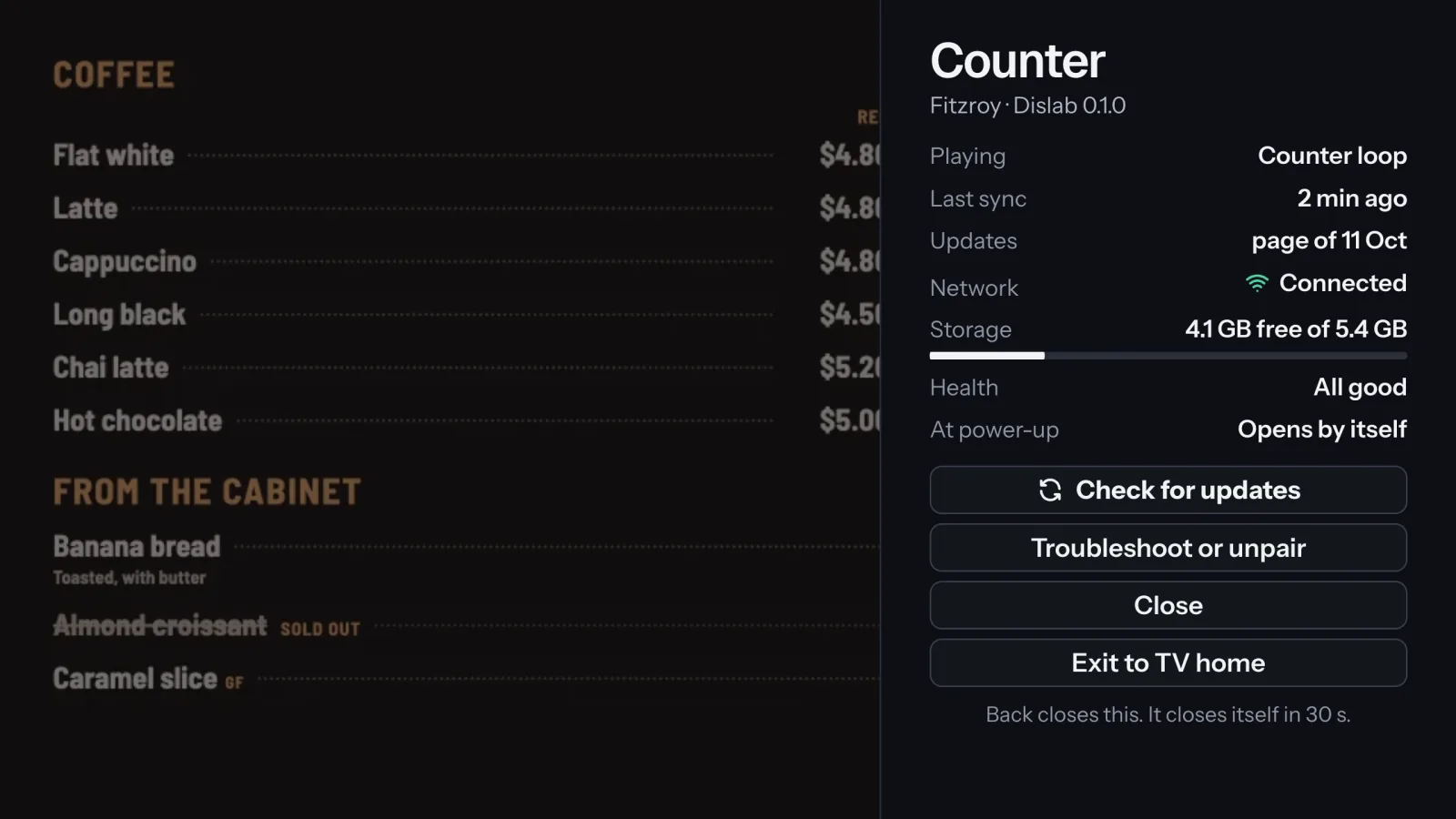
- Move with the arrow buttons and press OK (the middle button) to choose. Back on the remote closes the menu, and it closes itself after 30 seconds.
What each line means
- Playing: the playlist, sign or file on screen now.
- Last sync: when the TV last checked in with Dislab. It checks in every 5 minutes, and within seconds when you change something.
- Updates: when it last checked, and the date of the page it draws signs with. “New app out: Troubleshoot” means a newer Dislab app is available: see Troubleshoot or unpair on the TV.
- Network: Connected or No internet.
- Storage: free space on the stick itself, for downloads. Your plan’s storage is on Storage.
- Health: All good, or how many things to look at. Choose Troubleshoot or unpair to see them.
- At power-up: whether Dislab opens by itself when the TV is switched on. “Not allowed yet” means it won’t: choose Open Dislab at power-up and allow it.
The buttons
- Check for updates: checks in now, for your latest changes and any new version of how signs are drawn.
- Troubleshoot or unpair: checks the connection, subscription, clock and what’s playing (see Troubleshoot or unpair on the TV).
- Exit to TV home: leaves Dislab. Open it again from the Fire TV home screen. A Signage Stick, or a stick set up for Dislab, has no exit: it always shows Dislab. A stick set up for Dislab shows Network settings here instead, to join another Wi-Fi.
Thanks for telling us. If something’s missing, tell us what and we’ll add it.
Still stuck?
Email support@dislab.app, or send us a message. If it’s about a screen, tell us its name. We answer within one business day.