
Pairing problems
No code on the TV, a code that isn’t valid, or the console asking you to move to Pro first.
On the TV
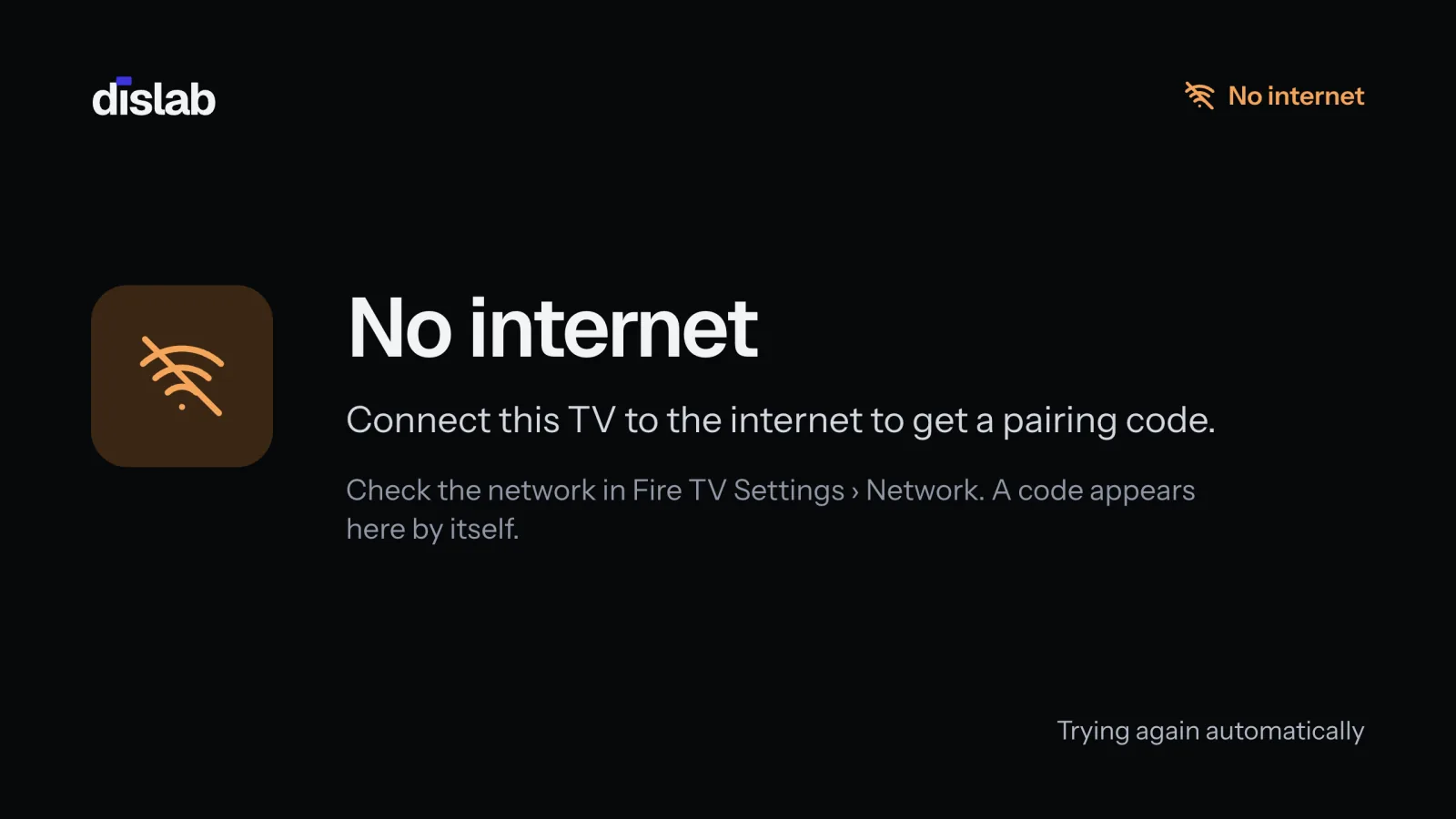
- No internet instead of a code: the TV needs the internet to get one. Connect it in Fire TV Settings › Network; the code appears by itself.
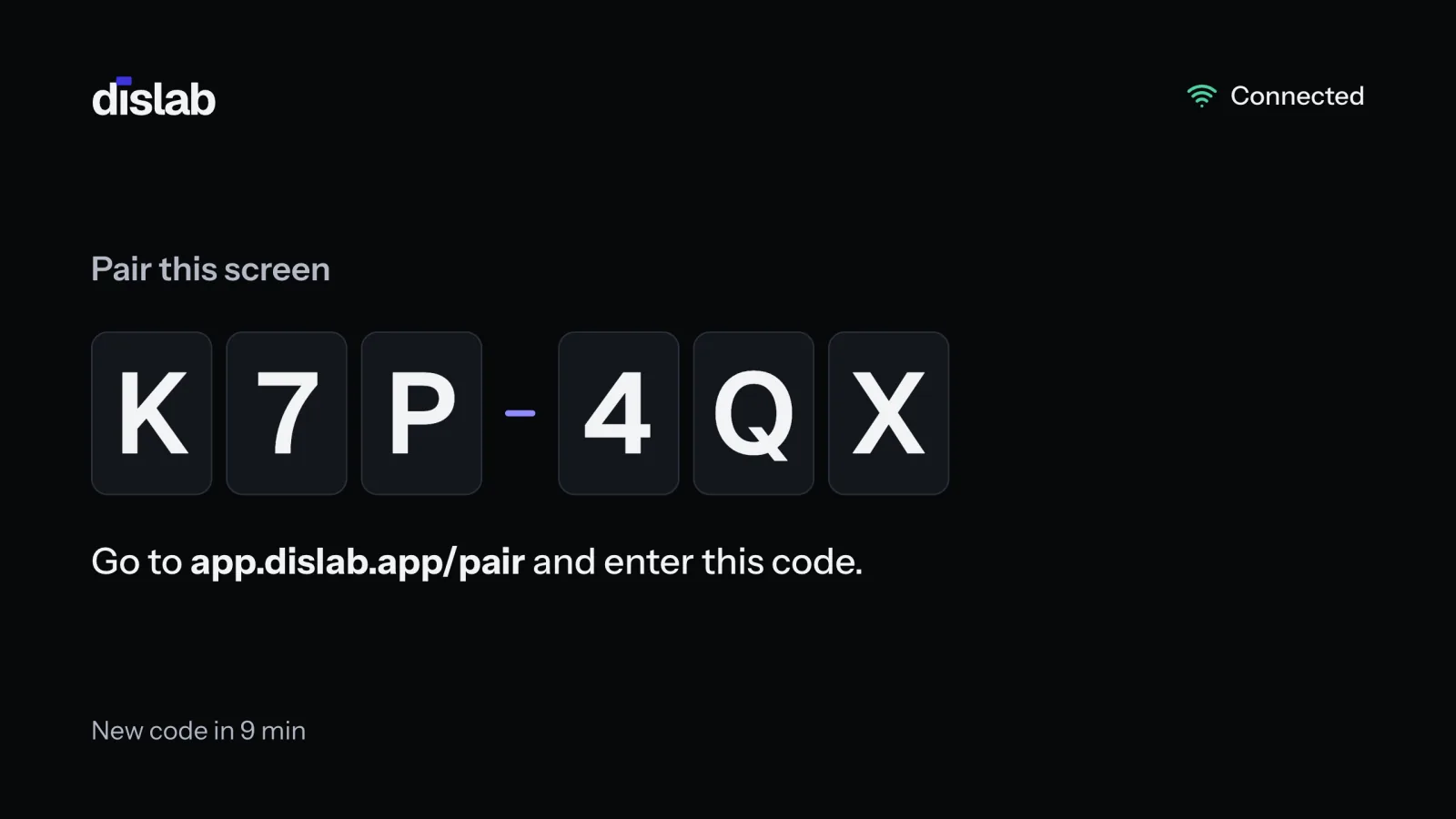
- The code changes every 10 minutes (the corner says when). Always type the one on the screen now.
- A TV you’d already paired shows a code again: it was unpaired in the console, or was reset. Pair it again.
In the console
- Open Screens and press Add screen, then type the code.
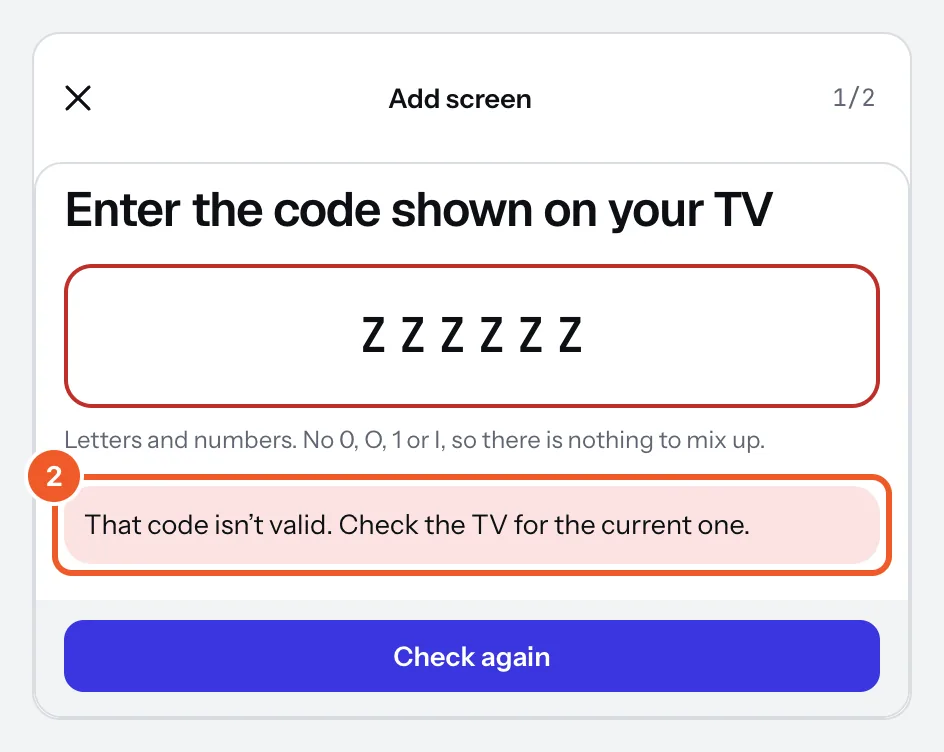
- “That code isn’t valid. Check the TV for the current one.” means no TV is showing that code now: it was mistyped, or it changed. Codes never use 0, O, 1 or I. Type the code on the TV now and press Check again.
- Free covers one screen: Free plays on one screen. To add another, press Start the free trial (or Move to Pro once your trial is used), then come back and type the code again (or Not now). See Plans.
- More than 20 screens: Pro covers up to 20 screens yourself. Email support@dislab.app with how many you need and we’ll set up a custom rate.
- “That name is already used here.”: each screen in a location needs its own name.
- The code expired while you were filling in the details: go back and type the TV’s new code.
Thanks for telling us. If something’s missing, tell us what and we’ll add it.
Still stuck?
Email support@dislab.app, or send us a message. If it’s about a screen, tell us its name. We answer within one business day.