
Troubleshoot or unpair on the TV
The TV checks its connection, subscription, clock and what it’s playing, and says what to do about anything that’s wrong.
- Press a button on the remote to open the menu (see The TV’s menu).
- Choose Troubleshoot or unpair (just Troubleshoot on a TV that isn’t paired yet). Each line has a dot: green is fine, orange is worth a look, red is stopping something. Anything not green says what to do underneath.
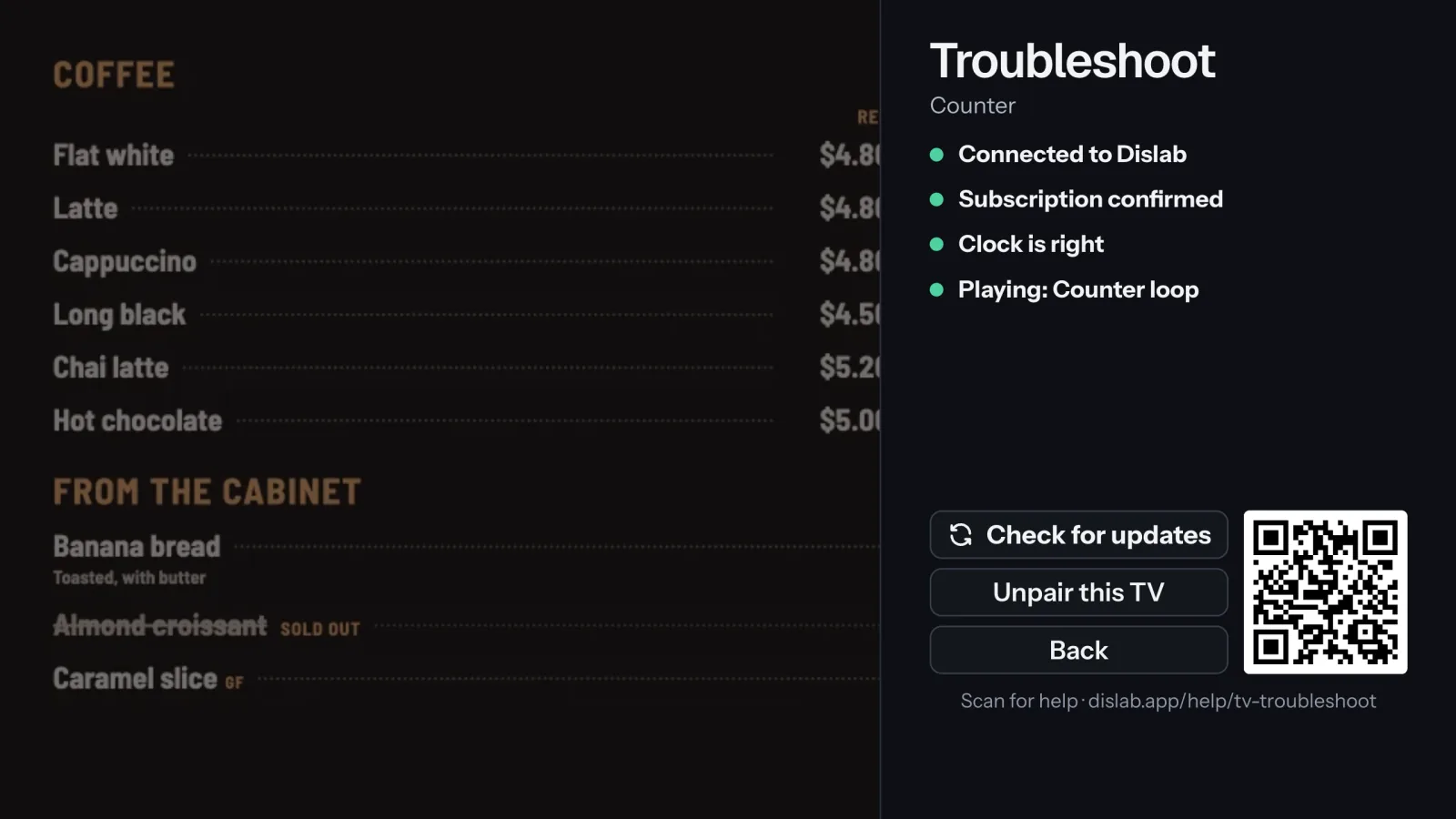
- Fix the first red line first: a TV with no internet can’t confirm its subscription or download anything, so the lines under it often clear by themselves once it’s connected.
- Press Check for updates to check again straight away.
- For the steps on your phone, scan the QR code beside the buttons: it opens the help page for the first line that isn’t green (or this page when all is well). The address is under it too.
Each line, and what to do about it:
- Connection: No internet, or Dislab isn’t answering.
- Subscription: the TV can’t confirm your subscription, or Subscription paused.
- Clock: the TV’s clock is behind.
- What’s playing: downloading, not enough space, or nothing to play.
A new Dislab app is out
When a newer app is available, Troubleshoot adds a line saying so. On a Fire TV stick it installs by itself from the Appstore; to update now, open Dislab in the Appstore and choose Update. On an Amazon Signage Stick, update it from the console: open the screen and choose Install Dislab update.
Unpair this TV
- On the Troubleshoot page, choose Unpair this TV. Cancel is picked first, so two quick presses can’t unpair it by accident.
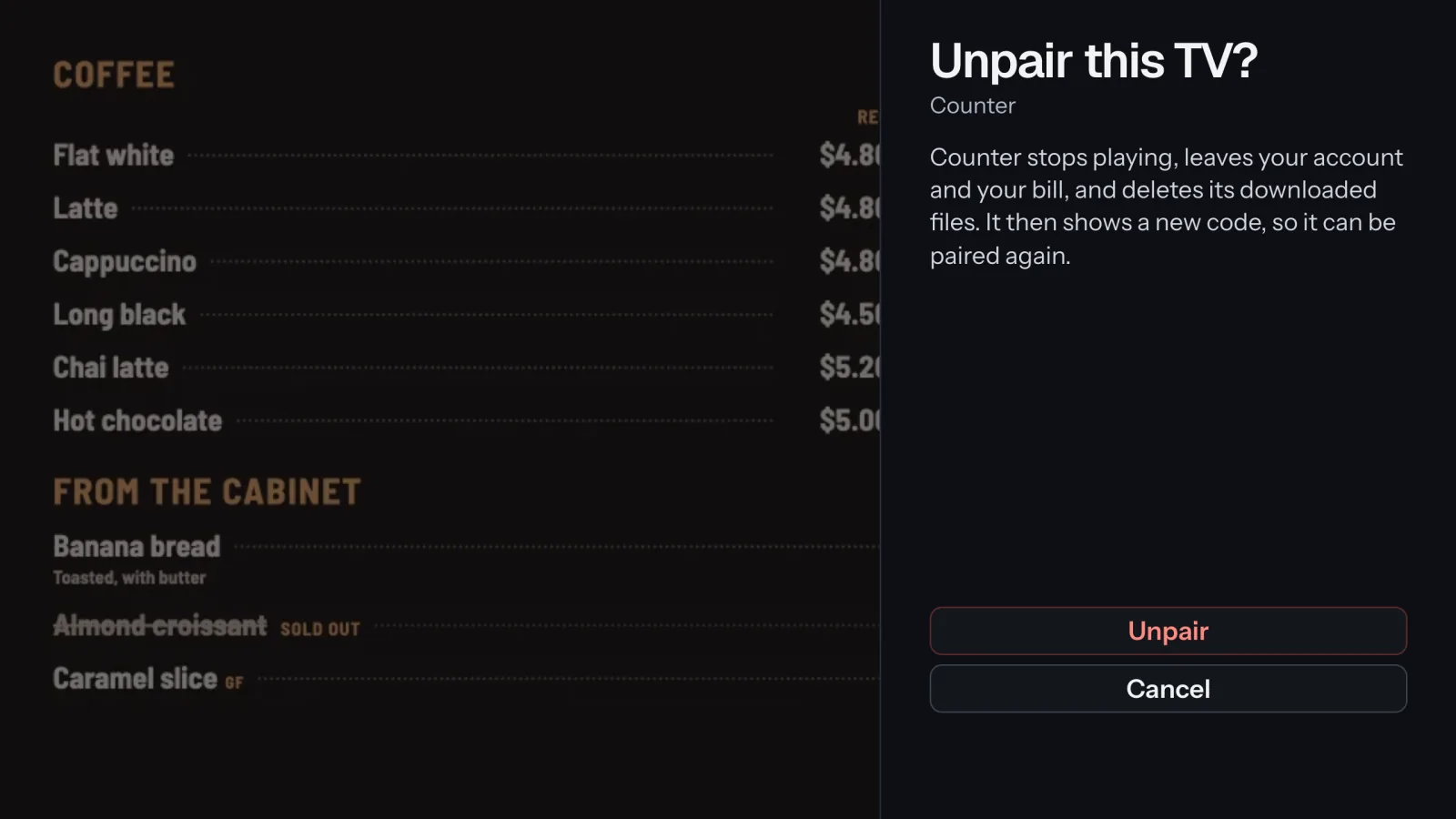
- Move up to Unpair and press OK. The screen leaves your account and your bill, its files are deleted, and it shows a new pairing code.
Unpairing needs the internet, so the console knows. It’s the same as Unpair this screen on the screen’s page in Screens.
Still stuck? Email support@dislab.app, or open the screen in the console and choose Report a problem: we see how it’s doing and ask it for a screenshot.
Thanks for telling us. If something’s missing, tell us what and we’ll add it.
Still stuck?
Email support@dislab.app, or send us a message. If it’s about a screen, tell us its name. We answer within one business day.