
Making a playlist
Every planA loop of photos, videos and signs that a screen plays, each for as long as you choose.
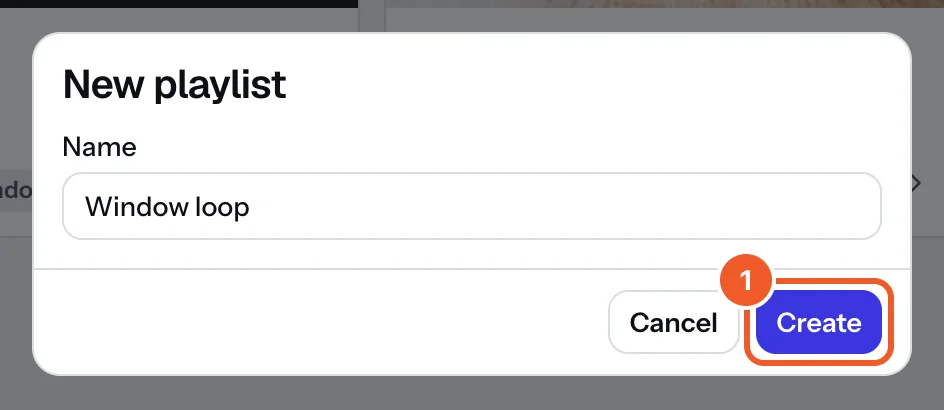
- Open Playlists, press New playlist, type a name (“Window loop”) and press Create.
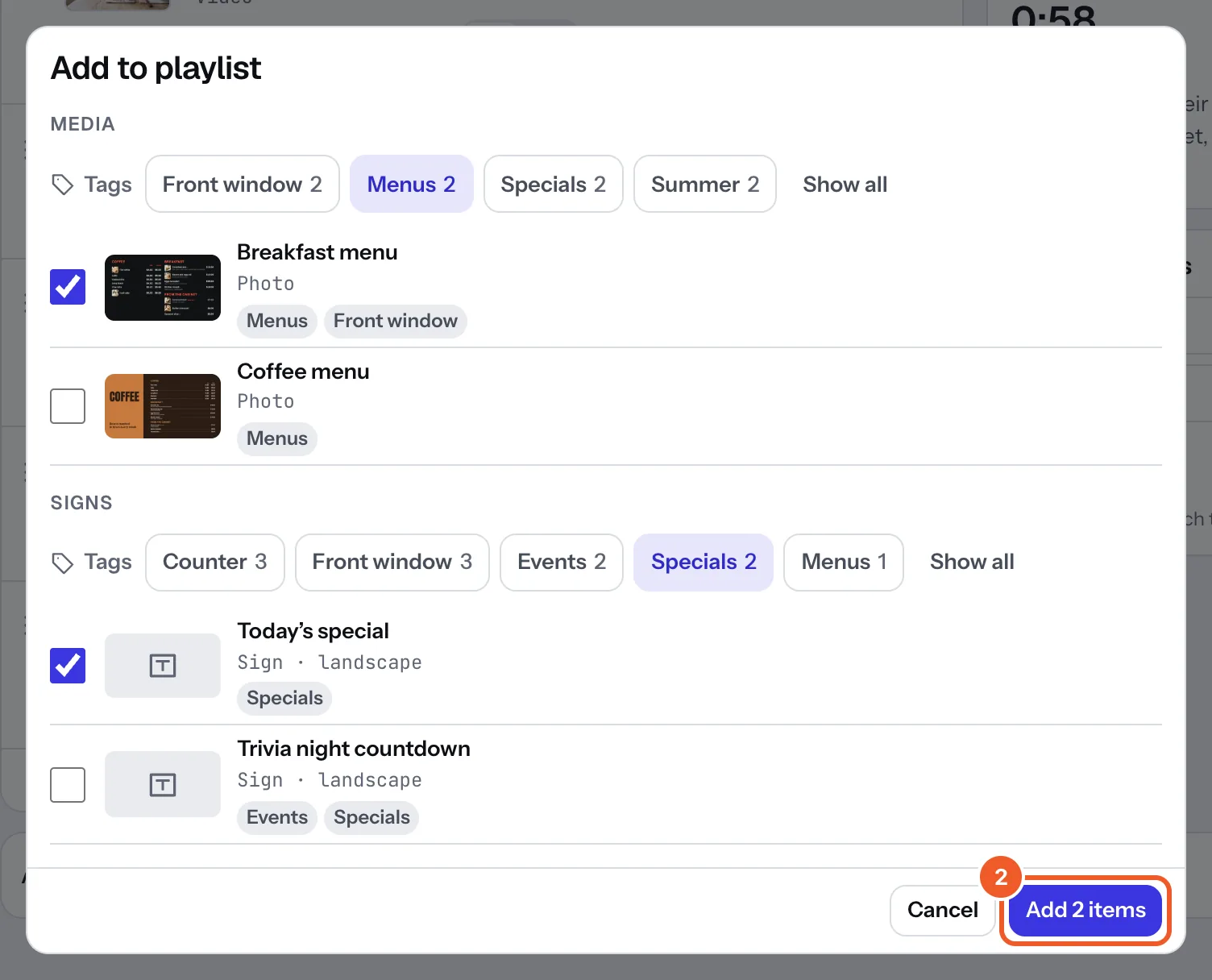
- Press Add media or signs. Tick the photos, videos and signs you want, then press the Add button at the bottom (it says how many, like “Add 2 items”). Only files that have finished converting are listed. If you’ve tagged your media, pick a tag above the list to see only those files.
- On each item, choose how long it shows, how it comes in and how it sits on the screen, and put the items in order: see Timing, transitions and order.
- Press Save in the bar at the bottom. Until you do, it says You have unsaved changes. and Discard puts everything back.

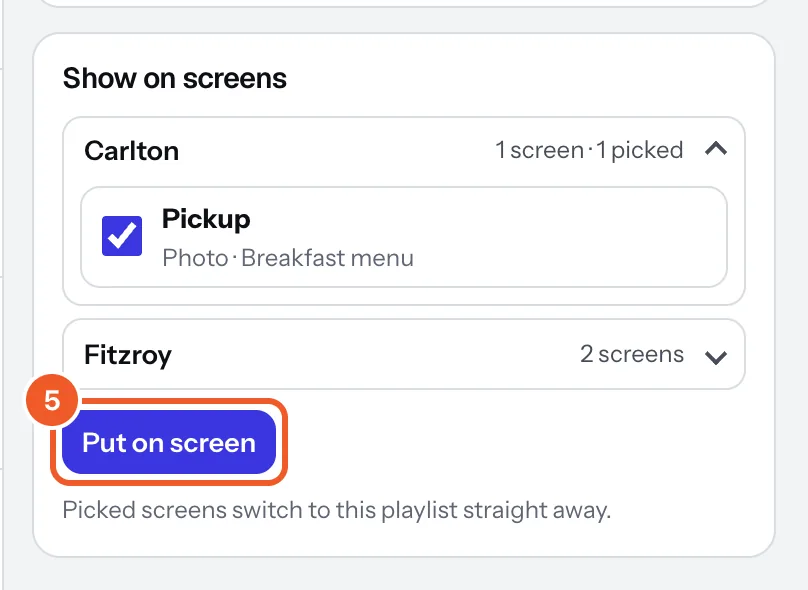
- Under Show on screens, open a location, tick the screens and press Put on screen. They switch to the playlist within seconds; screens already playing it are marked Playing this.
You can also choose a playlist on a screen’s own page, under What it plays (choosing what a screen plays). A saved change reaches every screen playing the playlist within seconds, and each screen downloads anything new before it shows it.
Running time on the right adds up one pass of the loop. To rename a playlist, click its name at the top, type, and press Enter, or use the pencil on its card in Playlists (the bin beside it deletes it). Delete playlist takes it off every screen playing it (they show nothing until you choose something else); your photos, videos and signs stay.
Tagging playlists:
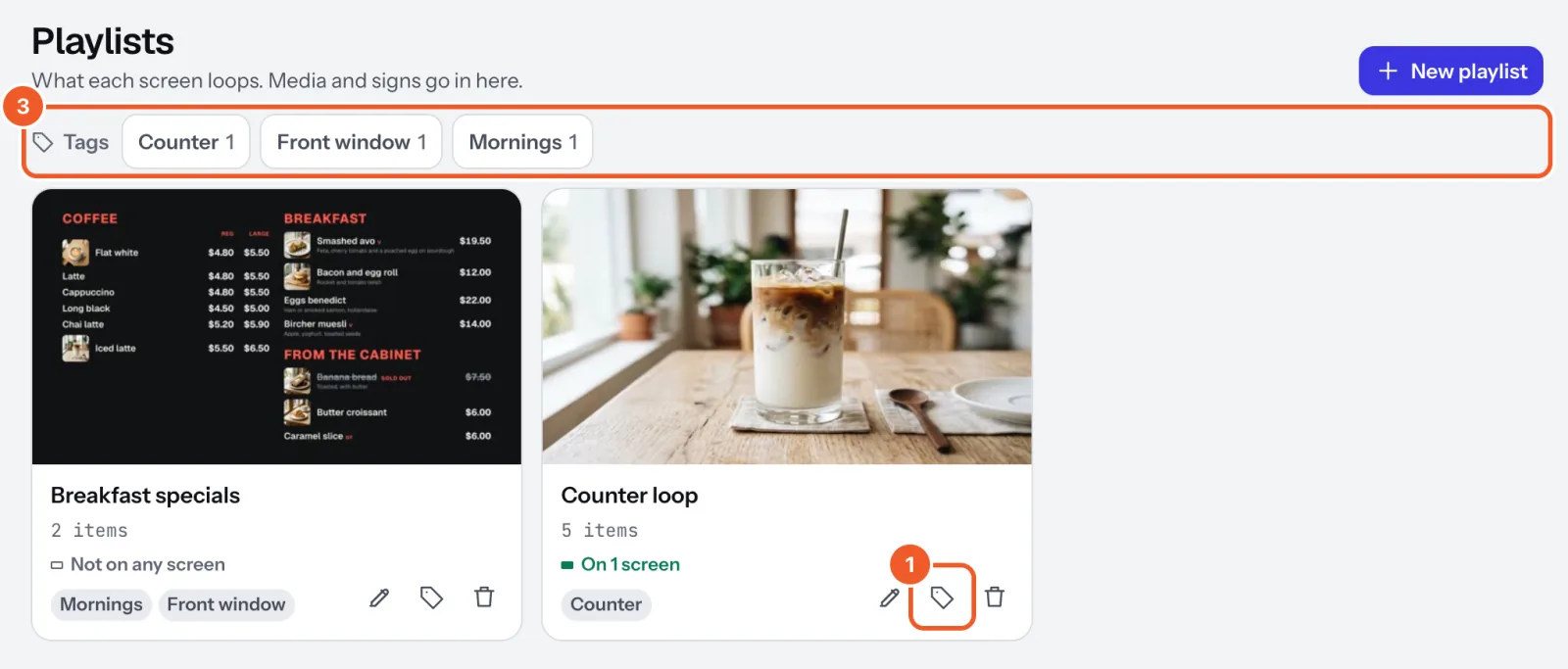
- In Playlists, press the tag on a playlist’s card.
- Add tags such as Counter, Mornings or Front window in Name and tags and press Save.
- Your tags line up above the playlists under Tags. Click one to see only those playlists; click it again or press Show all to see them all.
On Free, playlists play on your one screen, and signs in them can have text, photos, clocks, weather and QR codes.
Thanks for telling us. If something’s missing, tell us what and we’ll add it.
Still stuck?
Email support@dislab.app, or send us a message. If it’s about a screen, tell us its name. We answer within one business day.