
Text on a sign
Every planWords, font, size, weight, colour, alignment, a box behind the words and a shadow.
- Press Add text, or click words already on the sign.
- Type in Words on the right. Press Enter for a new line.
- Choose the Font, Size (in pixels on the 1920×1080 sign; 100 is easy to read across a room), Weight (Regular to Extra bold) and Colour.
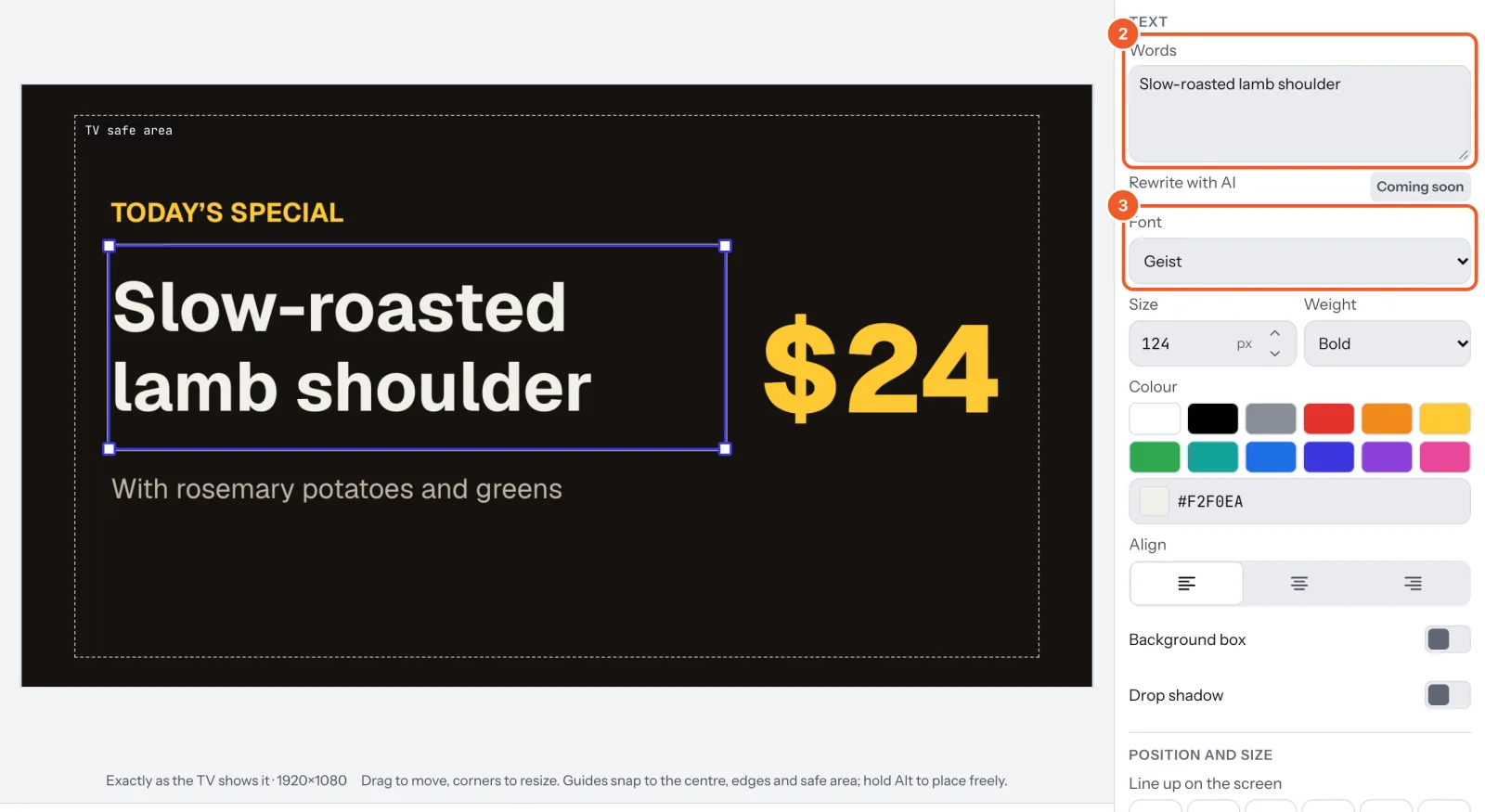
- Align lines the words up left, centre or right inside their box.
- Background box puts a coloured box behind the words, with Box colour, Padding and Corners (how round).
- Drop shadow helps words stand out on a photo.
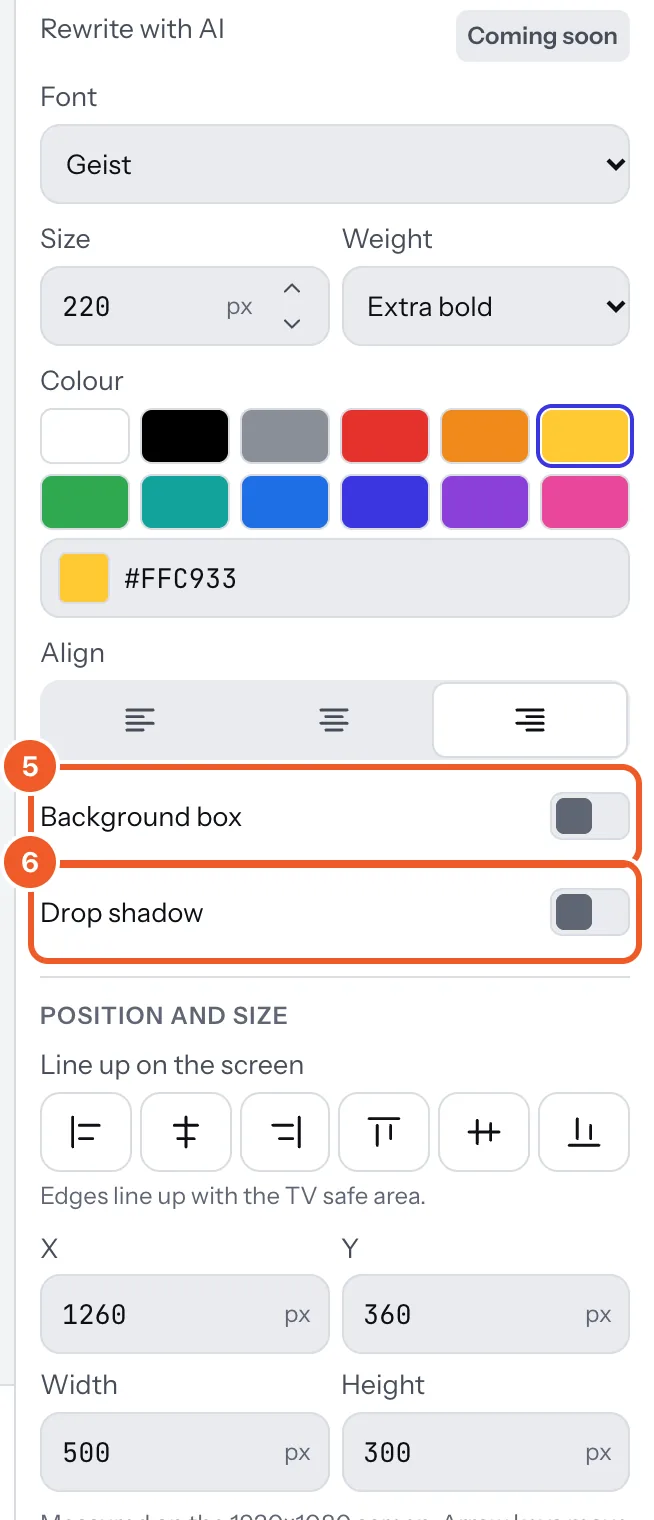
If the words don’t fit their box, the layer gets a red warning, Text doesn’t fit its box. Make the box bigger or the text smaller, or some of it won’t show on the TV. An amber warning means it may be hard to read: see Can people read it?
Thanks for telling us. If something’s missing, tell us what and we’ll add it.
Still stuck?
Email support@dislab.app, or send us a message. If it’s about a screen, tell us its name. We answer within one business day.