
Tags: publish to many screens at once
Every planGroup screens across locations (“Window screens”) and publish to all of them in one go.
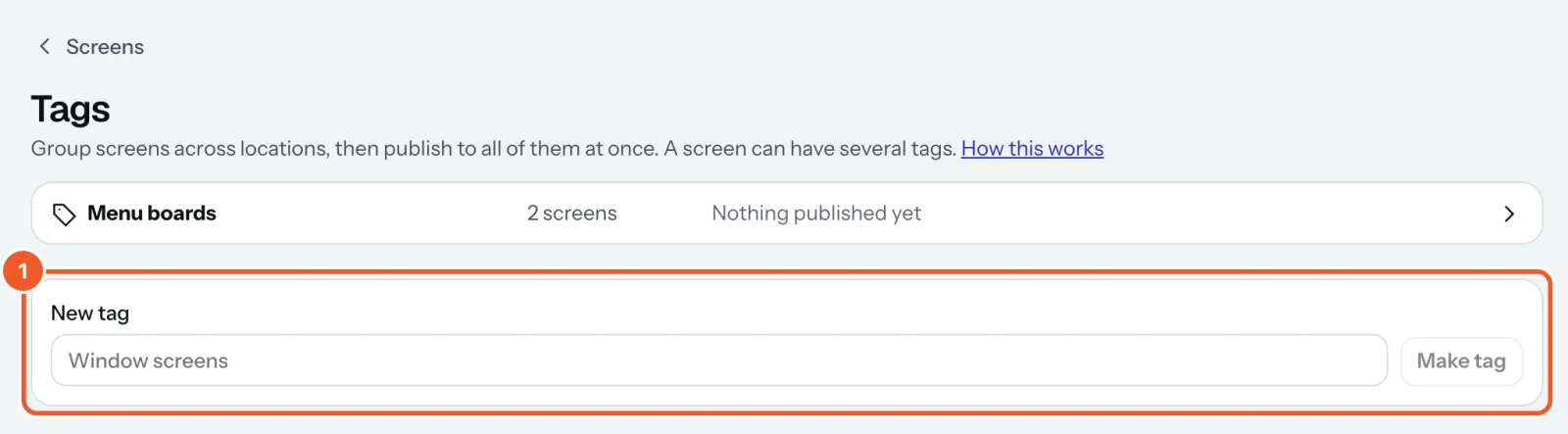
- In Screens, press Tags. Type a name under New tag (“Window screens”) and press Make tag.
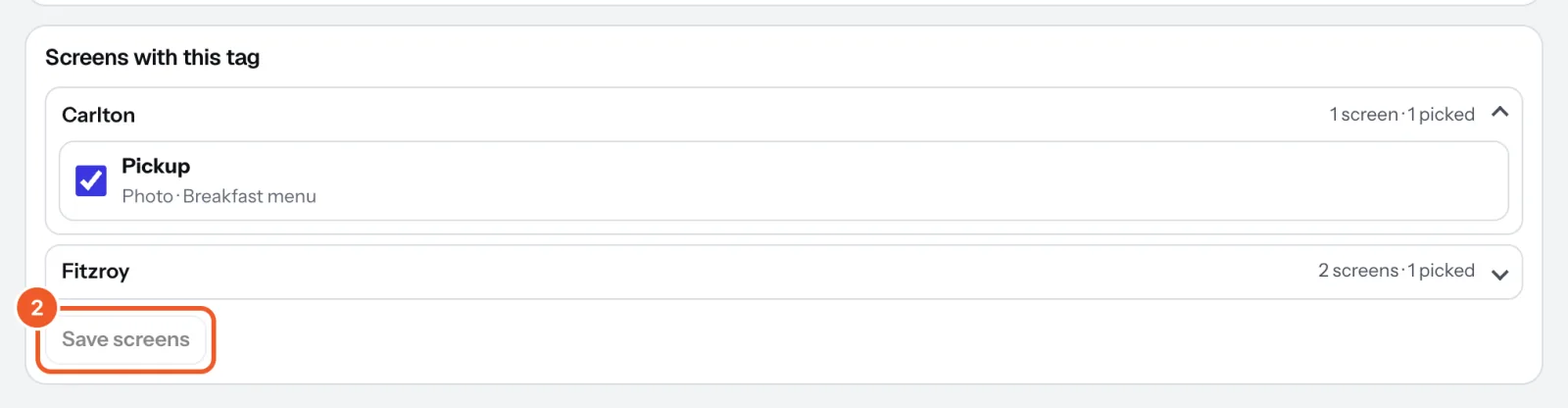
- On the tag’s page, under Screens with this tag, tick its screens (click a location to open it) and press Save screens.
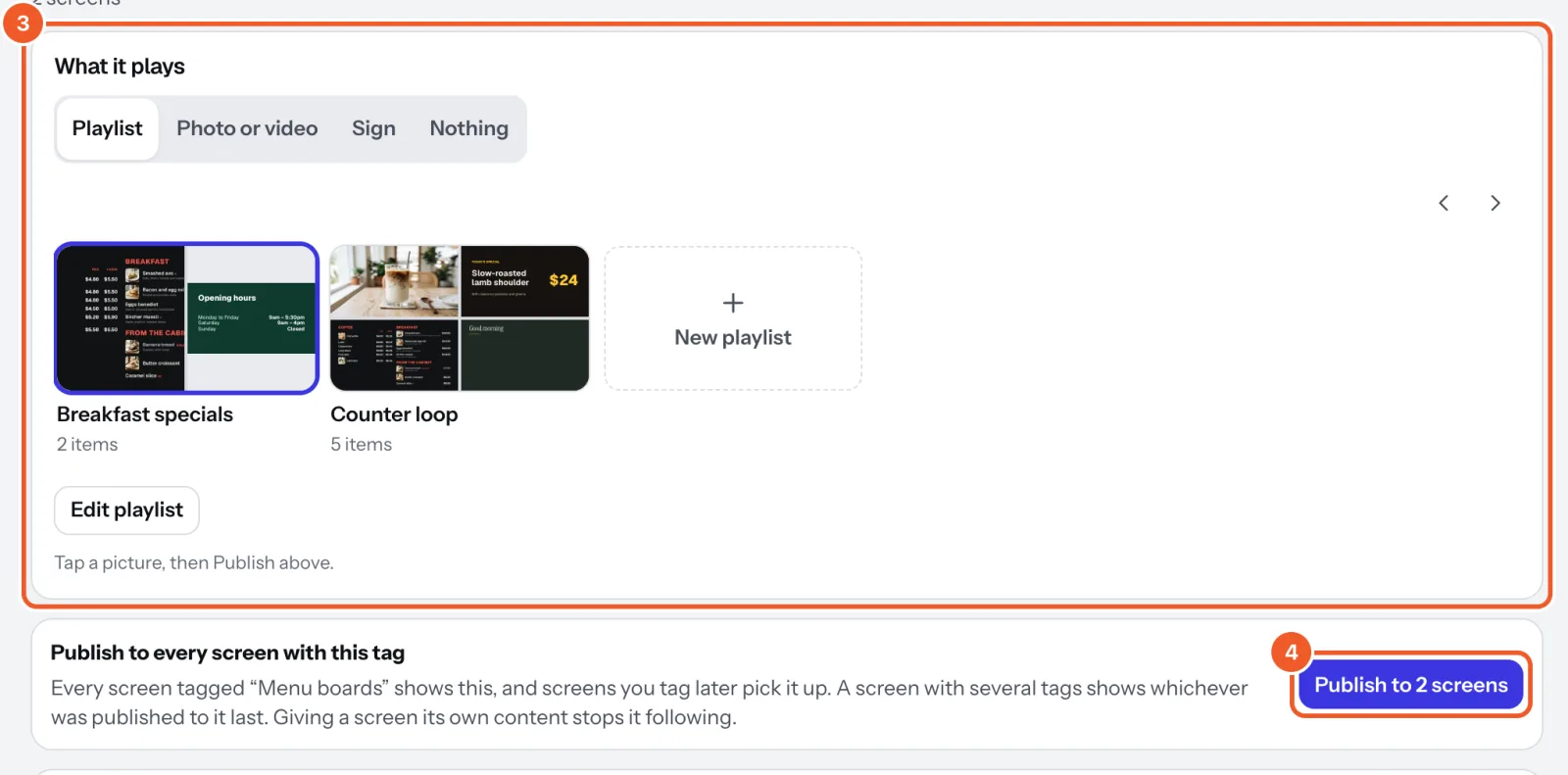
- Under What it plays, choose a playlist, photo or video, or sign, and tap its picture.
- Press the publish button, which says how many screens it reaches (“Publish to 2 screens”). Every screen with the tag changes within seconds.
You can also tag a screen on its own page: under Tags, pick one from Add a tag, or choose New tag there. A tag with content starts showing on that screen straight away.
Screens tagged later pick up what was published. A screen with two tags shows whichever was published to it most recently; giving it its own content stops it following tags. Removing a tag, or deleting it (Delete on its page), leaves screens showing what they show now.
Thanks for telling us. If something’s missing, tell us what and we’ll add it.
Still stuck?
Email support@dislab.app, or send us a message. If it’s about a screen, tell us its name. We answer within one business day.