
Renaming, tagging or deleting a sign
Every planChange a sign’s name, tag it to sort your signs, or delete one you no longer need.
Rename: in the designer, click the name at the top left, type the new one and press Save sign.
Tags:
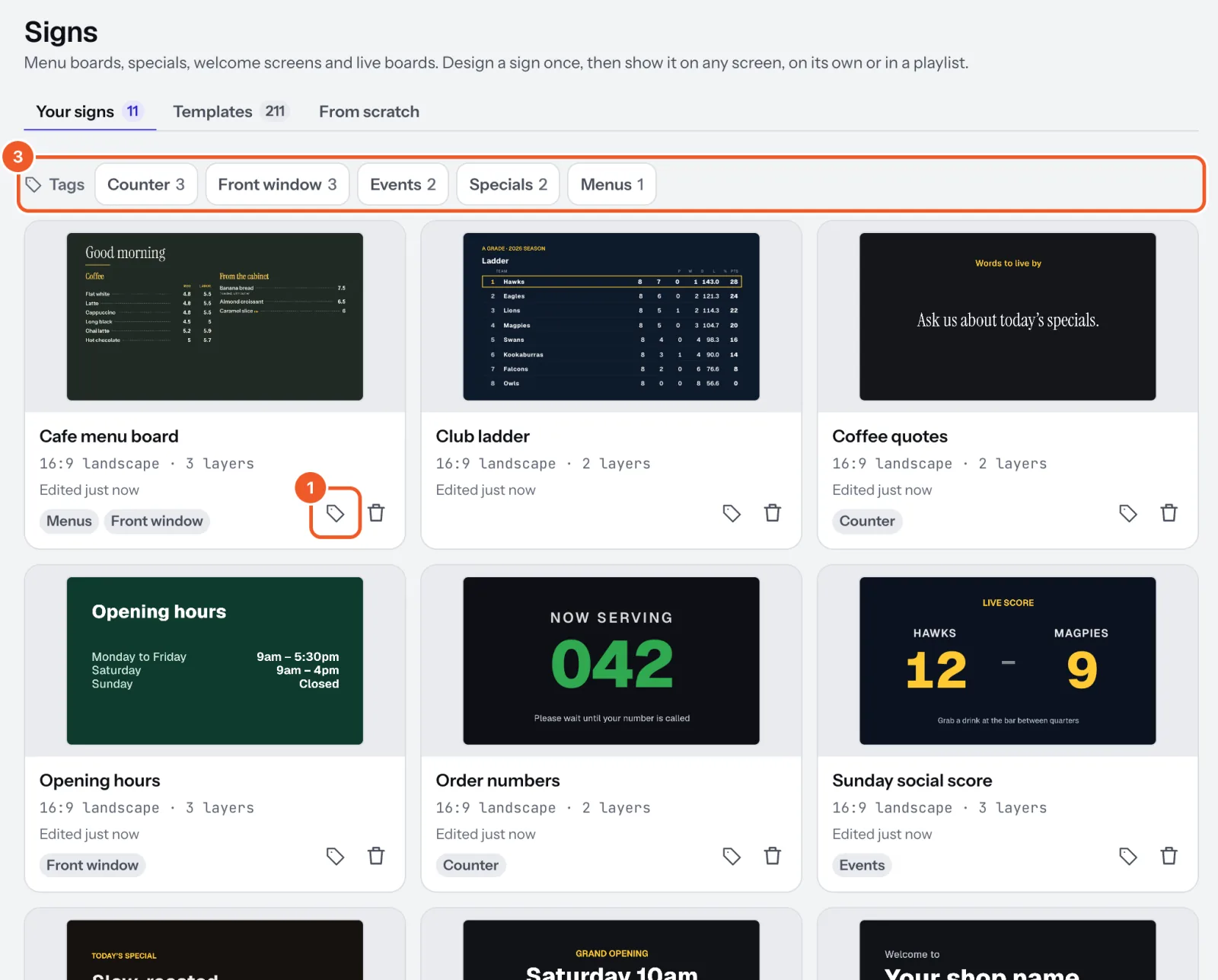
- In Signs, press the tag on a sign’s card.
- Add tags such as Specials, Menus or Front window in Name and tags and press Save.
- Your tags line up above Your signs under Tags. Click one to see only those signs; the same tags filter signs in Add to playlist.
Deleting:
- To delete, open Signs and press the bin on the sign’s card.
- If it’s in any playlists, Dislab lists them: deleting takes it out of them, and screens stop showing it at their next check-in.
- Press Delete sign (or Remove from playlists and delete). This can’t be undone.
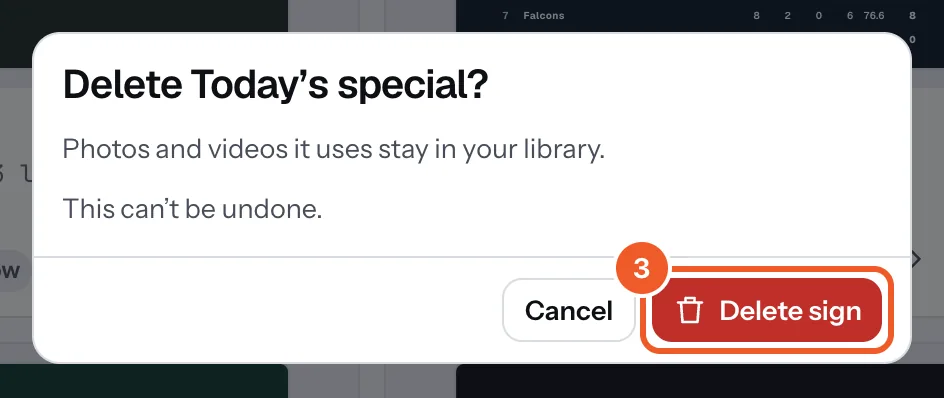
Photos and videos the sign used stay in Media.
Thanks for telling us. If something’s missing, tell us what and we’ll add it.
Still stuck?
Email support@dislab.app, or send us a message. If it’s about a screen, tell us its name. We answer within one business day.