
Create your account
Every planSign up with your business name, email and time zone. Free covers one screen, with no card needed.
- Go to app.dislab.app/signup, or press Start free on dislab.app. A phone is fine: you can do the whole setup standing at the TV.
- Type your Business name (it’s what Dislab calls your account, and you can change it later), your Email and a Password of at least 10 characters.
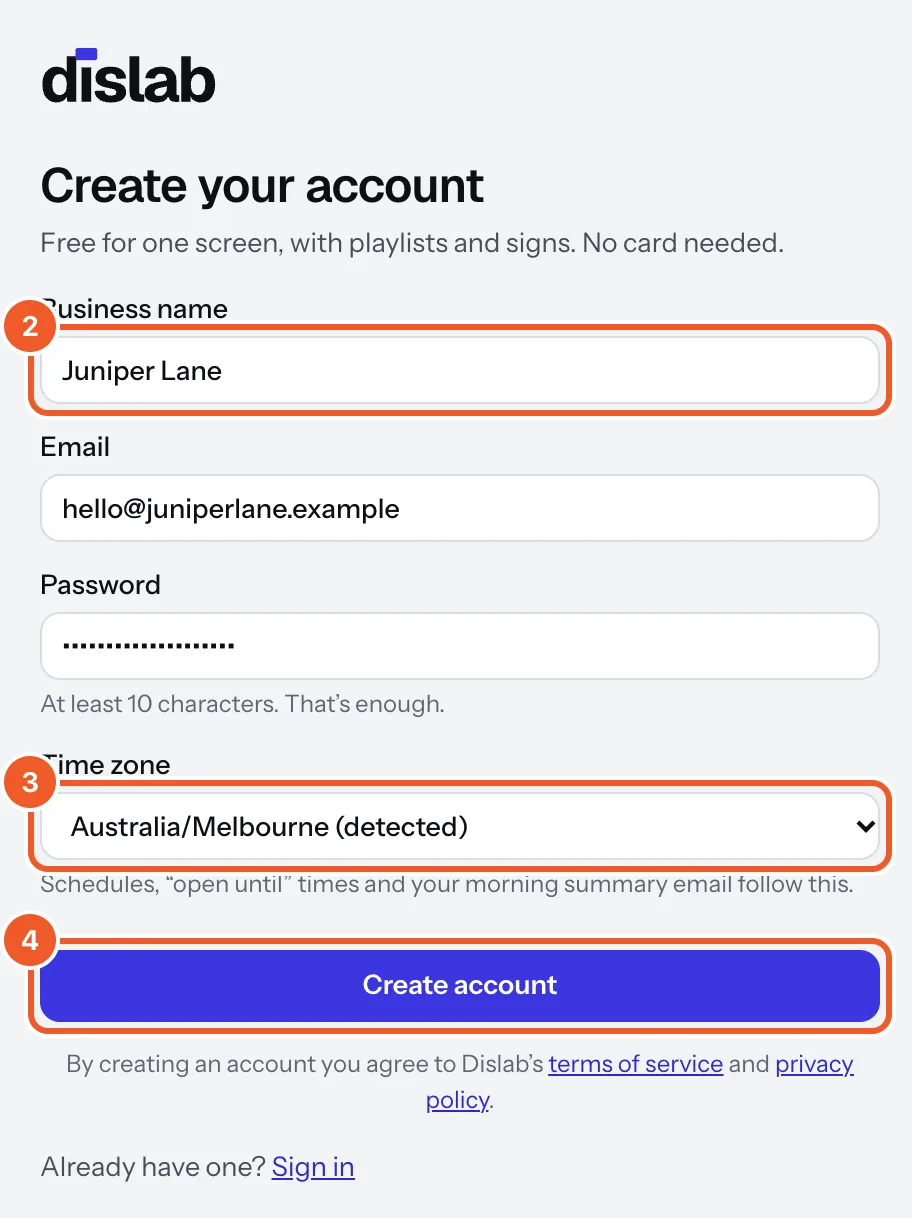
- Check the Time zone. Dislab picks up your computer’s and marks it “(detected)”. Clocks, schedules, opening hours and the morning summary email follow it; each location can have its own later.
- Press Create account.
- If Dislab says Check your email, open the link it sent you, then sign in. Your business name and time zone are kept, so there’s nothing to type again.
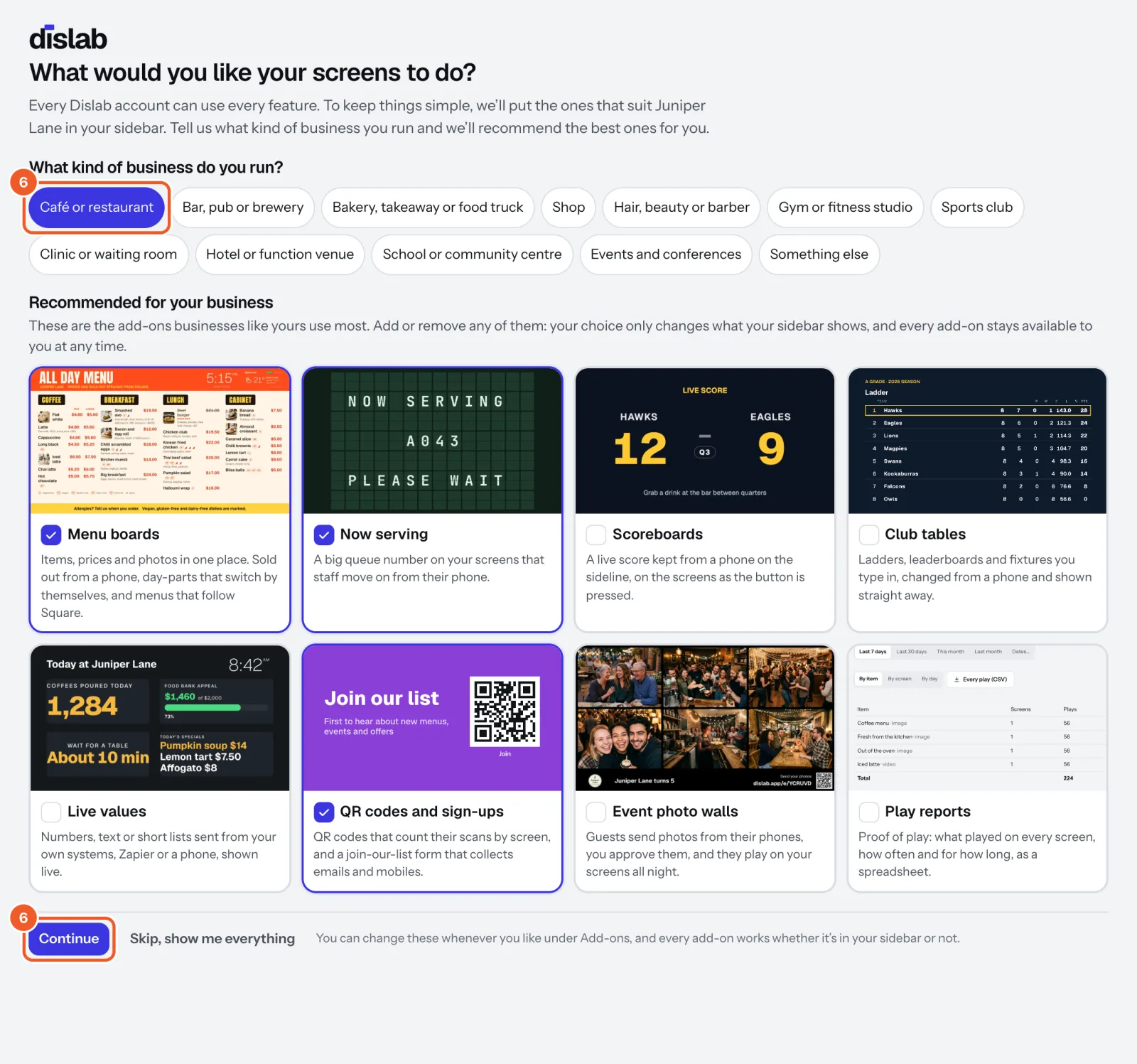
- Dislab asks What would you like your screens to do? Choose the kind of business you run and Dislab recommends the add-ons businesses like yours use most. They’re only recommendations: add or remove any of them, then press Continue, or Skip, show me everything to list them all. Your choice only decides what your sidebar shows. Every add-on stays available to you, and you can change your choice whenever you like (see Add-ons).
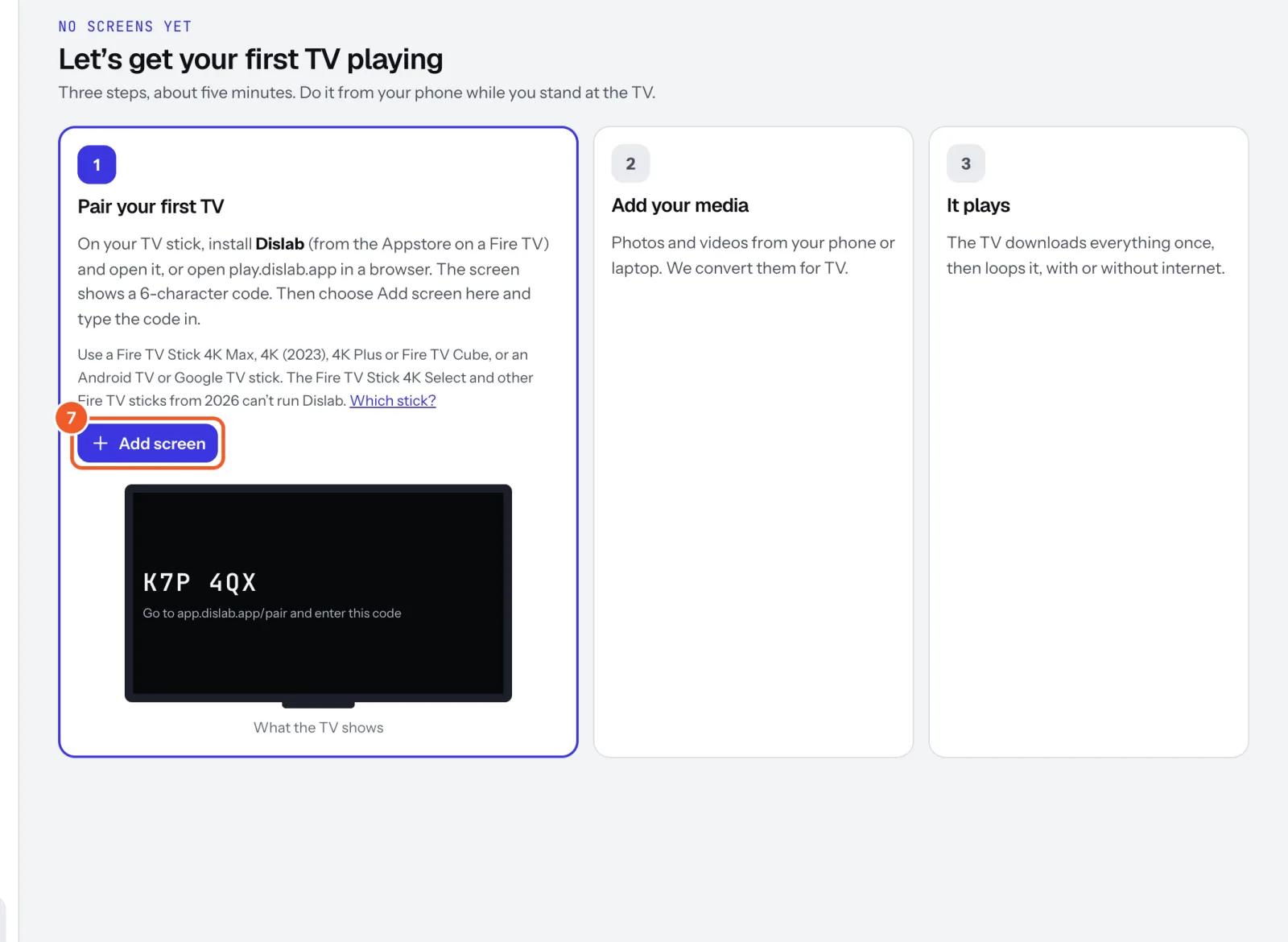
- You land on Let’s get your first TV playing. Press Add screen when your TV shows a code (see Set up a Fire TV stick).
Your country is set from your time zone, and decides the currency Pro is priced in. Check it in Settings under Country.
You start on Free: one screen, one location, 300 MB of storage and a small “Powered by dislab.app” badge in the corner. Move to Pro whenever you like: see Plans.
Next time, sign in at app.dislab.app with your password, or press Email me a sign-in link. See Signing in and your password.
Thanks for telling us. If something’s missing, tell us what and we’ll add it.
Still stuck?
Email support@dislab.app, or send us a message. If it’s about a screen, tell us its name. We answer within one business day.