
Finding, naming and tagging files
Every planRename files, tag them (Specials, Winter...), and filter Media by tag, videos, photos or problems.
- In Media, use the buttons above your files to show Videos or Photos only, or everything. When a file has failed, a button shows how many problems there are.
- On the right, Large, Medium and Small change the size of the tiles. Small fits about ten across, with just the picture and the name: click one for its details, where you can rename, tag, download or delete it. Media remembers your choice on that computer.
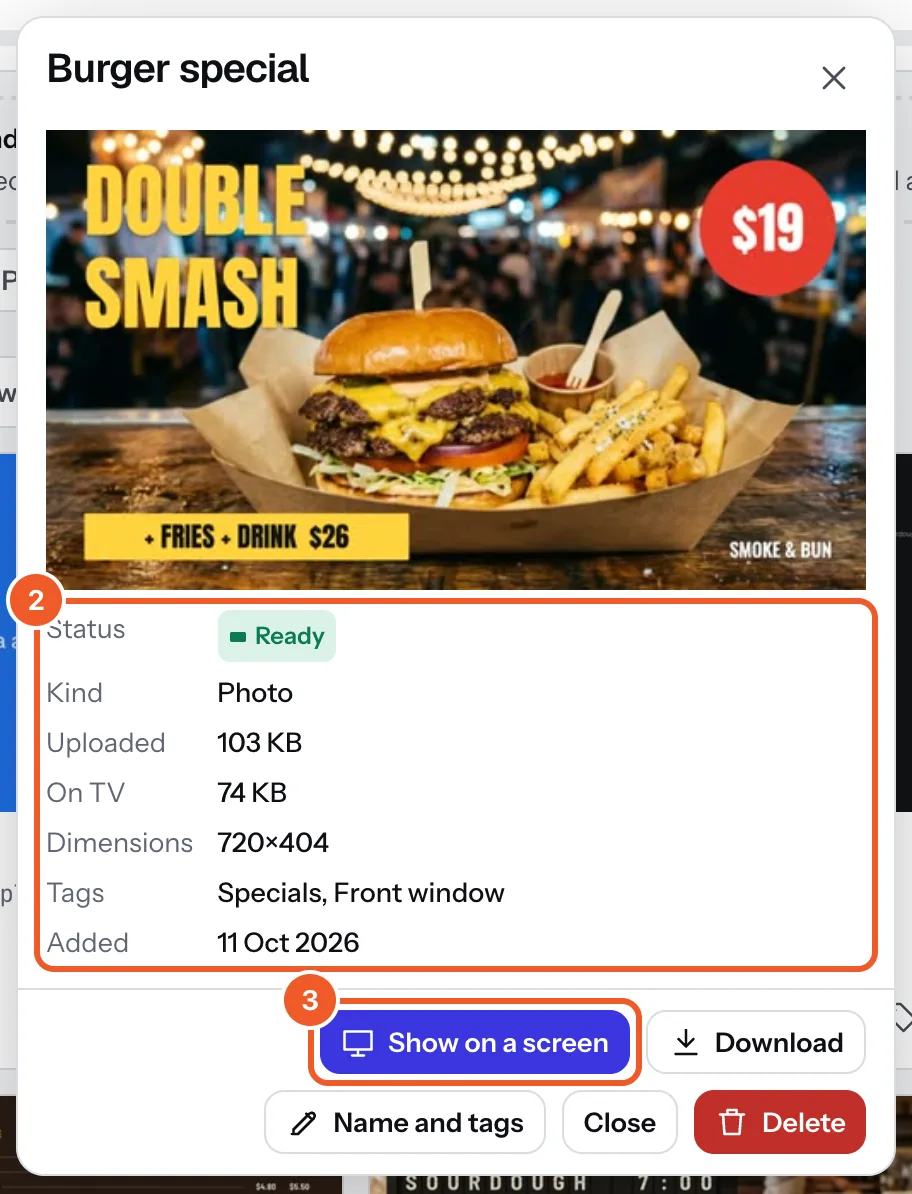
- Click a file to open it. You see its Status, Kind, the size you Uploaded, the size of the copy that goes On TV (which counts toward storage), its Dimensions, a video’s Length, and when it was Added.
- From here, Show on a screen, Download, Name and tags or Delete it.
Renaming and tagging:
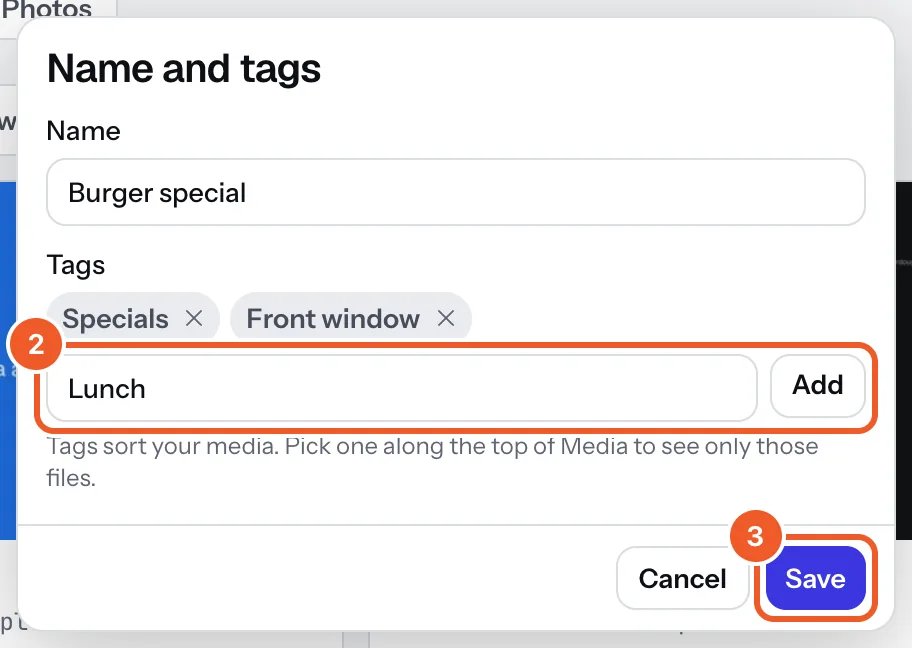
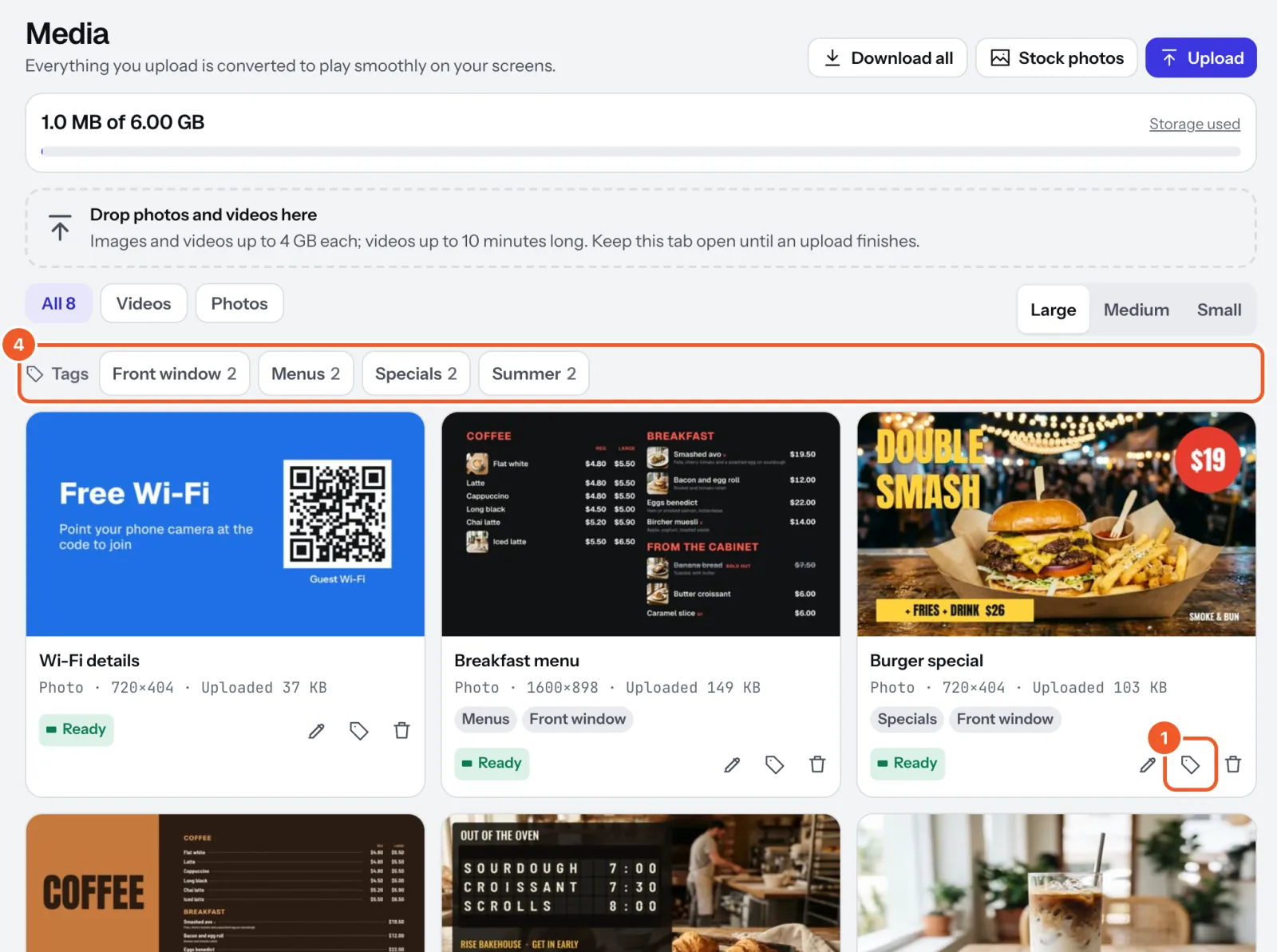
- Under a file, press the pencil to rename it, or the tag to tag it. Both open Name and tags.
- Type a tag such as Specials, Winter or Front window and press Enter or Add. Tags you’ve used before show underneath: click one to add it. Up to 10 tags on each file, 24 letters each.
- Press Save.
- Your tags line up along the top of Media under Tags, each with how many files carry it. Click one to see only those files (with Videos or Photos too, if you like); click it again or press Show all to see everything.
To use a file somewhere else, pick it there: in a playlist, a sign, or a screen’s What it plays.
Thanks for telling us. If something’s missing, tell us what and we’ll add it.
Still stuck?
Email support@dislab.app, or send us a message. If it’s about a screen, tell us its name. We answer within one business day.