
The Screens page
Every planEvery TV by location, whether it’s online, and what it plays. Search, filter and switch from here.
Screens lists every paired TV, grouped by location. Each row shows its name, Online or Offline (and since when), what it plays, its tags, and how it’s mounted if it isn’t landscape.
- Type in the search box to find a screen by its name, location, tags or what it plays. With more than one location, the box beside it shows one location. Once screens have tags, they line up under Tags: click one to see only those screens, or Show all.
- Press Offline to see only the screens that haven’t checked in for 12 minutes or more; All shows them all again.
- Click a screen’s name to open its page: what it plays, its settings and its controls.
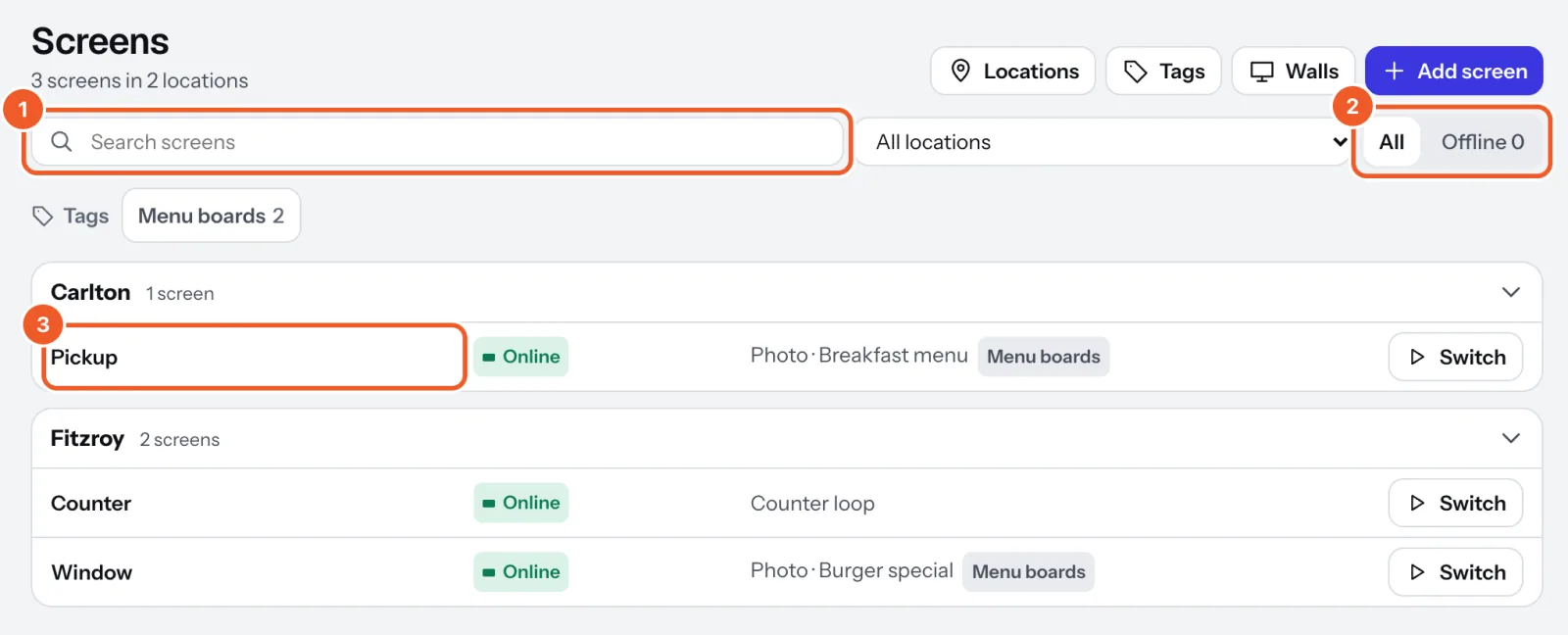
Click a location’s name to fold its screens away. Switch on a row changes what that screen plays without opening it (see Switching what a screen plays). At the top, Tags, Walls and Add screen lead to their own pages.
If a screen hasn’t checked in for a long time, a red note at the top warns that it will stop playing soon; See which opens Health.
Thanks for telling us. If something’s missing, tell us what and we’ll add it.
Still stuck?
Email support@dislab.app, or send us a message. If it’s about a screen, tell us its name. We answer within one business day.