
Tracked QR codes: count your scans
ProEvery scan counted by day and by screen, and the link can change without changing the code.
- Open QR codes. Under Name say where it will be (“Flyer on the counter”), under Opens give the web address it should open, and press Make a QR code.

- On a sign, add a QR code widget, choose Tracked link and pick the code (QR code widget).
- Press the code’s name in QR codes to see its scans: a bar for each of the last 30 days, and which screen they came from. Change sends it somewhere else from now on.
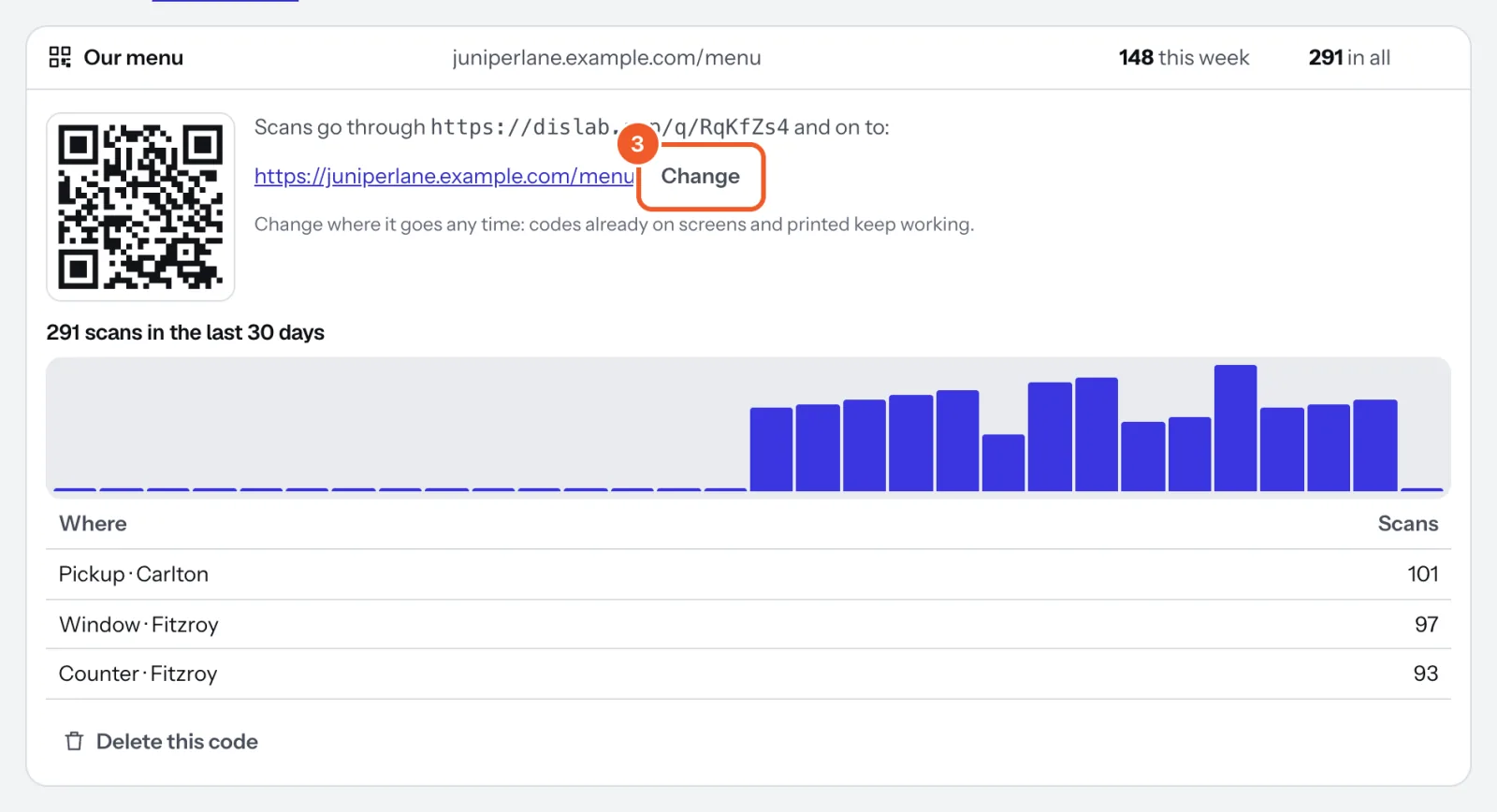
Each code points at a short dislab.app/q/… link, so changing where it goes never needs a new code, on screens or printed. The list shows scans this week and in all. You can print the code shown here too; those scans count as “Not from a screen”.
Delete this code stops it everywhere: a scan then says the code isn’t in use.
Thanks for telling us. If something’s missing, tell us what and we’ll add it.
Still stuck?
Email support@dislab.app, or send us a message. If it’s about a screen, tell us its name. We answer within one business day.