
Events: guests’ photos on your screens
ProFor a party or a night out: guests send photos from their phones, you approve them, and they play on your screens.
Open Events, type a name under New event (“Sam’s 40th”) and press Make it. Then, on the event’s page:
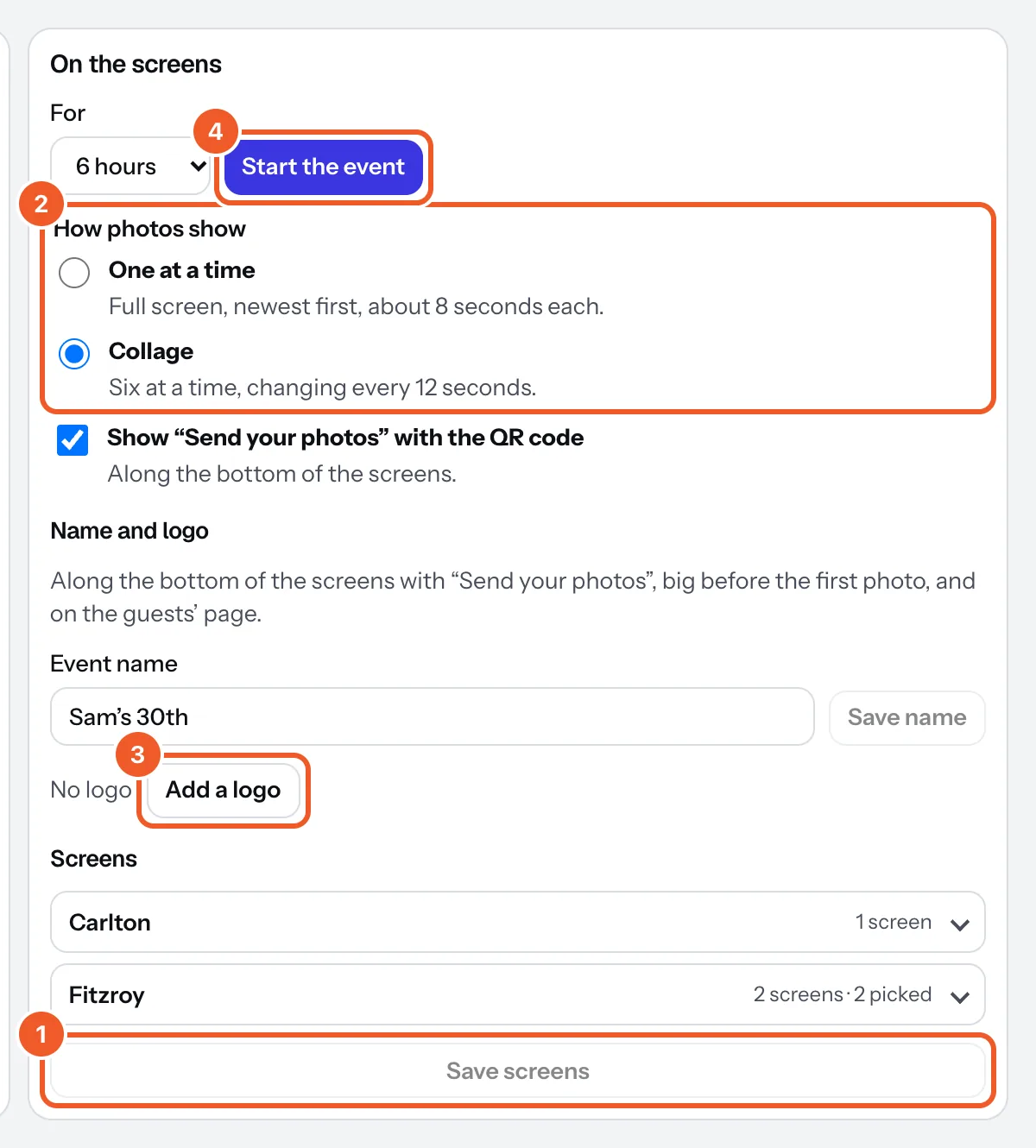
- Under Screens, tick the screens for the event and press Save screens.
- Under How photos show, choose One at a time (full screen, newest first) or Collage (six at a time). Show “Send your photos” with the QR code puts the code along the bottom of the screens.
- Under Name and logo, press Add a logo and pick a photo from your Media. The logo and the event’s name show along the bottom of the screens, big before the first photo, and on the guests’ page.
- Choose how long under For and press Start the event. Its screens switch to the event within seconds, until you press End the event now or the time runs out; then they go back to what they were showing.
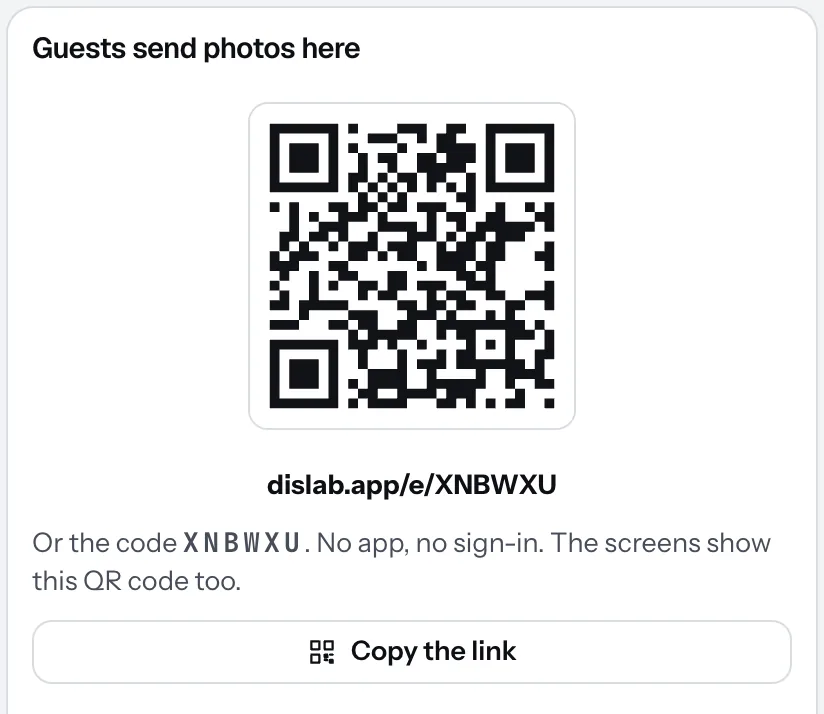
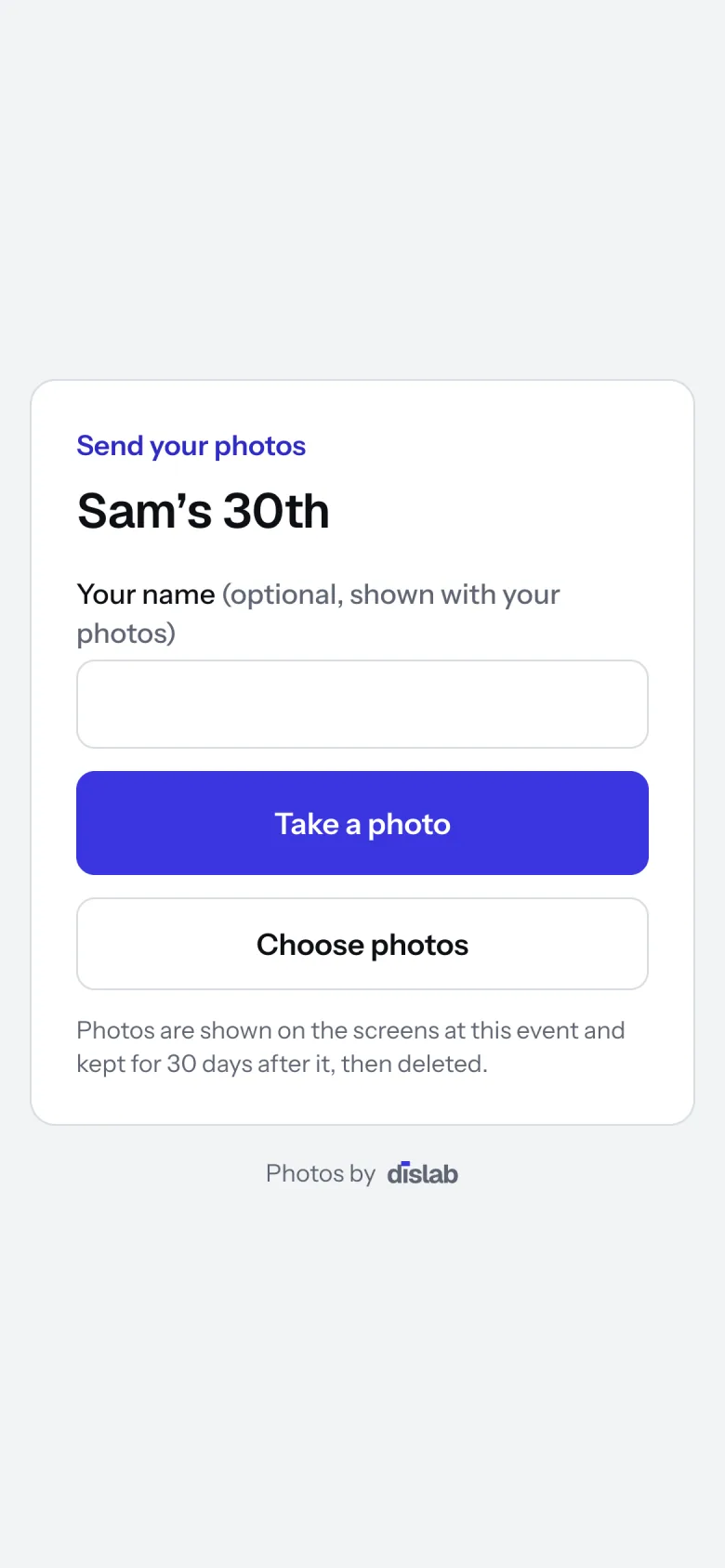
Guests scan the QR code on the screens or open the link (dislab.app/e/ and the event’s code). No app and no sign-in: they add their name if they like, then Take a photo or Choose photos. Copy the link puts the address on your clipboard to send round before the night.
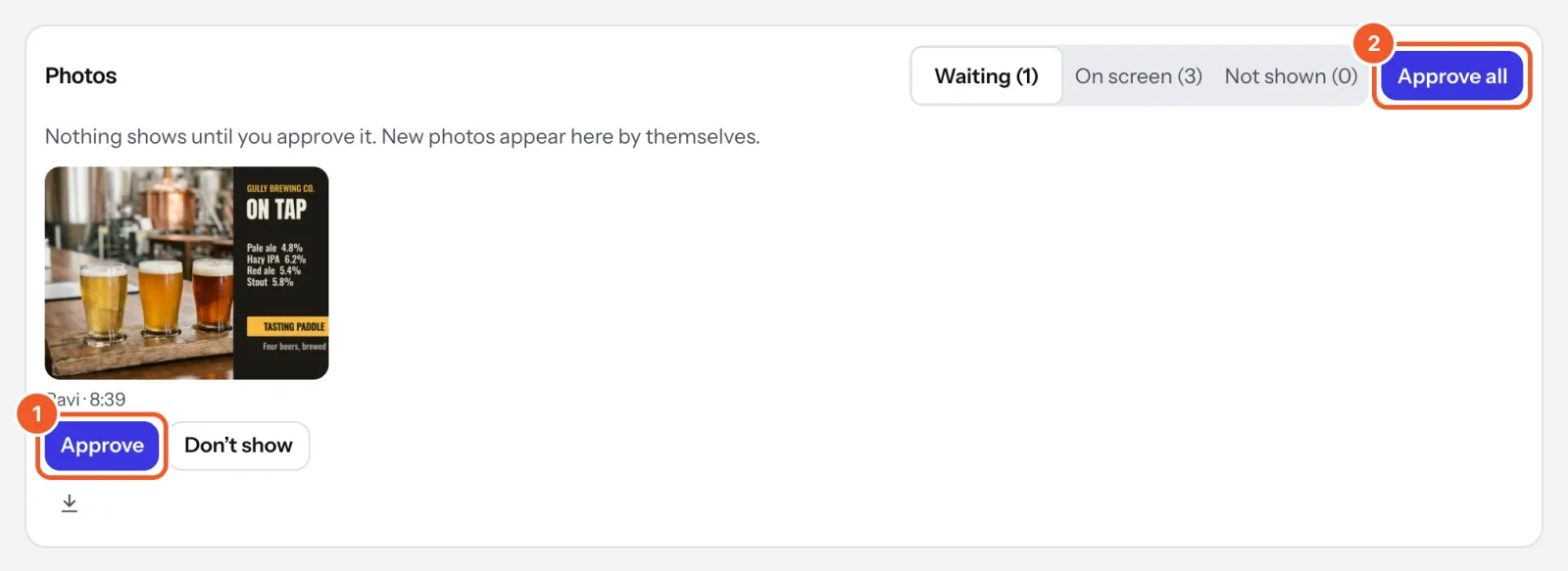
Nothing shows until you approve it. New photos appear under Waiting by themselves:
- Press Approve to put a photo on the screens, or Don’t show.
- Approve all approves everything waiting.
On screen lists what’s playing; Take off removes one. With phone notifications on, your phone tells you when photos are waiting. Staff with their own login (People in your account) can approve them too.
Event photos don’t count toward your storage. Download any with the arrow under it. They’re kept for 30 days after the event ends, then deleted; Delete this event deletes it and its photos at once.
Thanks for telling us. If something’s missing, tell us what and we’ll add it.
Still stuck?
Email support@dislab.app, or send us a message. If it’s about a screen, tell us its name. We answer within one business day.