
Getting changes onto a screen
Edits to signs and playlists go live when you save; what a screen plays waits for Publish to screen.
- Edit a sign or playlist and save: every screen showing it updates within a second or two.
- Change what a screen plays, or how it’s mounted, on the screen’s page: it stays a draft (the preview says Draft: not on the TV yet) until you press Publish to screen. Revert throws the draft away. To switch in one tap instead, use Switch on the Screens list (see Switching what a screen plays).
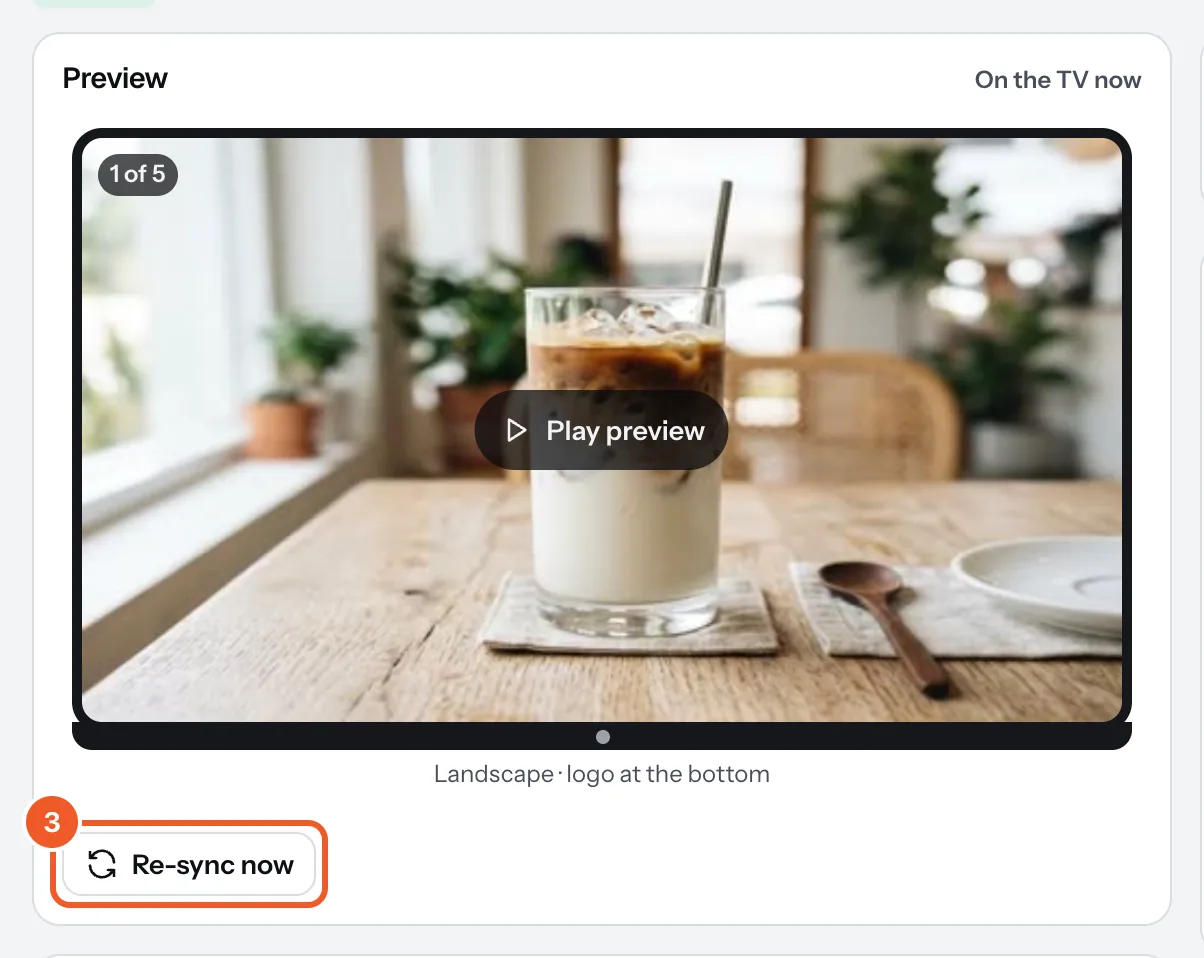
- Check the TV has it: Re-sync now on a screen’s page asks that TV to check in straight away, and says The TV checked in and has the latest. or that it didn’t answer.
A screen downloads everything before it switches to new content; the TV shows Getting your screen ready the first time. After that it switches without a gap.
No internet? A screen keeps playing what it has if the connection drops, with clocks, schedules and opening hours still running. It catches up when it’s back online. Without internet it can keep going until your plan’s renewal date plus 3 days.
Thanks for telling us. If something’s missing, tell us what and we’ll add it.
Still stuck?
Email support@dislab.app, or send us a message. If it’s about a screen, tell us its name. We answer within one business day.