
Downloading and deleting files
Every planDownload one file or everything at once; deleting a file in use asks first and takes it off those screens.
One file: open it in Media and press Download. For 30 days after upload you get the file you uploaded; after that, the copy your screens play.
Everything at once:
- In Media, press Download all.
- Press Prepare download. Dislab packs every photo and video into a zip file (several, if it’s over 2 GB). It takes a minute or two; you can close the box and come back.
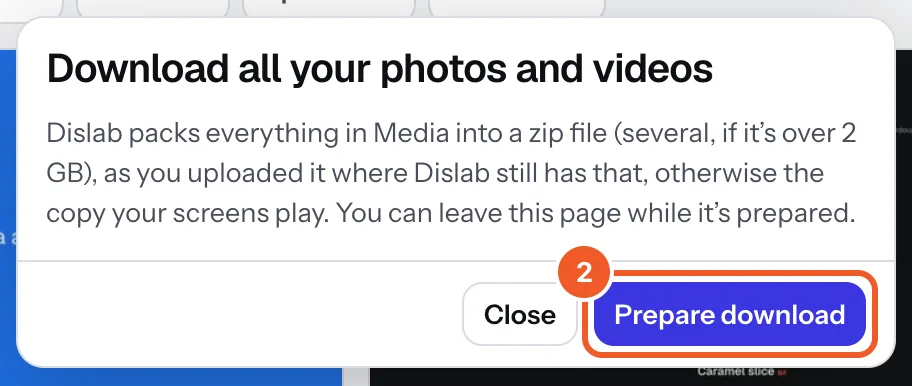
- When it’s ready, press Download beside each part. The files stay ready for 7 days. You can prepare 5 downloads a day.
Deleting a file:
- Press the bin under the file, or open it and press Delete. Press Delete again to be sure; a file nothing uses then goes straight away.
- If a playlist, sign, screen or event uses it, Dislab lists them instead.
- Those screens stop showing it at their next check-in: it comes out of playlists, and a screen showing it on its own shows nothing.
- Press Delete anyway, or Cancel to keep it.
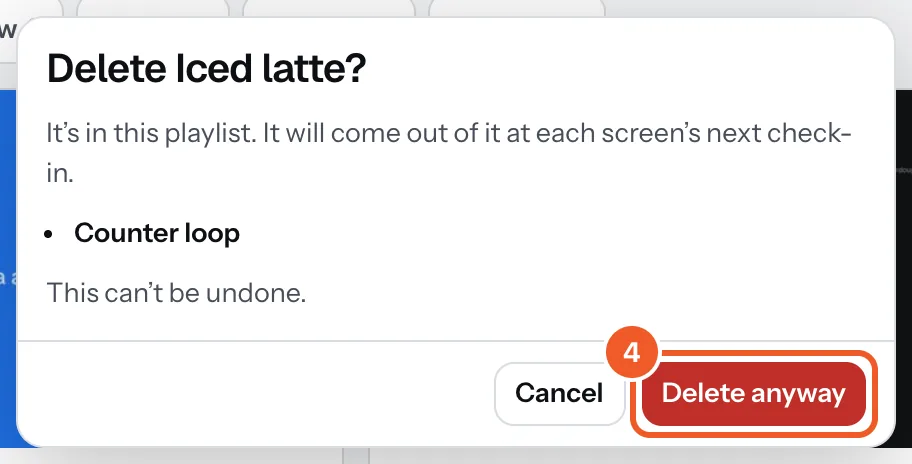
Deleting can’t be undone, and frees its storage at once.
Thanks for telling us. If something’s missing, tell us what and we’ll add it.
Still stuck?
Email support@dislab.app, or send us a message. If it’s about a screen, tell us its name. We answer within one business day.