
Time zones and country
Clocks, schedules and day-parts use the screen’s location time zone, or the account’s; your country sets Pro’s currency.
- In Settings › Account, choose the Time zone. Each choice shows the time there now, so you can check it. It saves when you choose.
- Choose your Country: Pro is priced in its currency until a plan starts.
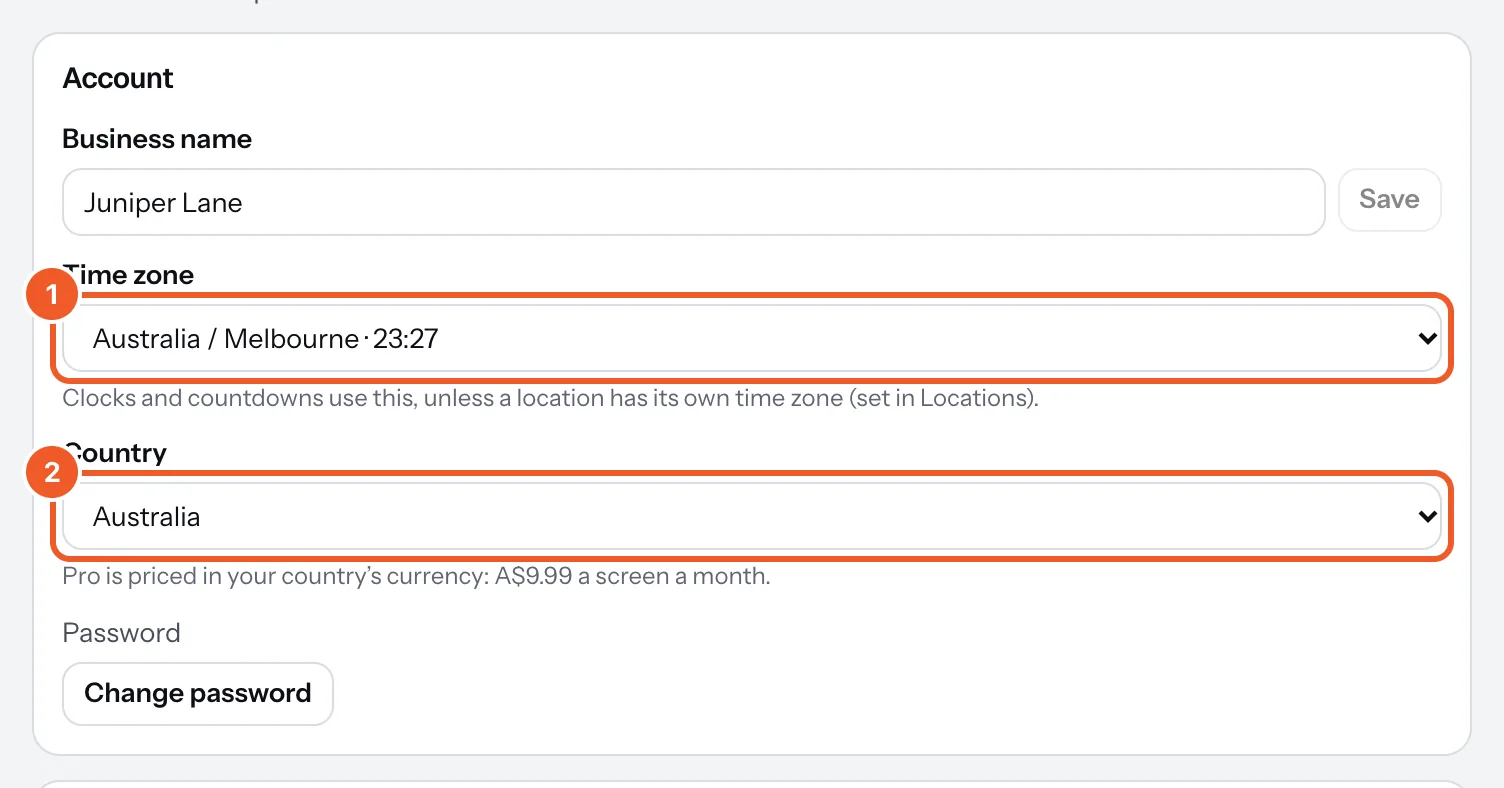
The account’s time zone is used everywhere unless a location has its own (Locations › Time zone). Clocks, schedules, day-parts, markdowns and opening hours on a screen all follow its location’s time zone.
Screens pick up a change within seconds and keep the last one if they restart offline. The TV’s own clock setting doesn’t matter.
Thanks for telling us. If something’s missing, tell us what and we’ll add it.
Still stuck?
Email support@dislab.app, or send us a message. If it’s about a screen, tell us its name. We answer within one business day.