
Nothing assigned yet, or nothing playing
The screen has nothing to play, isn’t paired, or needs the internet once to download.
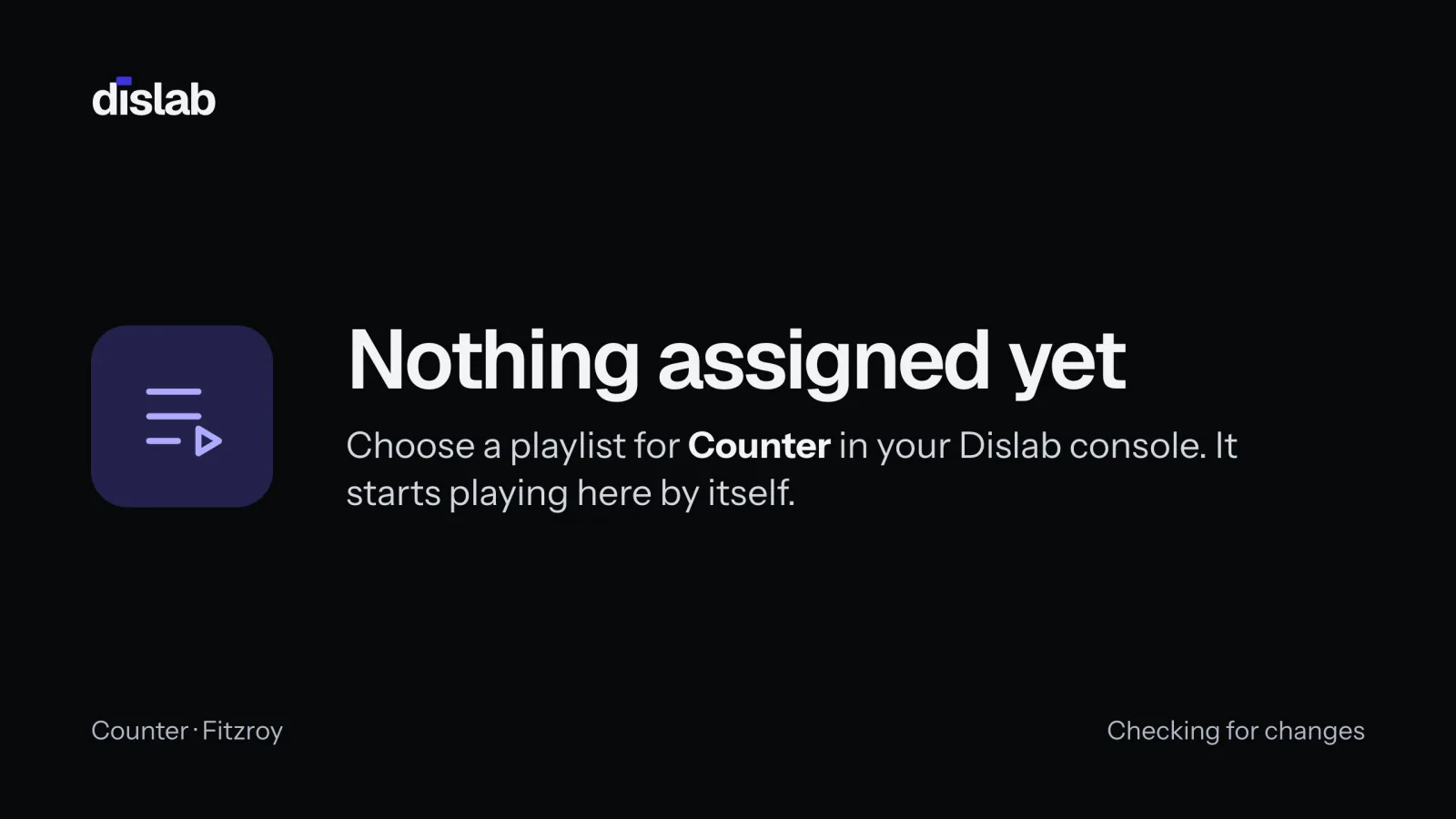
- Nothing assigned yet (on Troubleshoot, Nothing to play): open the screen in Screens, choose what it plays and press Publish. It starts within seconds. See Showing a photo or video on a screen.
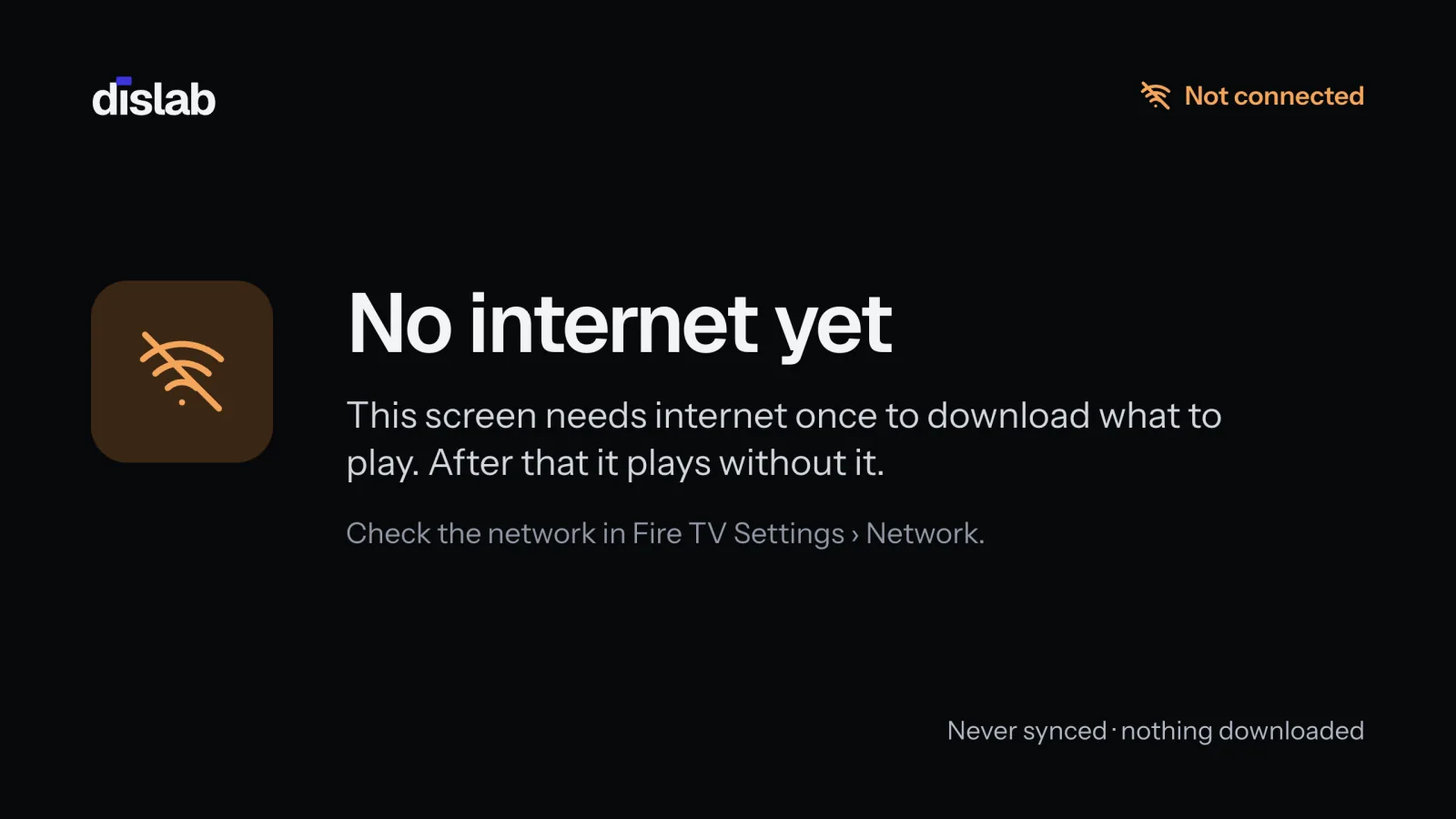
- No internet yet (on Troubleshoot, Waiting for the internet): a new TV needs the internet once to download what to play. After that it plays without it. See No internet.
- Not paired: the TV shows a pairing code. Enter it under Add screen in Screens: see Pairing a TV.
- Nothing playing: press Check for updates. If it stays blank, check what the screen plays on its page, and that its playlist has items whose schedules and weather rules allow them now.
- Stopped: stopped by the subscription check: see can’t confirm your subscription or Subscription paused.
A black screen with no Dislab at all: check the TV is on the stick’s HDMI input, the stick has power (use its own power adapter, not the TV’s USB port), and Dislab is open. After hours, a screen set to go black does so on purpose: see After hours.
Thanks for telling us. If something’s missing, tell us what and we’ll add it.
Still stuck?
Email support@dislab.app, or send us a message. If it’s about a screen, tell us its name. We answer within one business day.