
Scheduling: what plays when
Every planGive any playlist item days, times or dates: breakfast in the morning, a sale for November only.
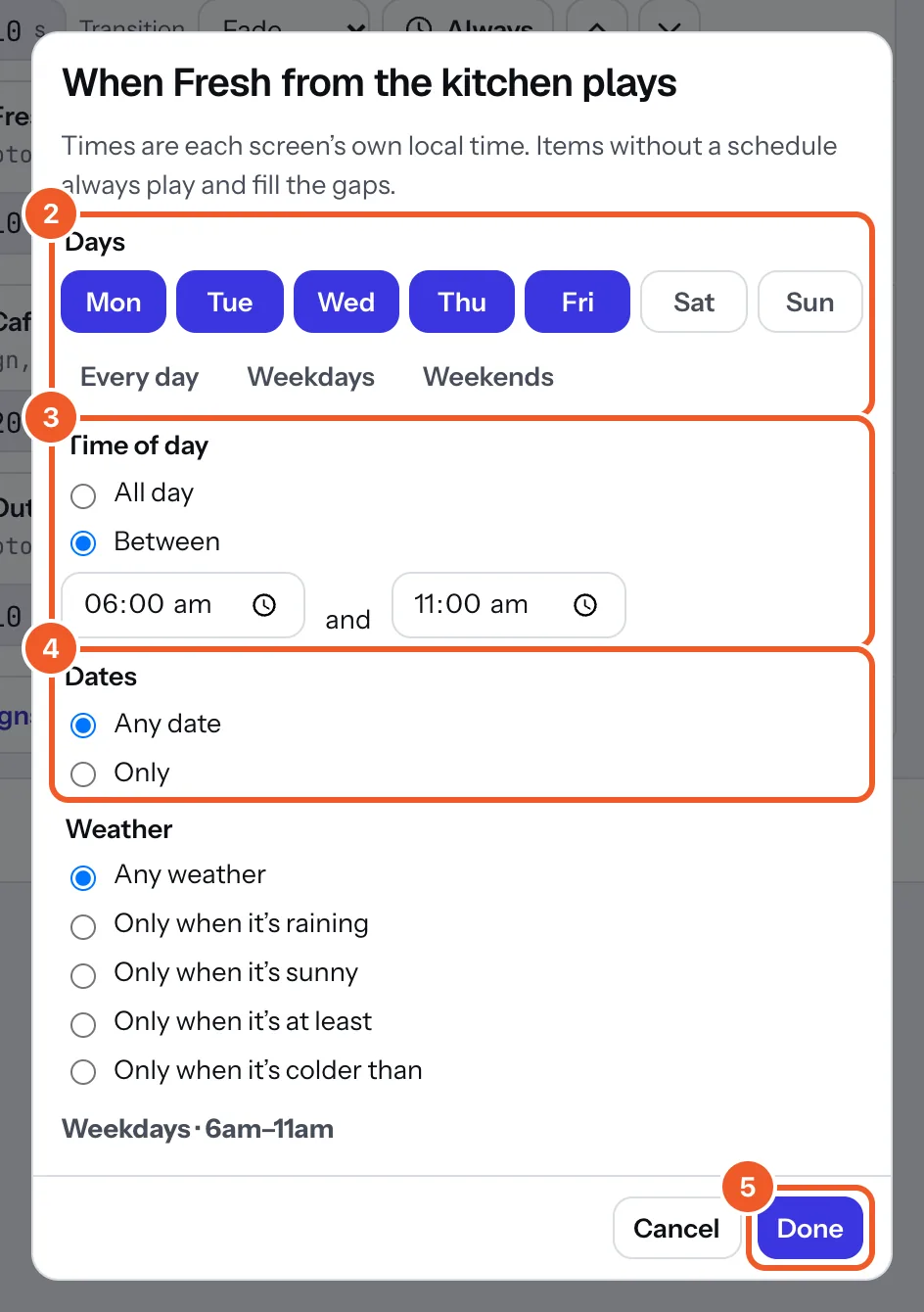
- In a playlist, press Always on the item. A box opens saying when that item plays.
- Days: tap days on or off, or press Every day, Weekdays or Weekends.
- Time of day: All day, or Between two times.
- Dates: Any date, or Only from one date until another. Leave one empty for “from a date” or “until a date”; both days count.
- Check the summary in bold at the bottom (“Weekdays · 6am–11am”), press Done, then Save the playlist.
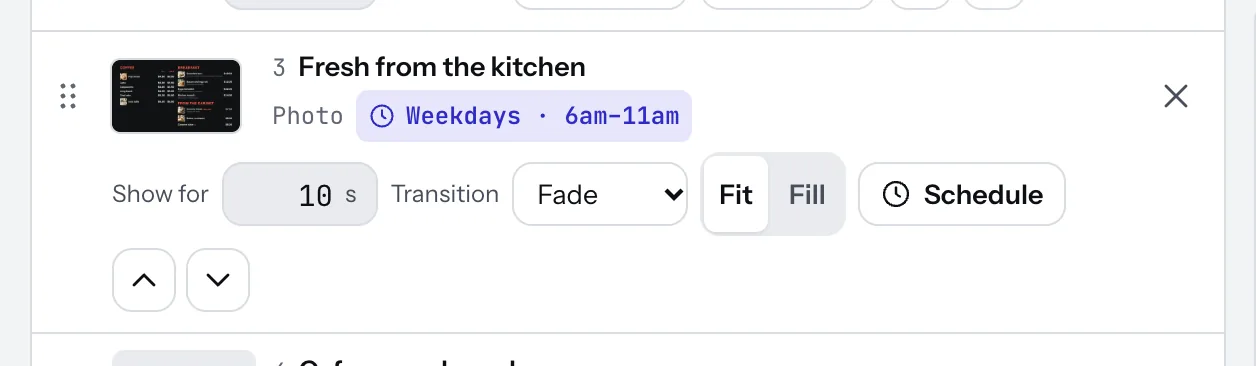
The item’s row then shows its schedule, and its button says Schedule. To go back to always, open it and press Always play.
- Items with no schedule always play and fill the gaps. If every item has a schedule and none is on, the screen goes dark until one is: keep at least one item on Always.
- Times are each screen’s own local time (its location’s time zone), so one playlist works across time zones.
- A time window can run past midnight: Friday 8pm–2am counts as Friday night.
- Screens decide what’s on by themselves, so schedules keep working without the internet.
Thanks for telling us. If something’s missing, tell us what and we’ll add it.
Still stuck?
Email support@dislab.app, or send us a message. If it’s about a screen, tell us its name. We answer within one business day.