
People in your account
Invite managers, editors and staff, each with their own login and only the pages their role needs. As many as you like, on every plan.
Every account has one Owner: the person who made it. Invite everyone else with their own login, so nobody shares a password, and give each the role they need:
- Manager: everything except billing, API keys, webhooks, connected apps, downloading all your media and deleting the account. Can invite editors and staff.
- Editor: what the screens show: media, signs, playlists, menus, schedules, tags and Show it now, plus QR codes, events and play reports. Not pairing or setting up screens, locations, walls, people or contacts.
- Staff: only the phone pages: sold out, queue numbers, scores, live values, club tables and event photos. Staff open Dislab on Menus and can mark sold out but not change the menu.
To invite someone (the owner or a manager):
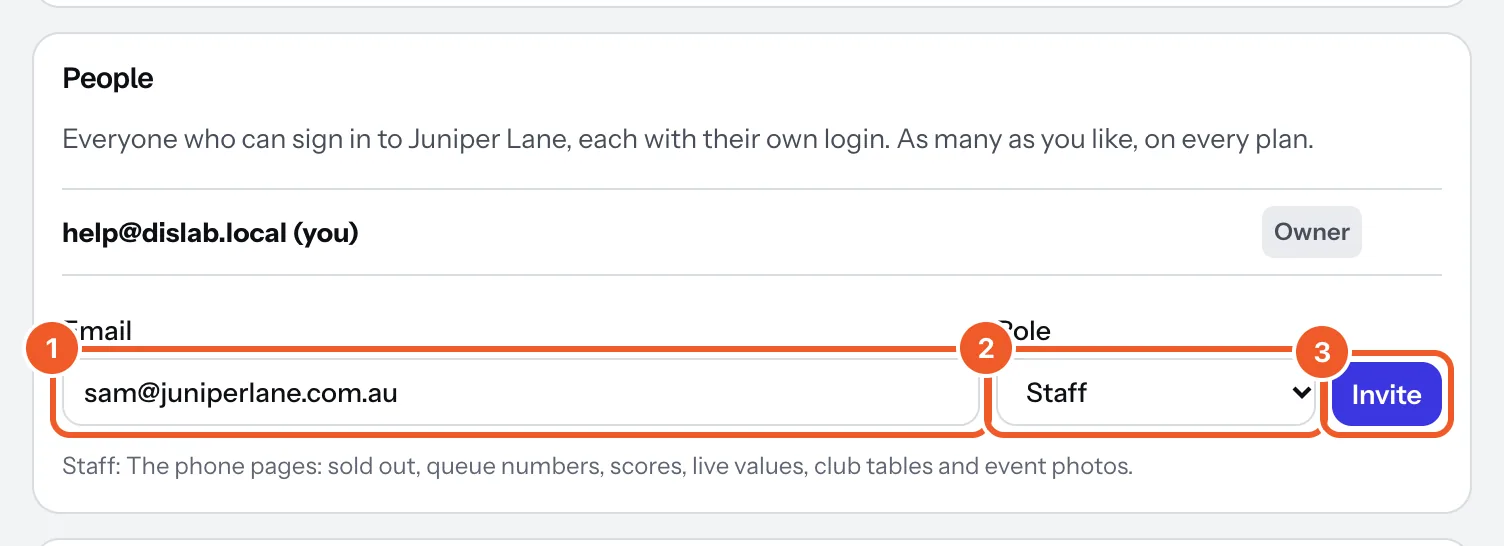
- In Settings › People, type their Email.
- Choose their Role. The line underneath says what it can do.
- Press Invite. Dislab emails them a link that works for 7 days; it also shows the link, with Copy, to send another way.
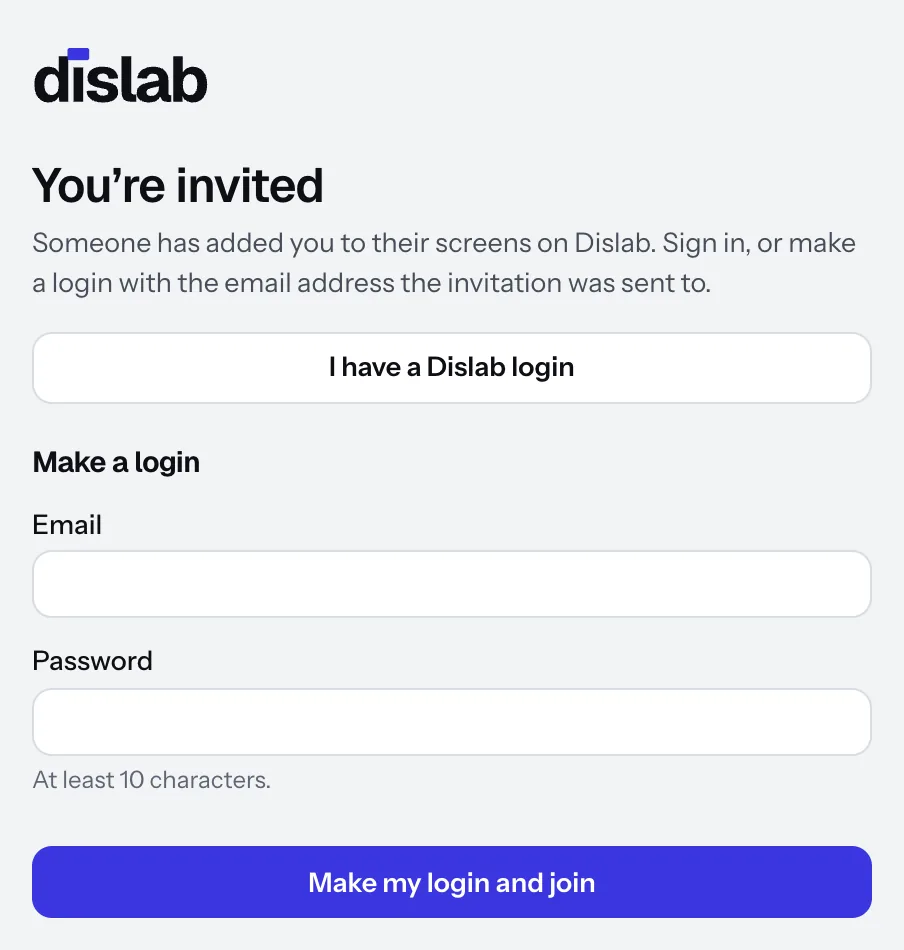
- They open the link and sign in with I have a Dislab login, or make one with Make my login and join, using the address you invited. Then they’re in.
Until then they’re listed as Invited, with the date it runs out; the cross withdraws it, and inviting the same address again sends a new link. To change someone’s role, choose another next to their name; the bin removes them. Their login stays, but they can no longer reach your account. A manager can change and remove editors and staff; only the owner can for managers.
Alerts and phone notifications about screens go to the owner. Up to 100 people and invitations per account.
In more than one account? One login can be in several businesses’ accounts. Your accounts in Settings lists them; press Switch to work in another. To leave an account you were invited to, press Leave and its name at the bottom of Settings.
Thanks for telling us. If something’s missing, tell us what and we’ll add it.
Still stuck?
Email support@dislab.app, or send us a message. If it’s about a screen, tell us its name. We answer within one business day.