
After hours: what a screen does when you’re closed
Every planKeep playing, go black, show a closed sign, or switch the TV off, by your opening hours.
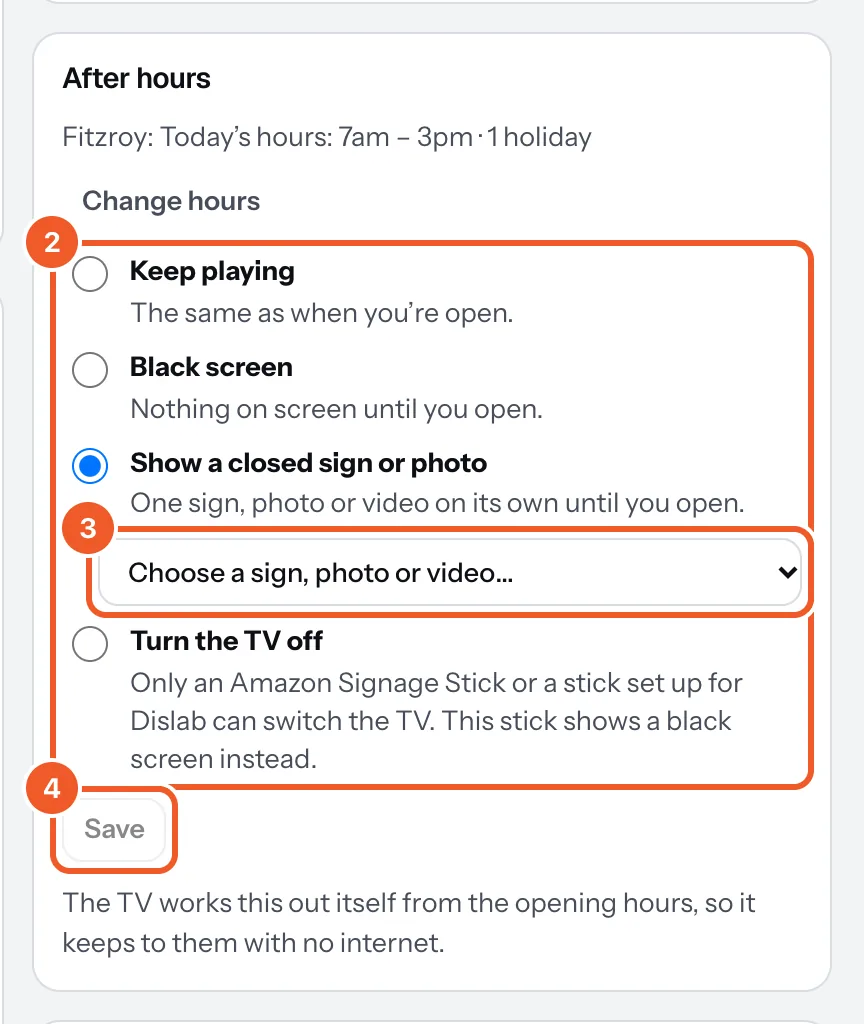
- Open the screen in Screens and find After hours. If its location has no opening hours yet, press Set opening hours first (see Opening hours); Change hours edits them later.
- Choose what it does while you’re closed:
- Keep playing (the default).
- Black screen until you open.
- Show a closed sign or photo, such as your hours (Pro).
- Turn the TV off: an Amazon Signage Stick or a stick set up for Dislab switches the TV off at closing and on at opening. Other sticks, and TVs that don’t accept it, show black instead.
- For a closed sign or photo, choose it from the list (Choose a sign, photo or video).
- Press Save. The TV picks it up in a few seconds.
The TV keeps to your hours by itself, even offline. A session past midnight counts as the day it started, and holidays set on the location follow their own hours, or count as closed.
Thanks for telling us. If something’s missing, tell us what and we’ll add it.
Still stuck?
Email support@dislab.app, or send us a message. If it’s about a screen, tell us its name. We answer within one business day.